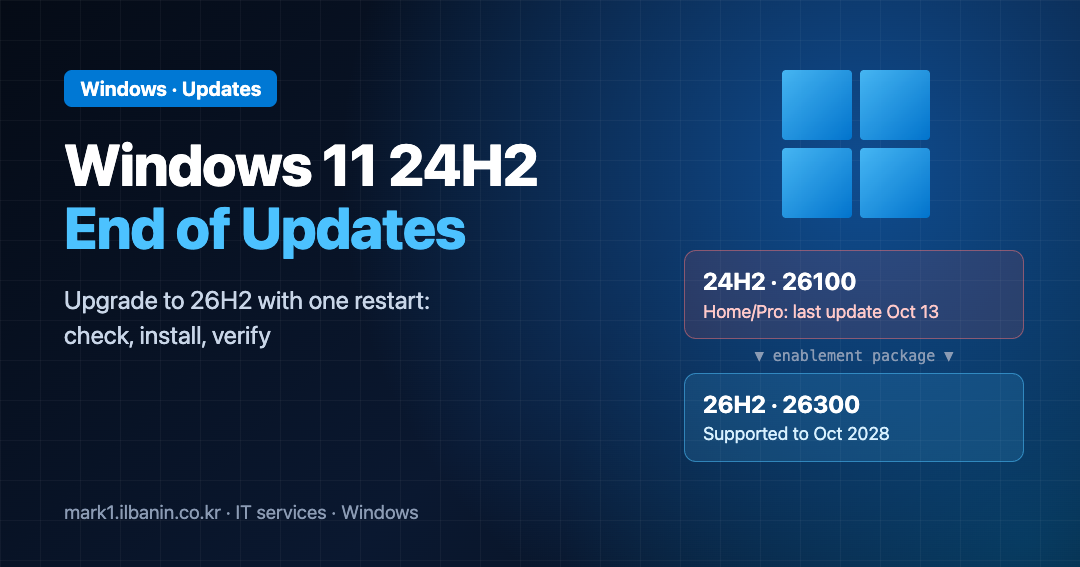
Windows 11 24H2 end of updates arrived on October 13, 2026 for Home and Pro, so those PCs get no patches on the next Patch Tuesday, November 10. Run winver: if the build starts with 26100, open Settings > Windows Update and install 26H2, a small download and one restart that is supported until October 10, 2028. Enterprise and Education editions of 24H2 have until October 12, 2027.
Updated: October 31, 2026
This guide covers the date table, the check commands, the upgrade steps, what to do when 26H2 is not offered, and fixes for eight common update errors. Facts come from Microsoft's release health pages and KB articles, checked on October 31, 2026.
Windows 11 24H2 end of updates: dates for every version
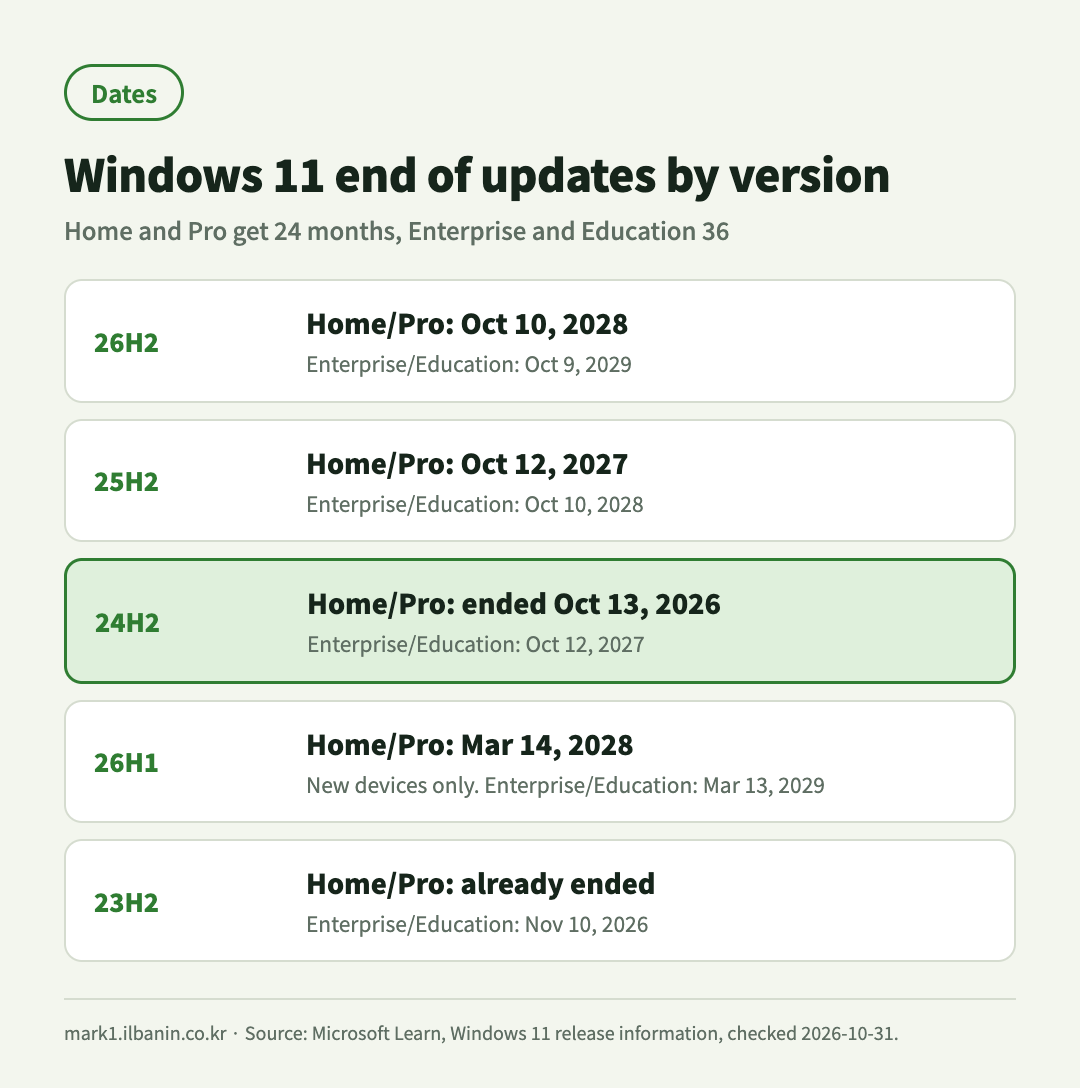
Microsoft's message center entry from October 13, 2026 says that Windows 11 24H2 Home and Pro "have reached end of updates" and that the October 2026 monthly security update is the last update for these editions. Your PC keeps working. It just stops getting monthly security fixes and non-security preview updates.
| Version | Latest build (Oct 31, 2026) | End of updates: Home/Pro | End of updates: Enterprise/Education |
|---|---|---|---|
| 26H2 | 26300.9818 | 2028-10-10 | 2029-10-09 |
| 25H2 | 26200.9818 | 2027-10-12 | 2028-10-10 |
| 24H2 | 26100.9725 | Ended 2026-10-13 | 2027-10-12 |
| 26H1 (new devices only) | 28000.3365 | 2028-03-14 | 2029-03-13 |
| 23H2 | 22631.7654 | Ended | 2026-11-10 |
Source: Windows 11 release information on Microsoft Learn. Feature updates get 24 months of support on Home and Pro and 36 months on Enterprise and Education, so 26H2 is the version with the longest runway.
Two recent updates explain the build numbers you might see:
- KB5134133 (October 26, build 26100.9725) is a non-security out-of-band update for devices that do not receive certificate trust list updates, such as disconnected PCs. Microsoft lists it as Microsoft Update Catalog only, so a normal 24H2 PC stays on 26100.9711. It changes nothing about the end of updates date.
- KB5127936 (October 28, builds 26300.9818 and 26200.9818) is the October preview. Microsoft says previews now go only to 25H2 and 26H2, and this one carries the Remote Desktop and Smart App Control fixes that 24H2 Home and Pro will not get.
The September 2026 preview (KB5124010) was the last non-security preview for 24H2. If you see no optional preview updates, that is why.
Step 1: Check your Windows version, build and edition
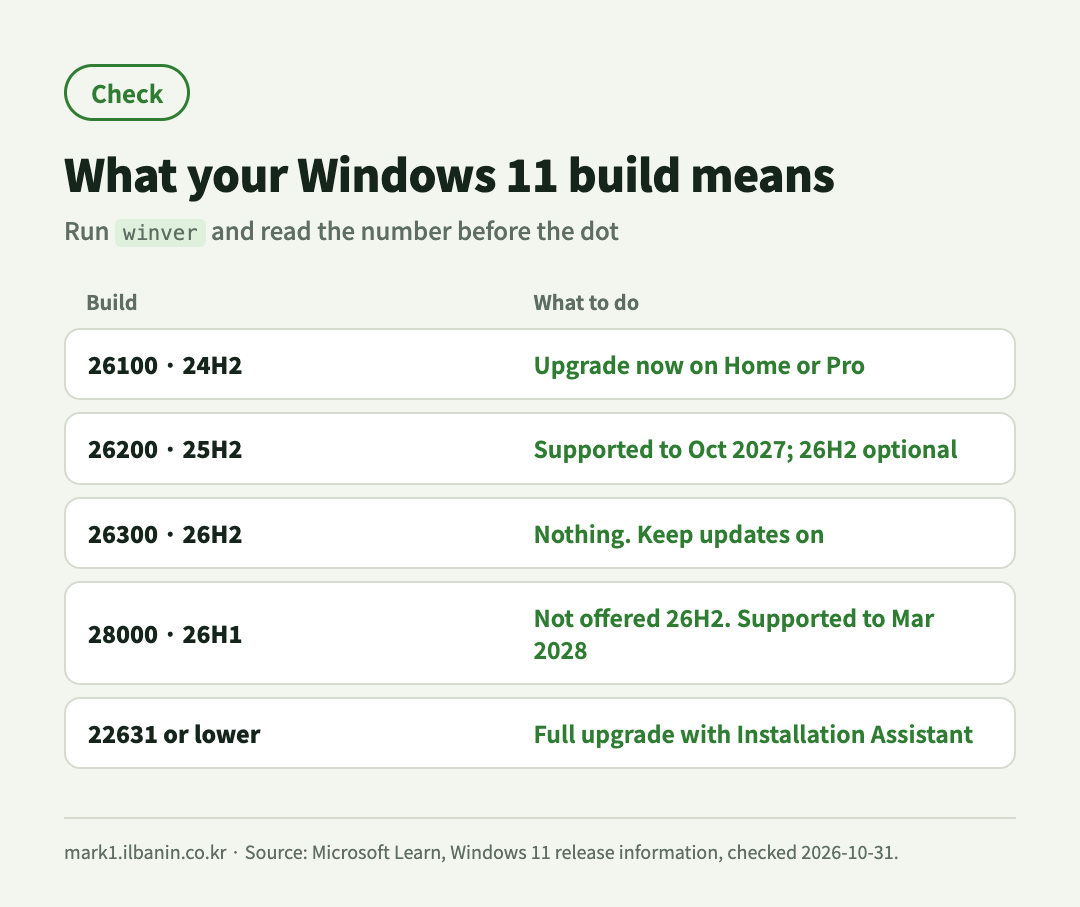
Press Win + R, type winver, and press Enter. The dialog shows the version (for example "Version 24H2") and the OS build.
For a scriptable check that also shows the edition, open PowerShell (no admin needed):
$v = Get-ItemProperty 'HKLM:\SOFTWARE\Microsoft\Windows NT\CurrentVersion'
"$($v.DisplayVersion) $($v.EditionID) build $($v.CurrentBuild).$($v.UBR)"
A fully patched 24H2 Pro PC prints 24H2 Professional build 26100.9711. Core means Home.
How to read the result:
CurrentBuild | Version | What to do |
|---|---|---|
| 26100 | 24H2 | Upgrade now on Core (Home) or Professional |
| 26200 | 25H2 | Supported until 2027-10-12 (Home/Pro); 26H2 is optional |
| 26300 | 26H2 | Nothing; keep monthly updates on |
| 28000 | 26H1 | Not offered 26H2; supported until 2028-03-14 |
| 22631 or lower | 23H2 or older | Needs a full upgrade (Step 4) |
The number after the dot is the revision. 9711 means the October 13, 2026 security update is installed.
Windows 11 26H1 was built for new devices that came to market in early 2026. Microsoft does not offer it as an in-place update from 24H2 or 25H2, so you can ignore it on an older PC.
Which upgrade path applies to your PC
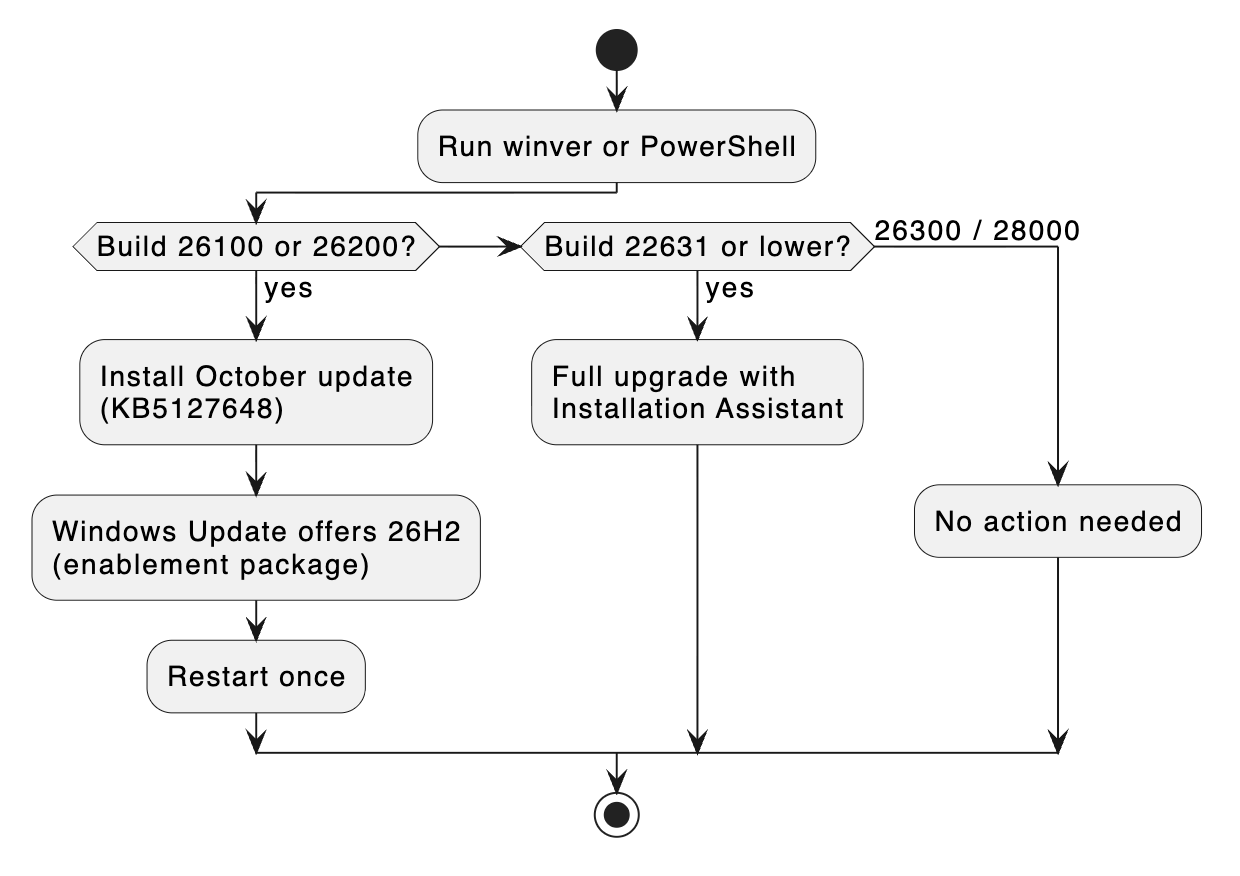
View PlantUML source
@startuml
skinparam shadowing false
skinparam defaultFontSize 14
start
:Run winver or PowerShell;
if (Build 26100 or 26200?) then (yes)
  :Install October update\n(KB5127648);
  :Windows Update offers 26H2\n(enablement package);
  :Restart once;
elseif (Build 22631 or lower?) then (yes)
  :Full upgrade with\nInstallation Assistant;
else (26300 / 28000)
  :No action needed;
endif
stop
@enduml
24H2, 25H2 and 26H2 share a common core operating system with an identical set of system files. Microsoft ships the 26H2 features inside the monthly updates for 24H2 and 25H2, where they stay dormant. The enablement package, KB5121794, switches them on. That is why the download is small and the upgrade needs only a restart.
The KB5121794 article lists one prerequisite: KB5124010 (September 22, 2026) or a later cumulative update must already be installed. The October update KB5127648 includes it, so a fully patched 24H2 PC qualifies.
Step 2: Upgrade Windows 11 24H2 to 26H2 with Windows Update
This is the path Microsoft recommends for Home and Pro. Microsoft's 26H2 status page (current status as of October 28, 2026) says the version "is now available for all eligible devices".
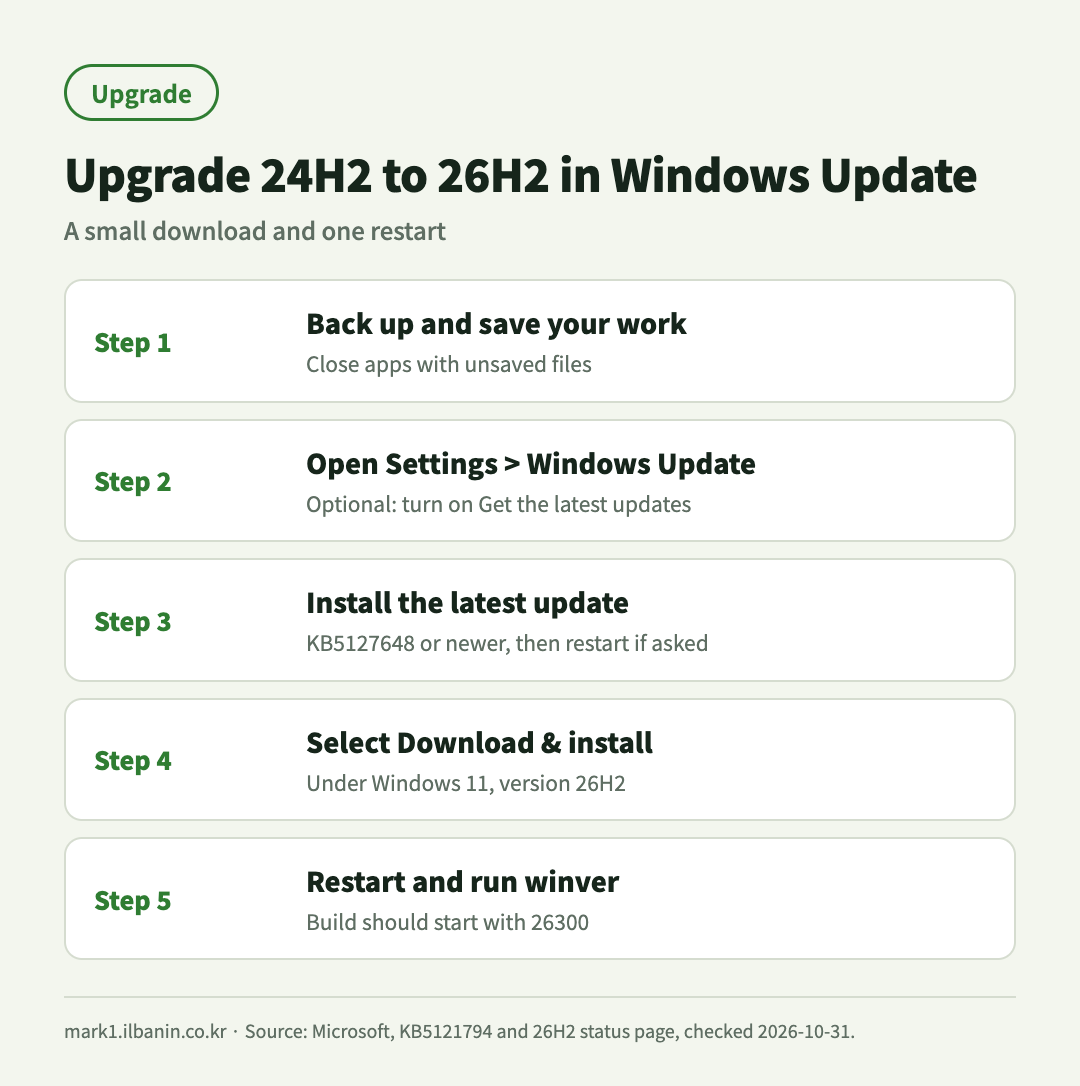
- Back up anything you cannot lose and close apps with unsaved work.
- Open Settings > Windows Update.
- Turn on Get the latest updates as soon as they're available. It is optional, but it gets the offer to you sooner.
- Select Check for updates and install KB5127648 if it is still pending. Restart if asked.
- Check again. When you see Windows 11, version 26H2 is available, select Download & install.
- Restart when prompted.
- Run
winveragain. You should see Version 26H2 and a build that starts with 26300.
If 26H2 is not showing in Windows Update
Microsoft says some devices may "temporarily not be offered the update to version 26H2 if we detect an incompatibility" and places a safeguard hold until the issue is fixed. A hold is a reason to wait, not to force the upgrade.
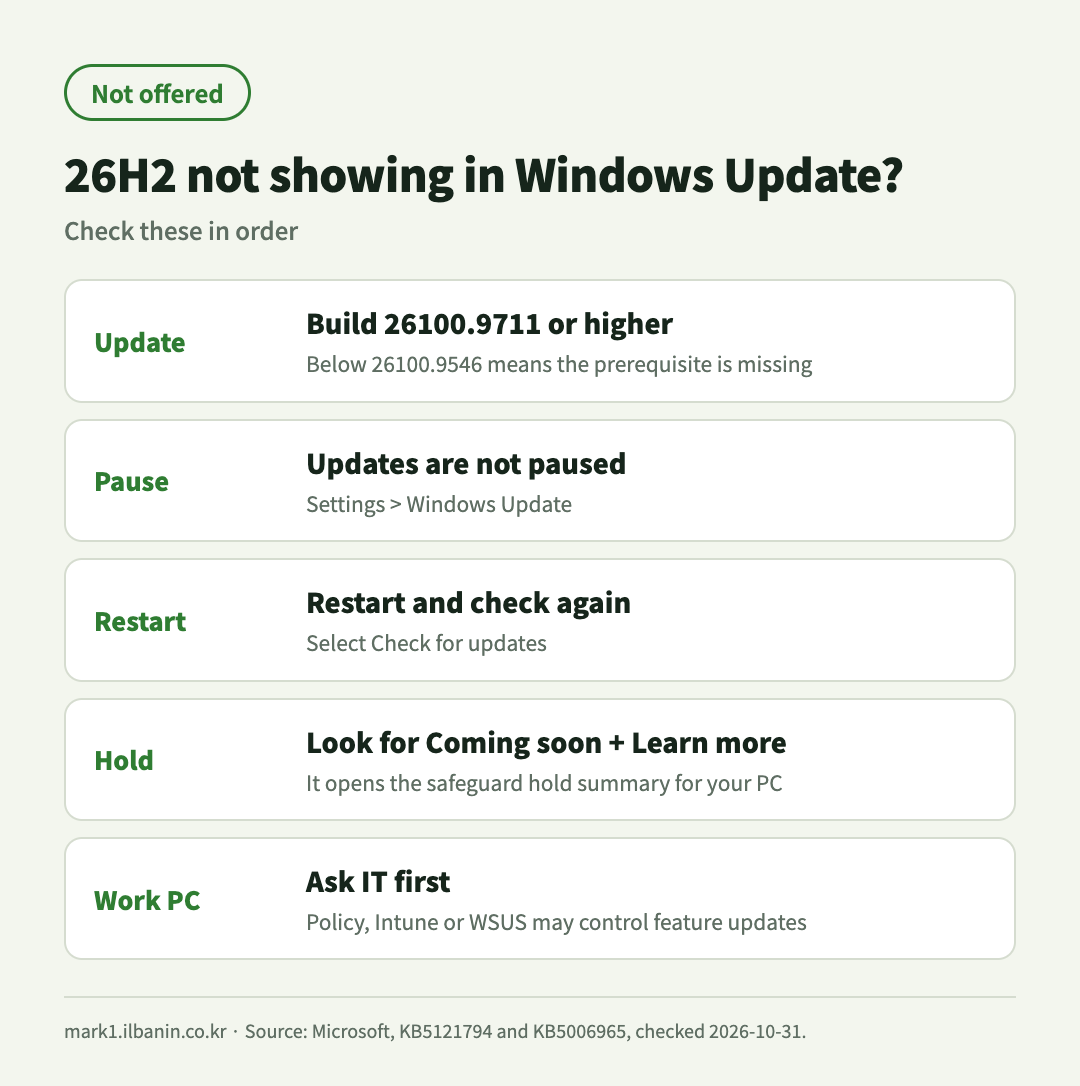
Check these in order:
- Latest update:
winvershould show build 26100.9711 or higher. Anything below 26100.9546 is missing the prerequisite. - Pause: Updates are not paused under Settings > Windows Update.
- Restart: Restart, then select Check for updates again.
- Safeguard hold: Microsoft says a Coming soon message with a Learn more link in Windows Update opens a page titled "Safeguard holds affecting your device" with a summary for your PC.
- Work PC: Your IT department may control feature updates through policy, Intune or WSUS. Ask them before changing anything.
Microsoft's 26H2 known issues page (updated October 30, 2026) names no upgrade block, but it does not list every hold. Microsoft discloses holds caused by third-party software, drivers or devices only in certain circumstances.
If 26H2 stays out of reach, 25H2 is also a supported target according to Microsoft's end-of-updates notice. On Pro you can select it with the policy in Step 3. Home has no such policy, so check Windows Update again after each Patch Tuesday and treat Step 4 as the last resort.
Can you download KB5121794 directly?
KB5121794 is not published in the Microsoft Update Catalog. The KB article says it is only available through Windows Update and WSUS (classification Upgrades, title "Windows 11, version 26H2").
Third-party sites such as Pureinfotech publish direct .msu links they say point to Microsoft's download servers. Microsoft's article does not list those links, so stick with Windows Update, or use the Installation Assistant in Step 4, on a PC you depend on. Installing the package by hand also does not make unsupported hardware supported.
Step 3 (Pro and business PCs): Pin the target version with policy
On Pro, Enterprise and Education, you can tell Windows Update which feature update version to land on. This is the Windows Update for Business "target version" policy. It is useful when you manage a few PCs and want them all on 26H2 instead of waiting for the gradual offer to reach each one.
With Group Policy (gpedit.msc):
- Go to Computer Configuration > Administrative Templates > Windows Components > Windows Update > Manage updates offered from Windows Update.
- Open Select the target Feature Update version and set it to Enabled.
- Product version:
Windows 11. Target version:26H2. - Run
gpupdate /force, then check for updates.
The same policy as registry values (run in an elevated PowerShell):
$key = 'HKLM:\SOFTWARE\Policies\Microsoft\Windows\WindowsUpdate'
New-Item -Path $key -Force | Out-Null
Set-ItemProperty -Path $key -Name TargetReleaseVersion -Value 1 -Type DWord
Set-ItemProperty -Path $key -Name ProductVersion -Value 'Windows 11' -Type String
Set-ItemProperty -Path $key -Name TargetReleaseVersionInfo -Value '26H2' -Type String
Two cautions. First, this policy keeps the PC on the version you name. Next year, raise the target or remove the policy, or the PC will stay on 26H2 until its own end of updates. Second, a target version does not override a safeguard hold.
Step 4: Full upgrade for 23H2 and older
PCs on Windows 11 23H2 (build 22631) or older are not on the 24H2 servicing branch, so the enablement package does not apply. Use the Windows 11 Installation Assistant or the Media Creation Tool from Microsoft's Download Windows 11 page, which lists version 26H2 as the current release. This is a full in-place upgrade: a larger download, a longer install and several restarts. Apps and files are kept when you choose to keep them.
The Installation Assistant needs an x64 PC, 9 GB of free space for the download, Windows 10 version 2004 or later, and an administrator account. For the upgrade itself, Microsoft asks for at least 20 GB free on a 64-bit OS. ARM PCs need the separate ARM64 download instead.
The same page is the fallback if the Windows Update path keeps failing on a 24H2 PC.
Windows 11 26H2 upgrade errors and how to fix them
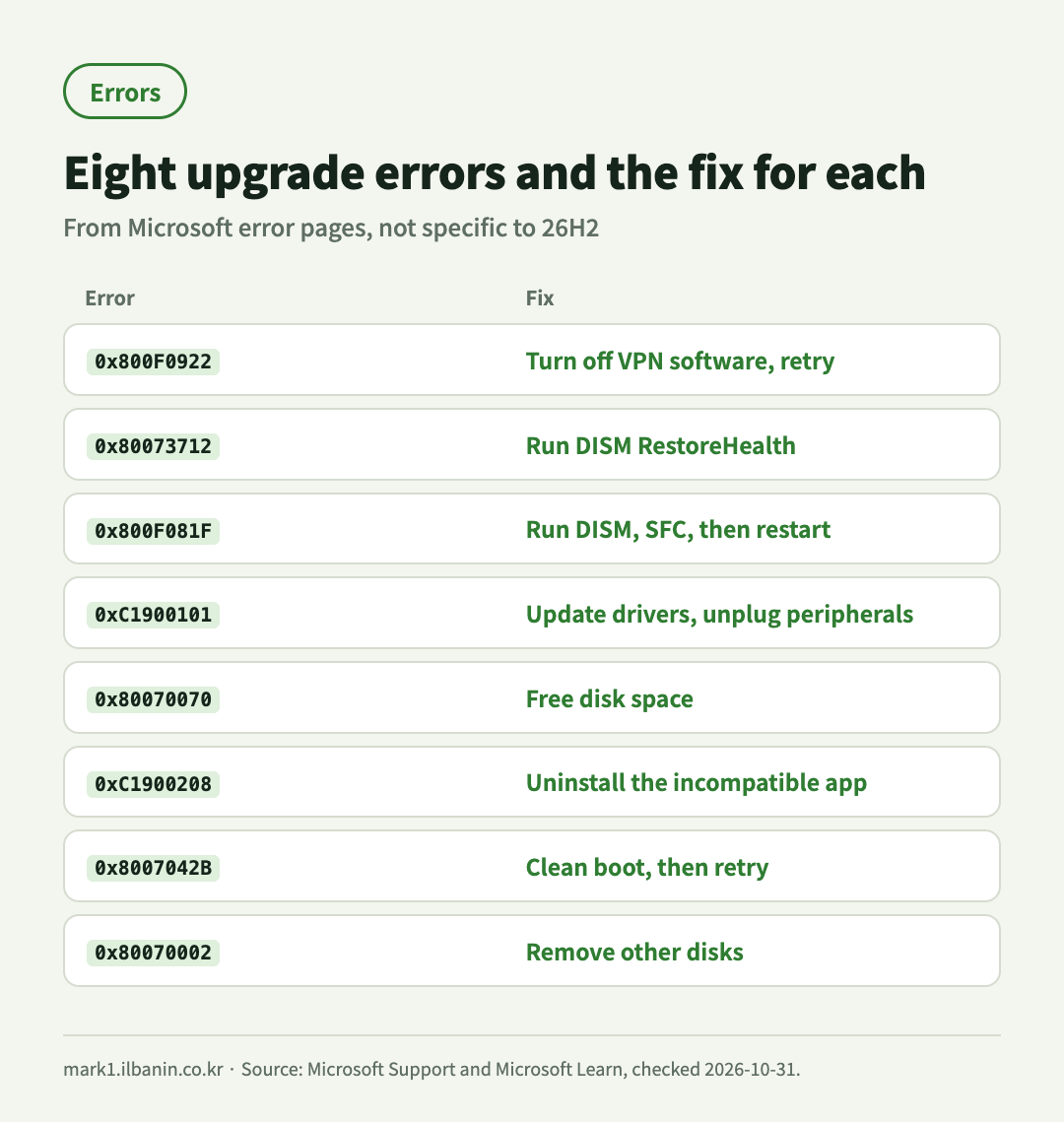
These codes and fixes come from Microsoft's upgrade and Windows Update error pages. Those pages are not specific to 26H2. The setup-style codes, such as 0xC1900101, are more likely on the full upgrade path than on the small enablement package.
| Error code | What it means | Fix |
|---|---|---|
0x800F0922 | Could not reach update servers, or System Reserved partition is too small | Turn off VPN software and retry |
0x80073712 | A needed file is damaged or missing | Run the DISM command below |
0x800F081F | Component store corruption | Run DISM, then SFC, then restart |
0xC1900101 | Usually a driver problem | Update drivers, unplug peripherals, remove third-party antivirus |
0x80070070 | Not enough disk space | Free space and retry |
0xC1900208 | An incompatible app blocks the upgrade | Uninstall that app |
0x8007042B | A background process stopped setup | Do a clean boot and retry |
0x80070002 | Setup cannot find a file | Remove disks you are not installing to |
General fix when Windows Update keeps failing
Try these in order, and stop when the update installs.
First, run the troubleshooter: Settings > System > Troubleshoot > Other troubleshooters, then Run next to Windows Update. Restart when it finishes.
Second, repair the component store from an elevated Command Prompt, then restart:
Dism.exe /Online /Cleanup-Image /RestoreHealth
Sfc.exe /Scannow
Third, clear the download cache. Run this in an elevated Command Prompt, not PowerShell, because it uses %systemroot%. Windows rebuilds the folders. If a .bak folder is already there from an earlier attempt, delete it or Ren fails.
net stop wuauserv
net stop bits
net stop cryptsvc
Ren %systemroot%\SoftwareDistribution\DataStore DataStore.bak
Ren %systemroot%\SoftwareDistribution\Download Download.bak
Ren %systemroot%\system32\catroot2 catroot2.bak
net start cryptsvc
net start bits
net start wuauserv
Fourth, use the Installation Assistant from Step 4.
After the restart: what to check on 26H2
The monthly update and the 26H2 switch arrive close together, so check a few things once you are on the new version.
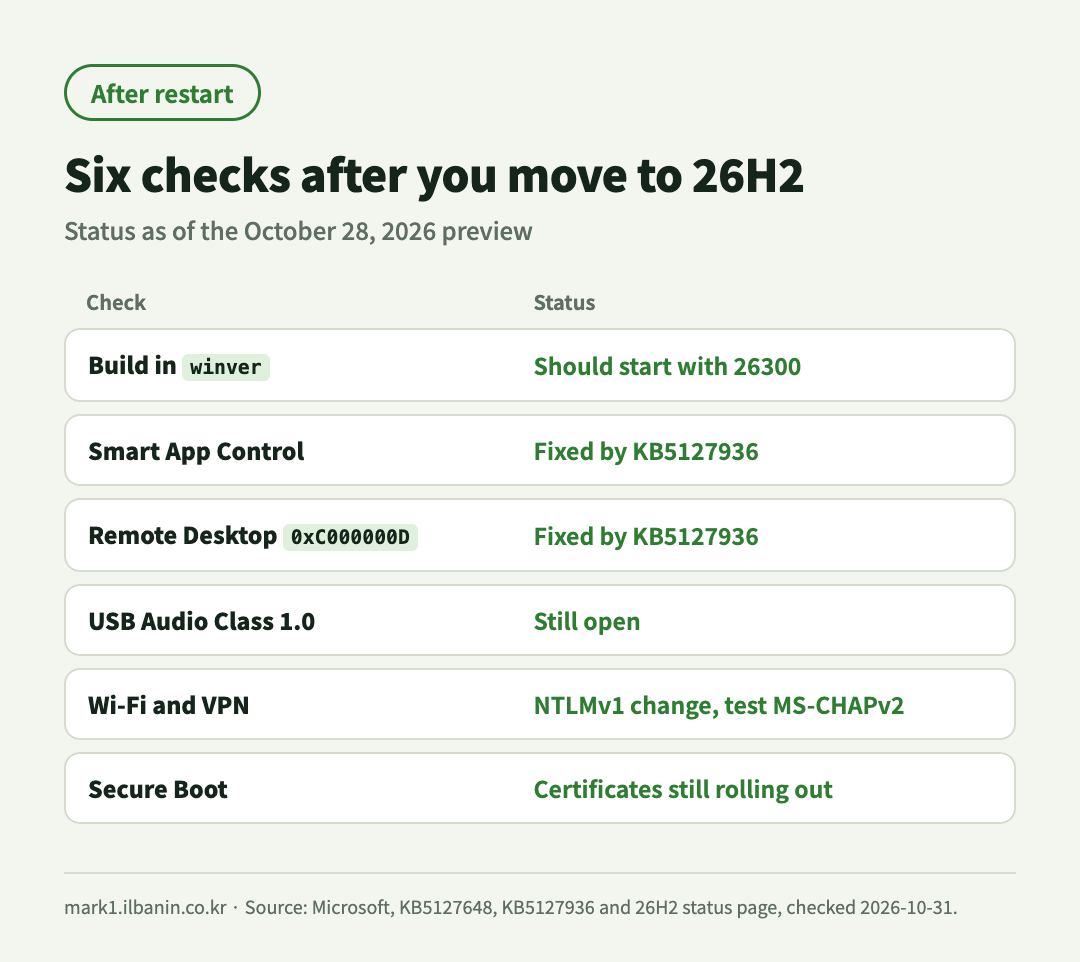
| Check | Where | Why |
|---|---|---|
| Version and build | winver | Should show 26H2, build 26300.x |
| Smart App Control | Windows Security > App & browser control | It may be grayed out or fail to turn on. Fixed on 26H2 by KB5127936 |
| Remote Desktop | Connection to hosts with Administrator protection | Error 0xC000000D for non-admin users. Fixed on 26H2 by KB5127936 |
| USB audio | Device Manager, Sound settings | USB Audio Class 1.0 devices can show Code 10 or play no sound. Still open as of KB5127936 |
| Wi-Fi and VPN | Your work connections | The October update enforces an NTLMv1 change that can affect some MS-CHAPv2 connections when Credential Guard is off |
| Secure Boot | Windows Security > Device security | Certificate updates are still rolling out through Windows Update |
| Settings backup | Settings > Accounts > Windows backup | Microsoft turned the settings backup policy on by default for eligible devices with 26H2 |
26H2 does not cause the Smart App Control, Remote Desktop or USB audio issues. Microsoft lists them for 24H2 and 25H2 as well, and moving to 25H2 or 26H2 is the only way for Home and Pro to get the first two fixes.
KB5127936 is an optional preview. Install it from Settings > Windows Update if you hit one of those two issues, or wait for the November 10 security update, which normally includes it.
What you gain on 26H2 depends on the gradual feature rollout. KB5127936 lists a redesigned File Explorer context menu, a modernized AutoPlay dialog, per-monitor zoom in Magnifier and a Cloud rebuild recovery option. These can appear days or weeks after the update.
If you run Linux servers next to your Windows PCs, the same "move off an interim release before support ends" logic applies there too; see how to upgrade to Ubuntu 26.10 from 26.04 LTS. For a patch-and-verify checklist on the web stack, see the PHP security release check and patch guide.
FAQ
Will my PC stop working after Windows 11 24H2 end of updates? No. Windows 11 24H2 Home and Pro keep running. They no longer receive monthly security or preview updates after the October 13, 2026 release, which raises risk over time.
Is upgrading to 26H2 free, and will I lose files? It is free through Windows Update. The enablement package path keeps apps, settings and files because it only switches on features already installed by monthly updates. Keep a backup anyway.
Should I pick 25H2 or 26H2? Pick 26H2. It is supported until October 10, 2028 on Home and Pro, about one year longer than 25H2 (October 12, 2027). Choose 25H2 only if 26H2 is held back on your PC.
Why is 26H2 not showing up on my PC? The usual causes are a missing cumulative update, paused updates, a safeguard hold or an IT policy. Install the latest update, restart and check again. A hold lifts once the issue is fixed.
Can I go back to 24H2 after installing 26H2? Pureinfotech, a third-party site, describes removing KB5121794 under Settings > Windows Update > Update history > Uninstall updates. Microsoft's KB article has no removal section. Going back on Home or Pro also returns you to a version with no security updates, so use it only as a short-term step.
I run 24H2 Enterprise or Education. Do I need to act now? Not yet. Those editions get security updates until October 12, 2027, but no more non-security previews. Plan the 26H2 move in your normal feature update cycle.
Summary
Run winver. If you are on 24H2 Home or Pro (build 26100), install the latest update, select Check for updates, and accept the Windows 11, version 26H2 offer. If it does not appear, work through the checklist above. On Pro you can pin 26H2 with the target version policy. PCs on 23H2 or older need the Installation Assistant.
First published on October 22, 2026 and updated on October 31, 2026, based on the Microsoft pages listed below. Microsoft can change rollout status and known issues at any time, so check the official pages before upgrading many machines.
References
- Microsoft Learn, Windows 11 release information (servicing table and update history) — learn.microsoft.com (checked Oct 31, 2026)
- Microsoft Learn, Windows 11, version 26H2 known issues and notifications — learn.microsoft.com (checked Oct 31, 2026)
- Microsoft Learn, Windows message center: 24H2 Home and Pro end of updates (Oct 13, 2026) and "How to get the Windows 11 2026 Update" (Sep 29, 2026) — learn.microsoft.com (checked Oct 31, 2026)
- Microsoft Support, KB5121794: Feature update to Windows 11, version 26H2 by using an enablement package — support.microsoft.com (checked Oct 31, 2026)
- Microsoft Support, October 13, 2026—KB5127648 (OS Builds 26300.9711, 26200.9711 and 26100.9711) — support.microsoft.com (checked Oct 31, 2026)
- Microsoft Support, October 26, 2026—KB5134133 Out-of-band — support.microsoft.com (checked Oct 31, 2026)
- Microsoft Support, October 28, 2026—KB5127936 Preview — support.microsoft.com (checked Oct 31, 2026)
- Microsoft Support, KB5006965: How to check information about safeguard holds — support.microsoft.com (checked Oct 31, 2026)
- Microsoft Support, Get help with Windows upgrade and installation errors — support.microsoft.com (checked Oct 31, 2026)
- Microsoft Learn, Common Windows Update errors — learn.microsoft.com (checked Oct 31, 2026)
- Microsoft Support, Windows Update troubleshooter — support.microsoft.com (checked Oct 31, 2026)
- Microsoft, Download Windows 11 (Installation Assistant, Media Creation Tool) — microsoft.com (checked Oct 31, 2026)
- Pureinfotech (third party), how to uninstall Windows 11 26H2 — pureinfotech.com (checked Oct 31, 2026)
4 thoughts on “Windows 11 24H2 End of Updates: Get 26H2 in One Restart”