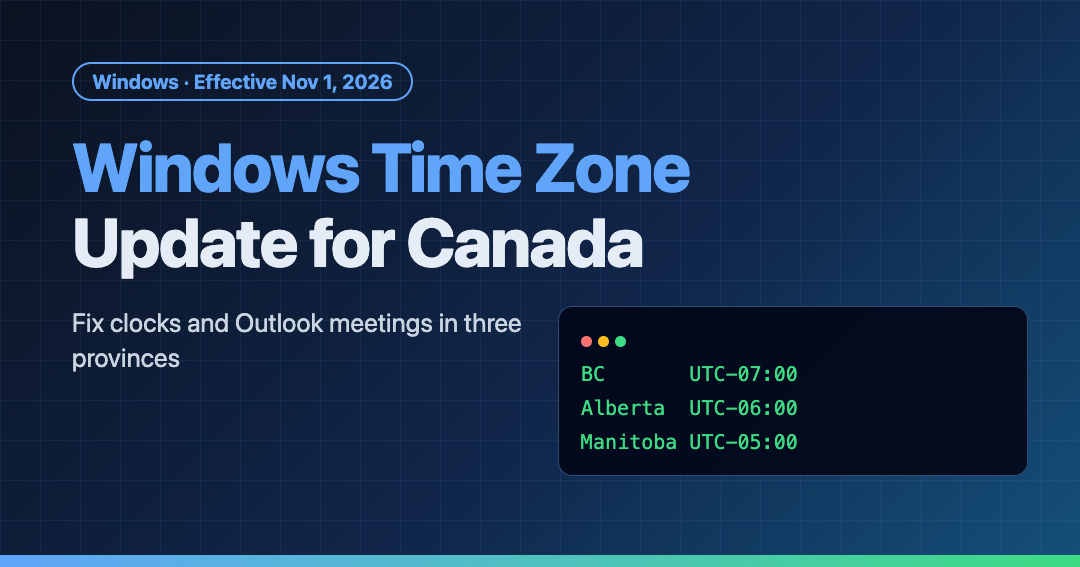
The Windows time zone update for Canada matters today. British Columbia, Alberta and Manitoba did not set clocks back on November 1, 2026, so a PC still on the old zone now runs one hour behind. Install the October 2026 Windows update, pick the new region-specific zone, then fix any Outlook meetings you organize.
Written 2026-11-01. Facts come from Microsoft's Windows message center, Microsoft Learn and the IANA time zone database, checked that day. Microsoft's Daylight Saving Time blog posts and its main Canada guidance page did not load in full for me, so stand-in zones rest on search excerpts of those pages and on third-party summaries, which I name below. I did not run these commands on a Windows PC.
What the Windows time zone update changes today
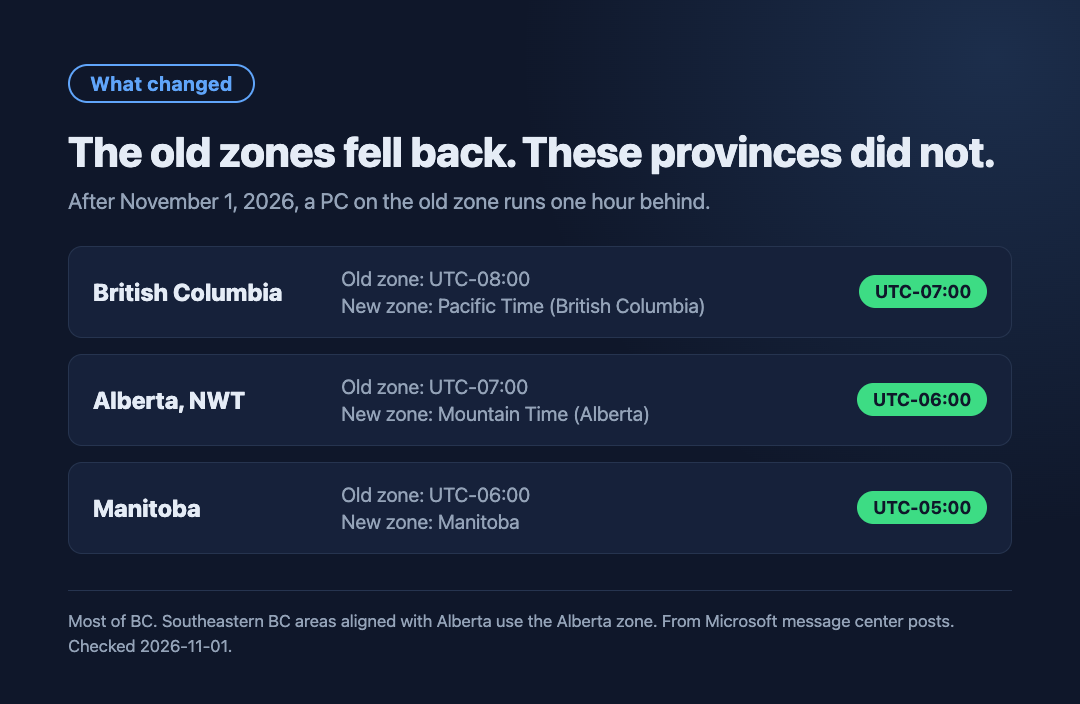
The transition happened at 2:00 a.m. local time. Clocks stayed put, and these regions now stay on one offset all year. Microsoft's message center says devices without the update or the right setting might display the wrong local time.
| Region | Correct offset now | Old Windows zone | New Windows zone |
|---|---|---|---|
| Most of British Columbia | UTC-07:00 | Pacific Time (US & Canada) | Pacific Time (British Columbia) |
| Alberta, Northwest Territories | UTC-06:00 | Mountain Time (US & Canada) | Mountain Time (Alberta) |
| Manitoba, northwestern Ontario | UTC-05:00 | Central Time (US & Canada) | Manitoba |
Microsoft 365 message MC1510951 adds that Yellowknife, Inuvik and parts of southeastern BC follow the Alberta zone. MC1526468 puts northwestern Ontario with Manitoba.
The old zones still follow US rules, and those rules fell back today. That leaves Vancouver one hour ahead of Seattle until US clocks move forward on March 14, 2027.
Which update carries the new zones
| Windows version | Update with the new zones |
|---|---|
| Windows 11 24H2, 25H2 | September 22 preview for BC and Alberta, October 13 security update for Manitoba |
| Other supported Windows and Windows Server | October 13, 2026 security update |
Those dates come from MC1510951. Regroove lists the KB number for each version, though I could not confirm that list against Microsoft's own pages.
How to check your Windows time zone
Open PowerShell. The first command shows the zone in use. The second shows whether the update has added the new ones.
Get-TimeZone | Format-List Id, DisplayName
Get-TimeZone -ListAvailable | Where-Object Id -Match 'British Columbia|Alberta|Manitoba' | Format-Table Id, DisplayName
Read the result this way:
- Your Id is a new one in the table below: Windows is set correctly.
- The new IDs are listed, but your Id is an old one: change the zone in the next section.
- The second command returns nothing: the update is missing. Run Windows Update first.
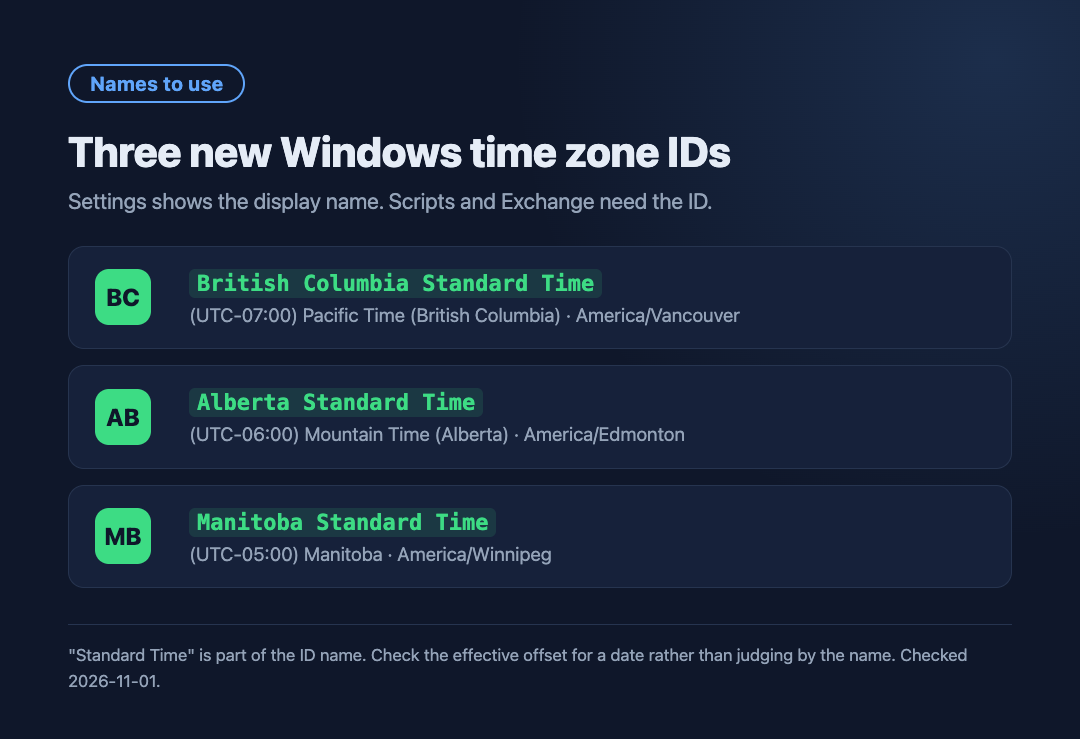
| Display name | Windows ID | IANA ID |
|---|---|---|
| (UTC-07:00) Pacific Time (British Columbia) | British Columbia Standard Time | America/Vancouver |
| (UTC-06:00) Mountain Time (Alberta) | Alberta Standard Time | America/Edmonton |
| (UTC-05:00) Manitoba | Manitoba Standard Time | America/Winnipeg |
The IDs and IANA mappings match Noda Time issue #1904, and the BC ID also appears in Microsoft's cmdlet documentation.
Install the update and set the new time zone
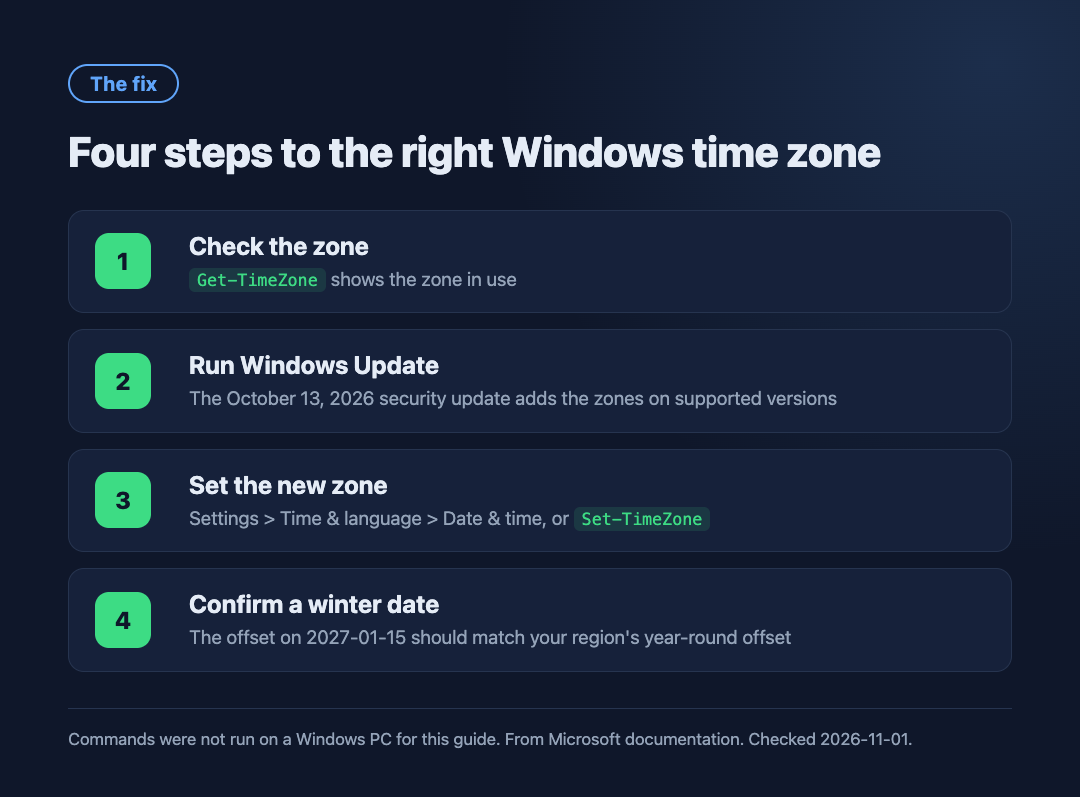
- Go to Settings > Windows Update and install what is offered. Restart if asked.
- Go to Settings > Time & language > Date & time.
- Check the time zone. Microsoft says devices set to choose the zone automatically will pick the new one based on location.
- If automatic is off, choose the new zone from the list.
To script it, use the Set-TimeZone cmdlet with one of these IDs. Use an elevated window if you get an access error.
Set-TimeZone -Id "British Columbia Standard Time"
Set-TimeZone -Id "Alberta Standard Time"
Set-TimeZone -Id "Manitoba Standard Time"
Run only the line for your region. Northwest Territories uses the Alberta line, and northwestern Ontario uses the Manitoba line. Then confirm the future offset, replacing the ID with yours:
[TimeZoneInfo]::FindSystemTimeZoneById('British Columbia Standard Time').GetUtcOffset([datetime]'2027-01-15')British Columbia should return -07:00:00, Alberta -06:00:00 and Manitoba -05:00:00.
Check the effective offset, not BaseUtcOffset. A user on Microsoft Q&A reported that Manitoba Standard Time shows a base of -06:00:00 with daylight saving support set to true, yet returned -05:00:00 on all four test dates in 2027. That thread has no official Microsoft reply.
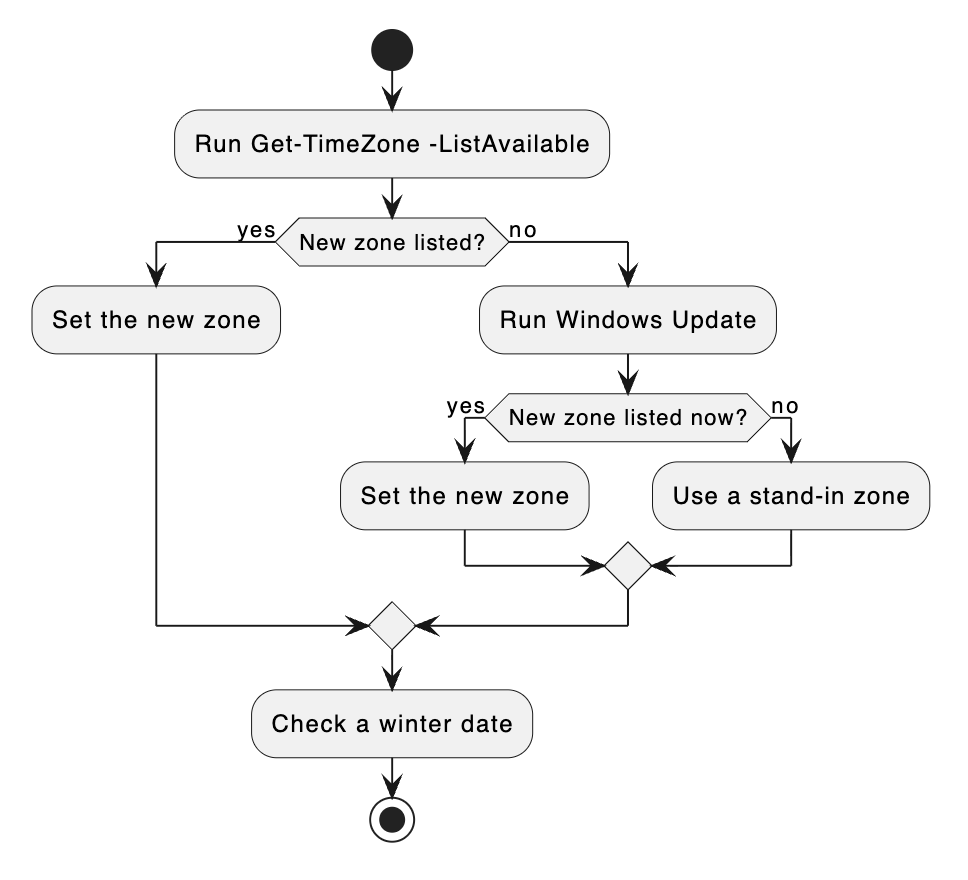
View PlantUML source
@startuml
start
:Run Get-TimeZone -ListAvailable;
if (New zone listed?) then (yes)
  :Set the new zone;
else (no)
  :Run Windows Update;
  if (New zone listed now?) then (yes)
    :Set the new zone;
  else (no)
    :Use a stand-in zone;
  endif
endif
:Check a winter date;
stop
@enduml
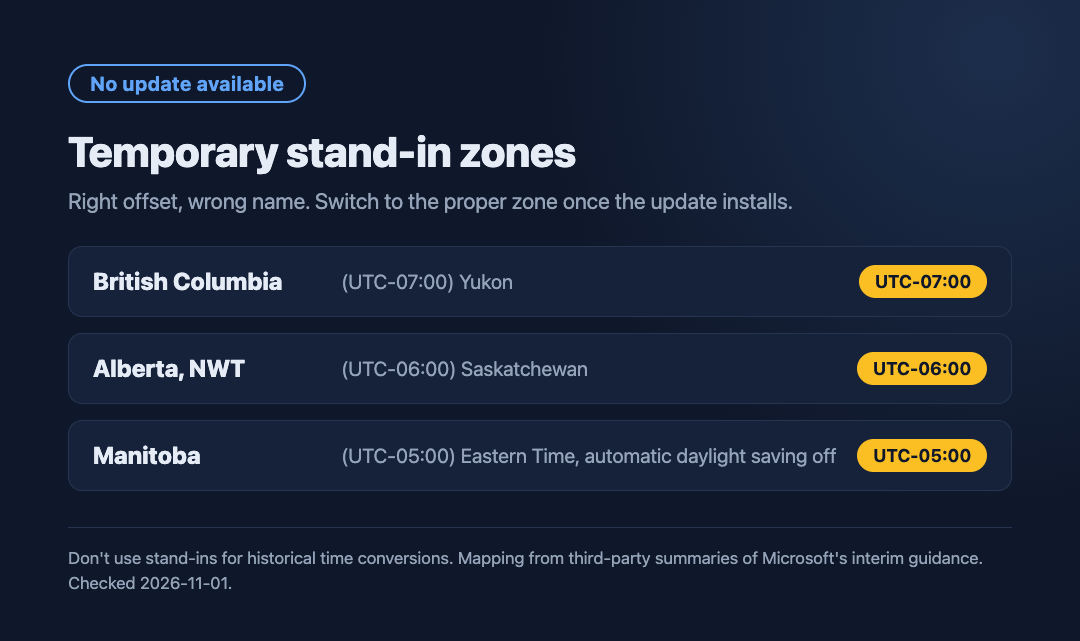
No update available? Use a stand-in zone
Unsupported Windows versions don't get the new zones. If a PC can't install the update yet, use a stand-in that has the right offset.
| Region | Stand-in zone | Command |
|---|---|---|
| British Columbia | (UTC-07:00) Yukon | tzutil /s "Yukon Standard Time" |
| Alberta, Northwest Territories | (UTC-06:00) Saskatchewan | tzutil /s "Canada Central Standard Time" |
| Manitoba | (UTC-05:00) Eastern Time, automatic DST off | tzutil /s "Eastern Standard Time_dstoff" |
The _dstoff suffix turns off daylight saving adjustments, as the tzutil reference explains. The zone mapping comes from Regroove's summary of Microsoft's interim guidance and Aba Search and Replace.
Treat these as temporary. A stand-in gives the right time now under another region's name, and a Microsoft Q&A answer warns against using one for historical conversions. Switch to the proper zone once the update installs. If that update is out of reach on an older Windows 11 release, see how to move from 24H2 to 26H2.
Fix Outlook meetings after the time zone change
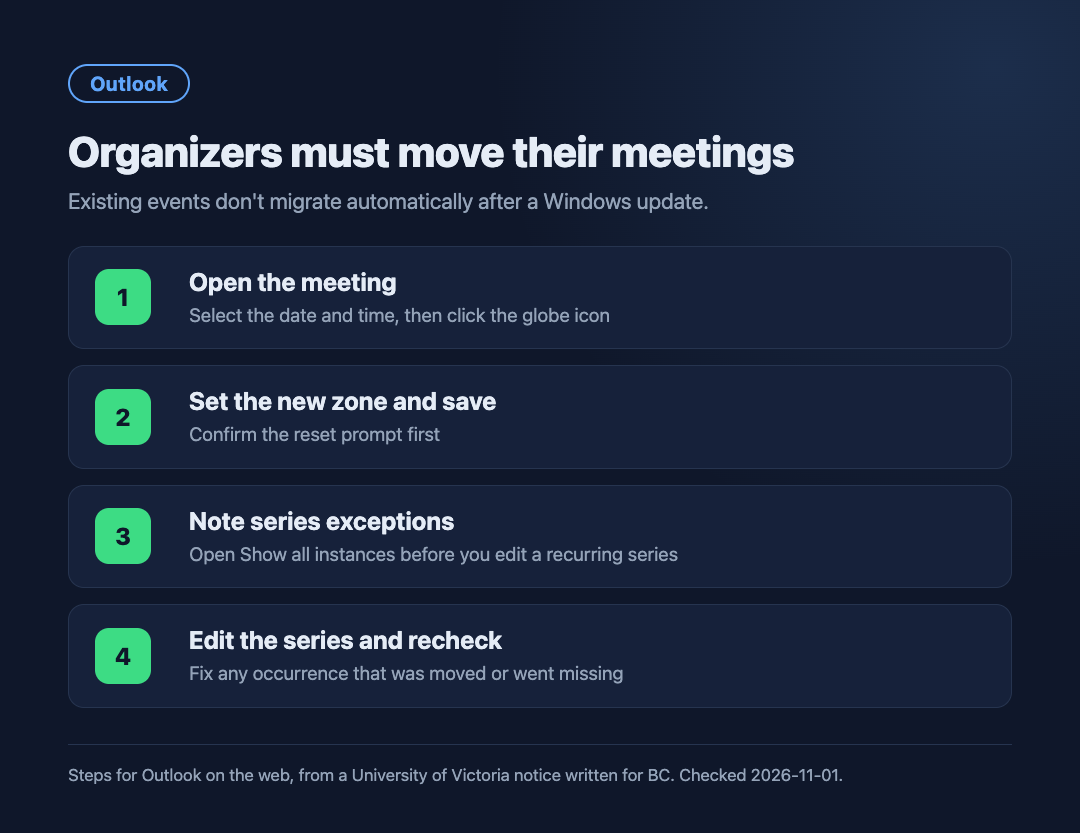
Updating Windows doesn't move your calendar. MC1526468 says Outlook users must select the new zone and that existing events don't migrate automatically.
Meetings saved in the old zone can land an hour off. Under the new rules, a meeting at 9:00 a.m. Pacific (UTC-8) really is 10:00 a.m. in BC, as a Microsoft Q&A answer explains. So check whether the meeting belongs to the old zone before you change it.
Steps for meeting organizers
The University of Victoria's notice gives the clearest steps, written for Outlook on the web and BC:
- Open the meeting, select the date and time, then click the globe icon.
- Set the new zone, confirm the reset prompt and save.
- For a recurring series, open Show all instances and note any changed or missing occurrences.
- Edit the whole series the same way, save, then recheck each exception.
Only the organizer can make this change for attendees. Don't change your device time zone to make one meeting look right.
Bulk fix for Exchange Online admins
Invoke-CalendarEventMigration moves events to a new zone and keeps the same local time. Preview first:
Invoke-CalendarEventMigration <USER_EMAIL> -FromWindowsTimeZoneId "Pacific Standard Time" -ToWindowsTimeZoneId "British Columbia Standard Time" -QueryStartDate 2026-11-01 -QueryWindowInDays 365 -PreviewOnlyKnow the limits before you run it for real:
- The first release handles single meetings and appointments, not recurring ones.
- It migrates only meetings the mailbox organized, and only in the default Calendar folder.
- Each migrated meeting sends an update to attendees.
- It doesn't change the mailbox zone. Use
Set-MailboxRegionalConfigurationfor that.
The cmdlet blocks a move when the two zones show different local times unless you add -Force. The Pacific and BC zones differ as of today, so you may need that switch. Microsoft's dates for the cmdlet also conflict: MC1526468 targets October 28, while search excerpts of its guidance page say November 4. Check that it exists in your tenant, and organizers can fix important meetings by hand rather than wait.
Servers and apps: check tzdata and Windows ID mappings
Linux and many runtimes use the IANA database instead of Windows zones. The tz NEWS file shows when each change landed:
| Release | Date | Change |
|---|---|---|
| 2026b | April 22 | British Columbia, America/Vancouver |
| 2026c | July 8 | Alberta, America/Edmonton |
| 2026d | September 11 | Northwest Territories, America/Inuvik |
| 2026e | September 29 | Manitoba, America/Winnipeg |
Test a date after the change on Linux with GNU date:
TZ=America/Vancouver date -d '2026-11-15 12:00 UTC' '+%F %R %Z %z'Current data should print 2026-11-15 05:00 MST -0700, because IANA models BC with the MST abbreviation. A result of 04:00 PST -0800 means the data is stale, so update your distribution's tzdata package.
Apps that translate Windows IDs need new mappings too. Noda Time's issue reports that GetSystemDefault() could throw DateTimeZoneNotFoundException on machines using the new IDs. The fix landed in CLDR 49 and Noda Time 3.3.6, so check your own libraries for the same gap.
If the clock or calendar is still wrong
| Symptom | Likely cause | Fix |
|---|---|---|
| PC is one hour behind | Old zone still selected | Set the new zone |
| New zone isn't in the list | Update not installed | Run Windows Update or use a stand-in |
| Same meeting differs between apps | Client handling differs | Fix the meeting, then check Outlook on the web |
| Teams Rooms shows one hour behind Windows | Old Edge or WebView2 | Update Edge and WebView2 on the device |
Client differences are a known problem. The Microsoft Q&A thread shows New Outlook for Mac and Outlook Mobile disagreeing with Outlook on the web, with no fix confirmed there. MC1526468 still lists Teams, Bookings, Shifts and SharePoint as under validation. Admins can open a support case with #Canada Time-Zone in the title.
Microsoft's October update also brought other changes. If Wi-Fi or VPN sign-in broke after you installed it, read our NTLMv1 Enforce mode fix.
FAQ
Do I need the Windows time zone update if my clock looks right?
Yes, if you live in an affected region. A stand-in zone or manual clock change can look right while the zone rules stay wrong, and meetings can still display incorrectly. Check your zone ID.
Should I just set the clock forward by one hour?
No. Your zone stays wrong, so calendars and logs can still convert times incorrectly. Change the time zone instead.
Does this affect people outside Canada?
Yes, if you meet with those regions. BC no longer matches Seattle or Los Angeles in winter, so meetings saved in the wrong zone can show the wrong time.
What about Cuba?
Cuba also skipped today's change and stays on UTC-04:00. Microsoft plans the Windows fix for the November 2026 security update. Until then, its interim guidance covers devices set to Havana time.
Will these regions change clocks again in March?
The three provinces moved to year-round time, and the Windows zones and IANA data reflect that. Cuba differs: IANA says its plan runs through November 7, 2027.
References
Checked 2026-11-01.
- Windows message center, Microsoft
- Invoke-CalendarEventMigration, Microsoft Learn
- Set-TimeZone and tzutil, Microsoft Learn
- Canada 2026 time zone changes: Guidance for Microsoft products, Microsoft Support (search excerpts only)
- tz database NEWS, IANA
- MC1510951 and MC1526468, Microsoft 365 message center posts on a public mirror
- Noda Time issue #1904, GitHub
- BC time-zone change may affect calendar meetings, University of Victoria
- BC and Alberta Time Zone Change, Regroove
- 2026 Windows Time Zone Changes, Aba Search and Replace
1 thought on “Windows Time Zone Update: Fix BC, Alberta and Manitoba Clocks”