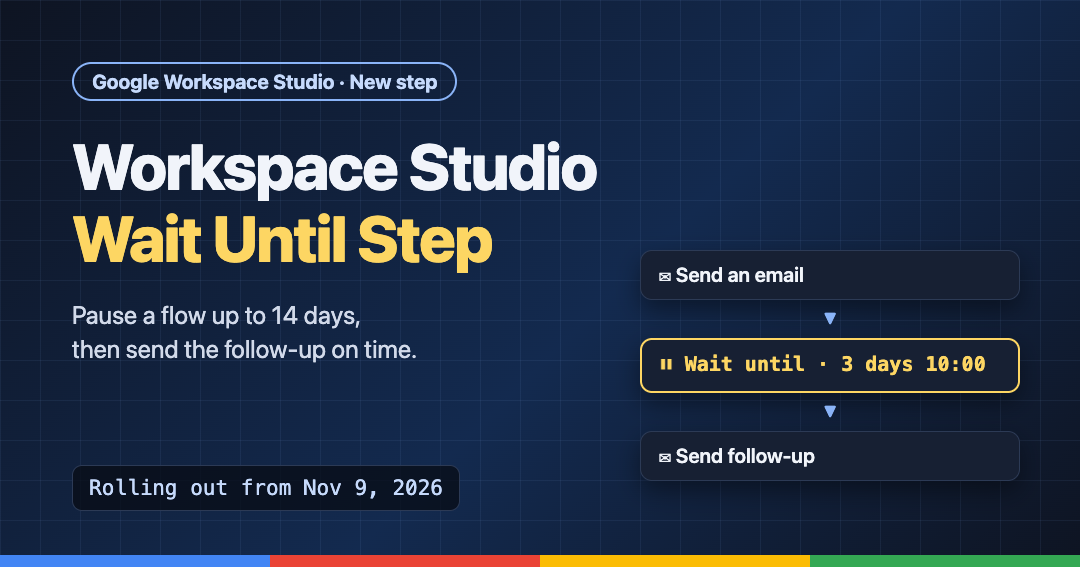
The Workspace Studio Wait until step pauses a flow and resumes it later, either at a set day and time or after a set duration, up to 14 days. Google started rolling it out on November 9, 2026, and it shows up under Logic & Tools in the flow builder within 1 to 3 days. Use it for follow-up emails, spaced onboarding reminders and Monday-morning digests. You no longer need a second flow on a schedule for these.
Written November 11, 2026, 16:30 KST (07:30 UTC). Facts checked on November 11, 2026 against the Google Workspace Updates post of November 9, 2026 and the Workspace Studio Help Center (Wait until, Starters & Steps, limits and troubleshooting pages). I have not run this exact flow in a live Workspace account for this post. The build steps follow Google's documented step names and options, so test it with your own address first.
What the Wait until step adds to Workspace Studio
Workspace Studio is Google's no-code automation builder for Gmail, Chat, Drive, Docs, Sheets, Forms and Calendar. A flow has a starter (the event or schedule that starts it), steps (the actions) and variables (data passed between steps). Until now, every step ran right after the one before it. Wait until adds a pause in the middle.
| Item | What Google says |
|---|---|
| Announced | November 9, 2026 (Workspace Updates blog) |
| Rollout | Full rollout from Nov 9, 1–3 days for the step to appear |
| Domains | Rapid Release and Scheduled Release |
| Where | Anywhere in a flow, including inside Check if and Repeat for each |
| Maximum wait | 14 days |
| Admin control | None for this feature |
Source: Google Workspace Updates, "Pause and schedule automated workflows with the new 'Wait until' step in Workspace Studio", November 9, 2026, checked Nov 11, 2026.
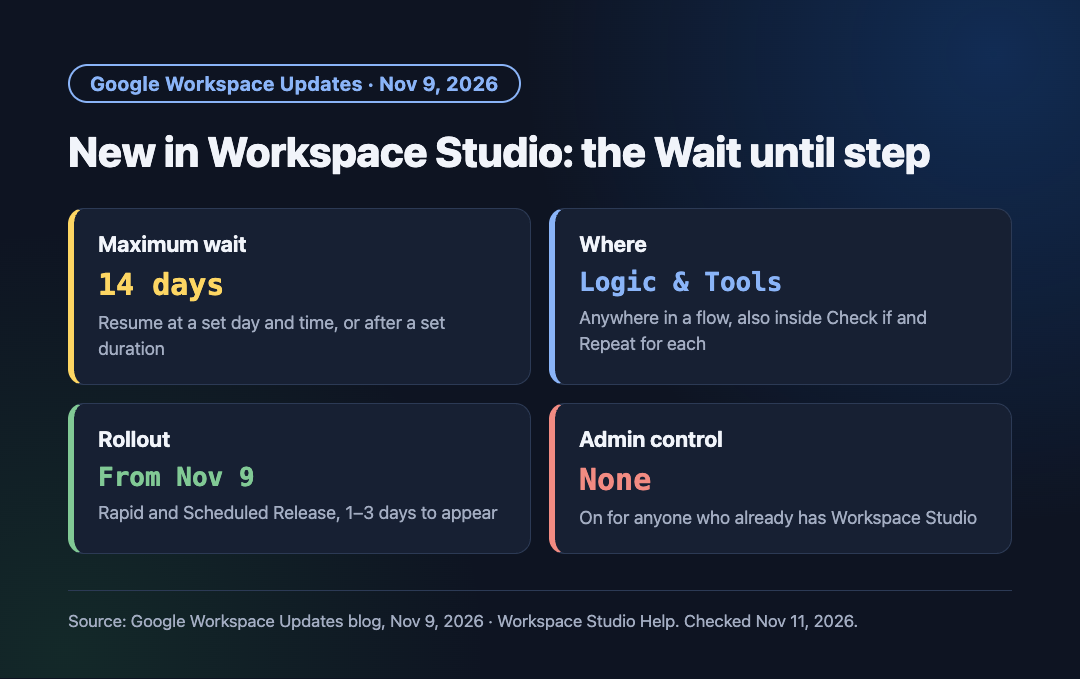
Who gets it. The post lists these editions: Business Starter, Standard and Plus; Enterprise Standard and Plus; Education Fundamentals, Standard and Plus; the Google AI Pro for Education and Teaching and Learning add-ons; and the AI Expanded Access add-on. Workspace Studio itself must be on for you. There is no separate switch for Wait until, so if Studio works for you, the step arrives on its own.
The three Wait until options and when to use each
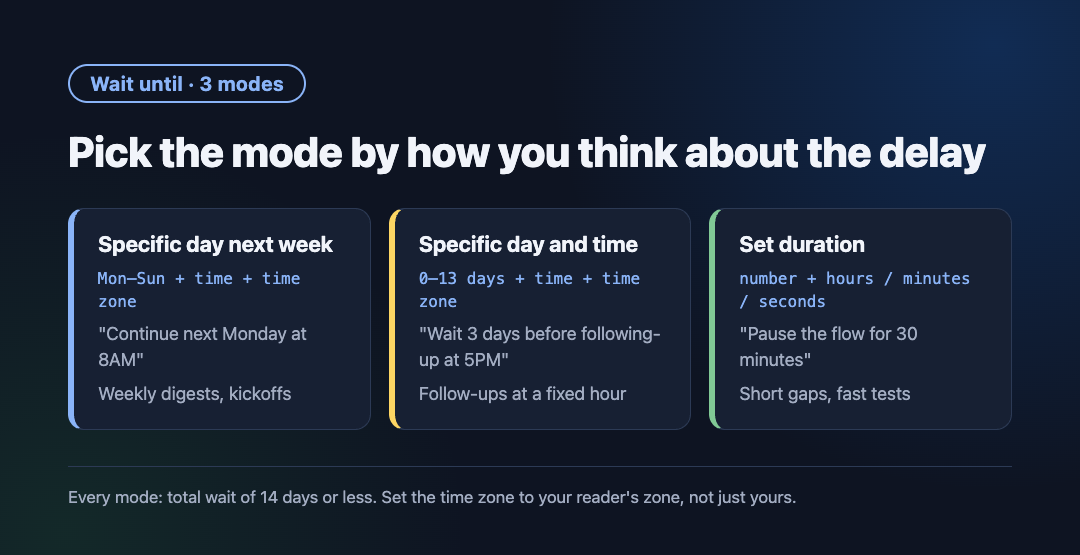
When you add the step, you pick one of three modes. The Help Center describes them like this:
| Mode | You set | Google's example | Good for |
|---|---|---|---|
| Specific day next week | Weekday (Mon–Sun), time, time zone | "Continue next Monday at 8AM" | Weekly digests, Monday kickoffs |
| Specific day and time | Days to wait (0–13), time, time zone | "Wait 3 days before following-up at 5PM" | Follow-ups at a fixed hour |
| Set duration | Number + hours, minutes or seconds, time zone | "Pause the flow for 30 minutes" | Short delays, cool-down gaps |
The total wait can't go past 14 days in any mode. That explains the 0–13 range in the second mode: 13 days plus a time of day still fits inside the window.
Two practical notes:
- Set the time zone on purpose. Every mode has a time zone field. If your team or customers sit in another zone, pick theirs, not yours. "Monday at 8 AM" in the wrong zone can land at midnight.
- For days, use Specific day and time instead of Set duration. The duration units are hours, minutes and seconds, so a 3-day wait means typing
72hours. It is the same wait, but Specific day and time with3days also lets you choose the hour it resumes.
Build a 3-day follow-up flow with Wait until
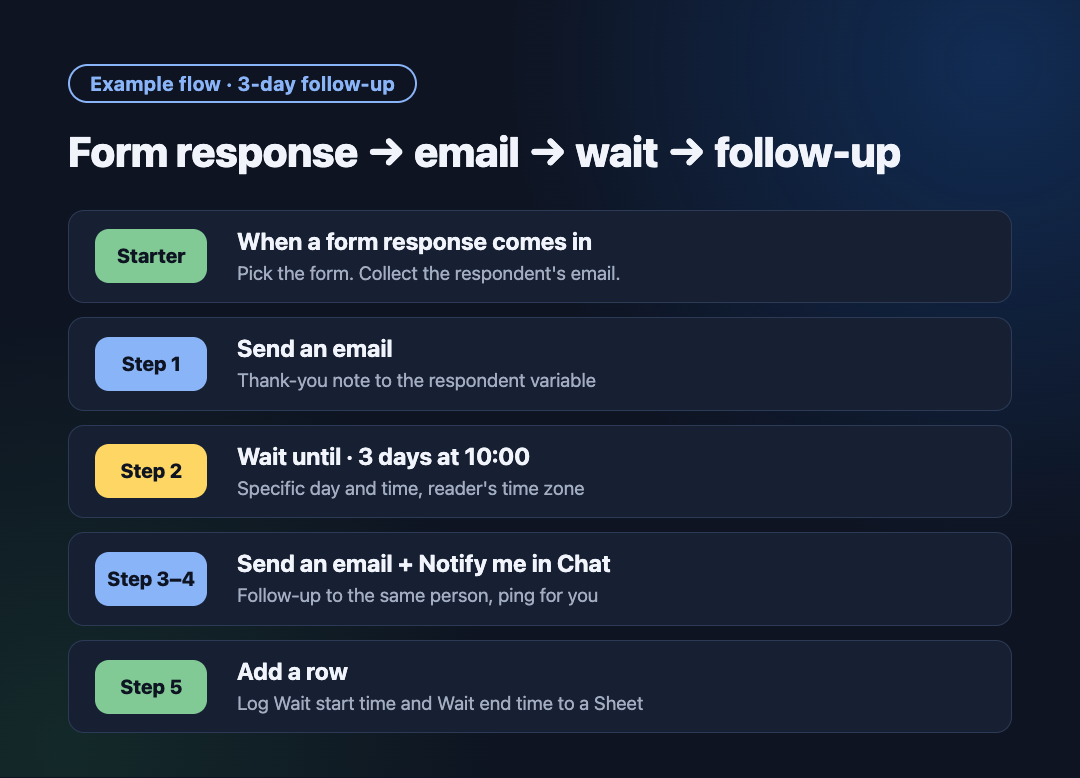
This example sends a thank-you email when someone fills in a Google Form, waits three days, then sends a follow-up at 10 AM and pings you in Chat. It uses only starters and steps listed in Google's Starters & Steps guide. The diagram is the plan, not a screenshot.
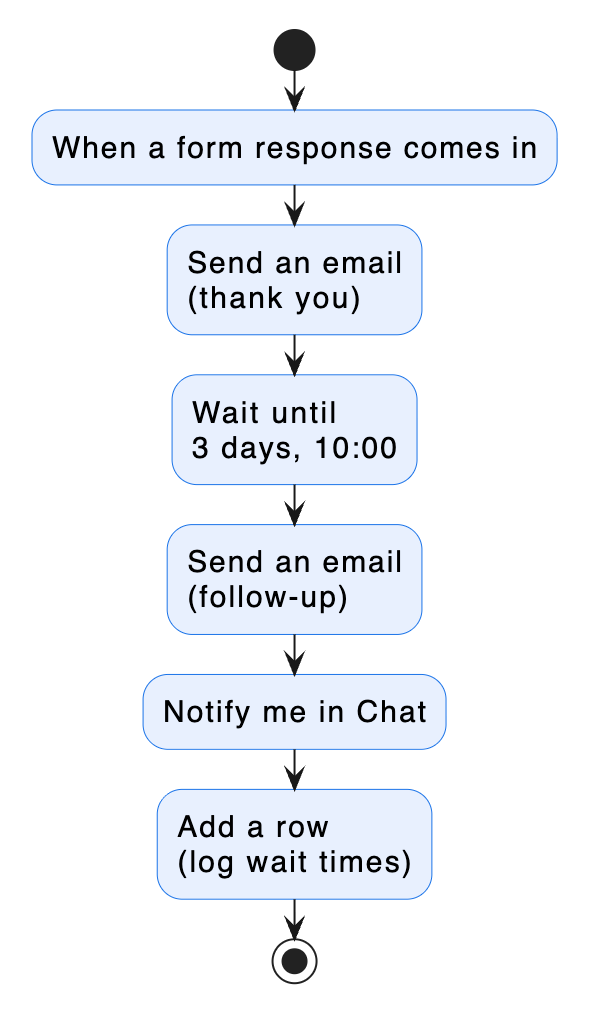
View PlantUML source
@startuml
skinparam defaultFontSize 15
skinparam ActivityBorderColor #1a73e8
skinparam ActivityBackgroundColor #e8f0fe
start
:When a form response comes in;
:Send an email\n(thank you);
:Wait until\n3 days, 10:00;
:Send an email\n(follow-up);
:Notify me in Chat;
:Add a row\n(log wait times);
stop
@enduml
Step 1: Prepare the form and a log sheet
- Make sure your Google Form collects the respondent's email address, so the flow has someone to write to.
- Create a Google Sheet named
Follow-up logwith a header row, for exampleEmail,Wait start,Wait end. Google recommends unique header names for Sheets steps.
Step 2: Add the form starter
- Open
studio.workspace.google.comand start a new flow. - Pick the starter When a form response comes in and select your form.
- Leave "run when a response is edited" off for this example, so an edited response doesn't send a second round of emails.
Step 3: Send the first email
- Add Send an email from the Gmail steps.
- In To, click + Variables and insert the respondent's email from the form starter.
- Write a short thank-you, for example:
Thanks for signing up. I'll send the setup guide in a few days.
Step 4: Add the Wait until step
- Click to add a step and open Logic & Tools.
- Choose Wait until.
- Pick Specific day and time, set days to
3, time to10:00, and choose the reader's time zone.
From here on, the flow pauses on each run. Each form response starts its own run, so a response sent on Tuesday resumes on Friday, while one sent on Wednesday resumes on Saturday.
Step 5: Send the follow-up and notify yourself
- Add a second Send an email to the same respondent variable, with the follow-up text.
- Add Notify me in Chat with a line like
Follow-up sent to <respondent email variable>. Variables inserted as text in this step won't create real @mentions.
Step 6: Log the wait times with the new variables
The Wait until step exposes three variables to later steps: Wait start time, Wait end time and Wait time in seconds.
- Add Add a row and pick the
Follow-up logsheet. - Map the respondent's email to
Email, Wait start time toWait startand Wait end time toWait end.
This log gives you a record you can check in Sheets, so you don't need to open each run to see when it resumed.
Step 7: Test, then turn it on
- Click Test run and start it with a sample response. Google doesn't say whether a test run skips the wait, so assume a 3-day wait takes 3 days. For a quick check, temporarily switch the step to Set duration with
2minutes. - Confirm both emails arrive, the Chat message shows up and the sheet gets a row.
- Switch the wait back to 3 days at 10:00 and click Turn on.
Use Wait until inside Check if and Repeat for each
Google says the step works inside conditional branches and loops. Two patterns that follow from that:
Wait only on some branches. Put Wait until as a substep of a Check if. Example: in a flow started by When I get an email, a Check if on the sender's domain sends an instant reply to customers, while a second Check if for everyone else waits until Specific day next week → Monday, 08:00 before it sends a reply. Workspace Studio has no Else, so the second branch is a separate Check if with the opposite condition, as in my Workspace Studio nested conditionals guide.
Space out actions in a loop. Inside Repeat for each, a short Set duration wait (for example 30 seconds) puts a gap between messages or rows, so they don't all go out at once. Google does not document how waits inside a loop add up across items. The 14-day cap still applies to the whole flow run, so keep loop waits short and test with a small list.
Normal branch rules still apply: variables created in substeps can't be used in main-flow steps. If you put Wait until inside a branch, its Wait end time variable is only available to steps in that same branch.
Check paused runs in the Activity tab
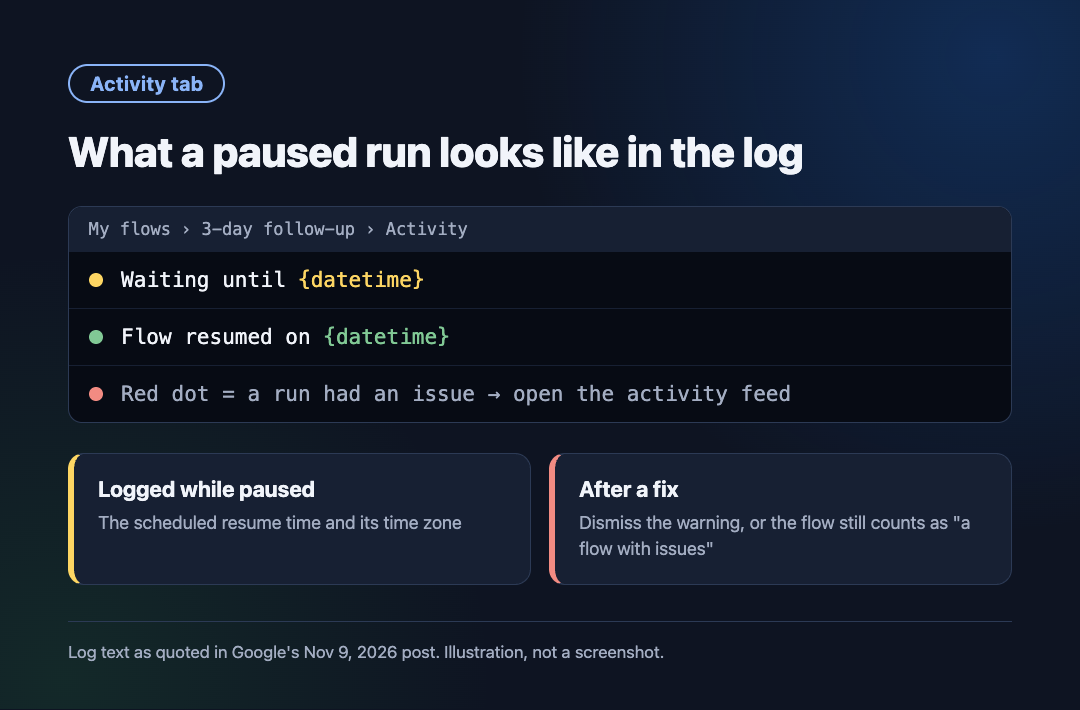
While a run is paused, the flow's Activity tab logs the scheduled resume time and time zone. Google's post gives the two log lines you'll see:
Waiting until {datetime}, written when the run pausesFlow resumed on {datetime}, written when it continues
If the Activity tab shows a red dot, a run hit a problem. Open the activity feed to find the step and the data that caused it. After you fix it, dismiss the warning. Google's troubleshooting page says the flow still counts as "a flow with issues" until you do.
Workspace Studio limits that matter for waiting flows
The limits page, checked on November 11, 2026, lists these. Google notes limits can change.
| Limit | Value (Nov 11, 2026) |
|---|---|
| Maximum single wait | 14 days |
| Flows per user (on or off) | 25 |
| Active flows with a Gmail starter | 25 |
| Steps per flow | 100 |
| Runs per 24 hours (all flows) | Daily cap, number not published |
Two notes. The steps-per-flow figure on the limits page now reads 100. When I wrote the nested conditionals guide on October 23, 2026, it said 20. Also, a flow turns off automatically after six months without a run, so a flow you only use a few times a year needs a check from time to time.
What Google does not document yet:
- What happens to runs that are already waiting if you edit the flow or turn it off.
- Whether a paused run counts toward the daily run cap while it waits.
Until Google says, assume edits may not apply to runs already in the middle of a wait. Test the change with a fresh run before you rely on it.
Wait until not showing or not working: fixes
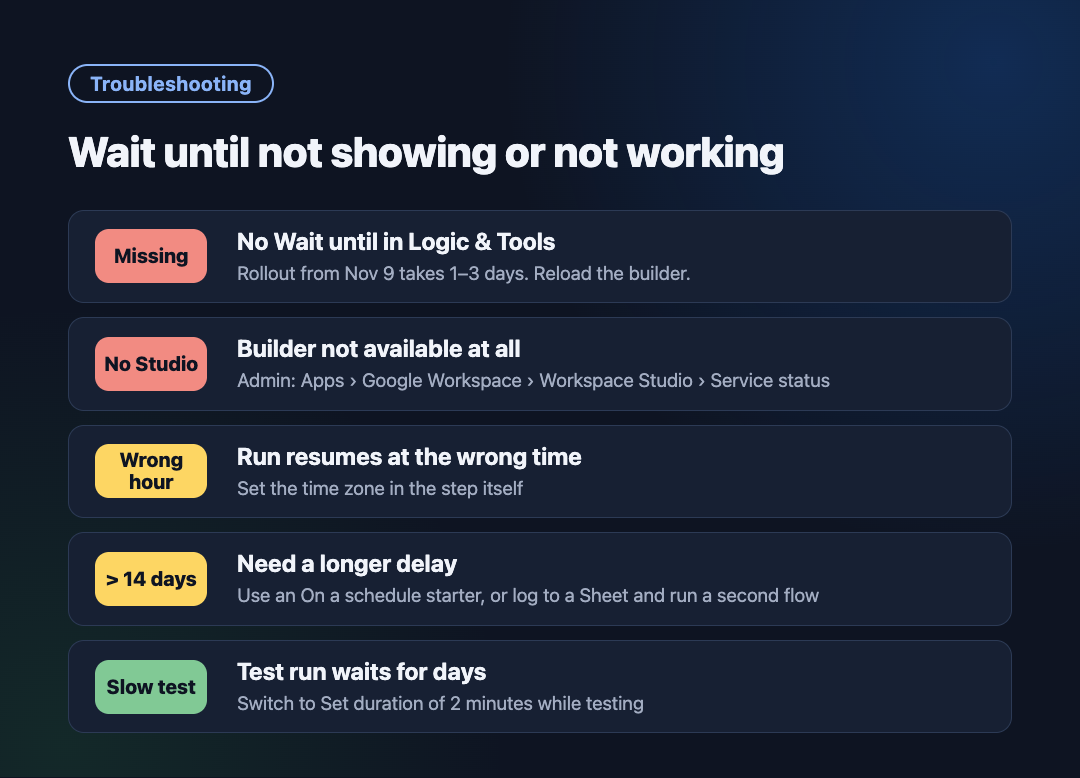
| Problem | Likely cause | What to do |
|---|---|---|
| No Wait until under Logic & Tools | Rollout still reaching your account | Wait up to 3 days from Nov 9, then reload the builder |
| Builder missing entirely | Workspace Studio off for your OU, or edition not listed | Ask an admin to check Apps → Google Workspace → Workspace Studio → Service status |
| Resumes at the wrong hour | Time zone left on a default | Set the time zone in the step to the reader's zone |
| You need more than 14 days | Hard cap | Use the On a schedule starter, or log rows to a Sheet and run a second flow later |
| Test run takes days | The wait is not documented as skipped in tests | Switch to Set duration of a few minutes while testing |
If you run automations outside Google Workspace too, the same "trigger, act, wait, act" pattern works in n8n. The n8n Text Classifier confidence guide shows how to route items before you act on them.
FAQ
How long can the Workspace Studio Wait until step pause a flow? Up to 14 days. In Specific day and time you can pick 0 to 13 days plus a time of day. In Set duration, the hours, minutes and seconds you enter can't add up to more than 14 days.
Do admins need to turn on Wait until? No. Google says there is no admin control for this feature. It appears for anyone who already has Workspace Studio in a listed edition, once the rollout reaches the domain.
Can I wait for a reply or an event instead of a time? Not with this step. Wait until waits for a time or a duration. To react to a reply, start a separate flow with a Gmail starter such as When I get an email.
Can later steps use the wait time? Yes. Click + Variables in a later step to insert Wait start time, Wait end time or Wait time in seconds.
Does the step work in personal Gmail accounts? The November 9 post lists only Workspace business, enterprise and education editions and two add-ons. Personal accounts are not on that list.
Summary
Wait until gives Workspace Studio a pause button: next weekday at a set time, N days at a set hour, or a fixed duration, all capped at 14 days. Build the follow-up once with Send an email → Wait until → Send an email, set the time zone on purpose, log Wait start time and Wait end time to a Sheet, and check the Activity tab for Waiting until lines. Test with a 2-minute wait before you switch to days.
Next, combine it with branches: my Workspace Studio nested conditionals guide shows how to send customers and everyone else down different paths. For AI help in the inbox itself, see Gmail AI Inbox.
Written on November 11, 2026. All sources were checked on November 11, 2026.
References
- Pause and schedule automated workflows with the new "Wait until" step in Workspace Studio — Google Workspace Updates, November 9, 2026 (checked Nov 11, 2026)
- Wait until step — Workspace Studio Help (checked Nov 11, 2026)
- Guide to Starters & Steps in Workspace Studio — Workspace Studio Help (checked Nov 11, 2026)
- Learn about Google Workspace Studio limits — Workspace Studio Help (checked Nov 11, 2026)
- Troubleshoot issues with flows — Workspace Studio Help (checked Nov 11, 2026)
- Workspace Studio for admins — Google Workspace Admin Help (checked Nov 11, 2026)