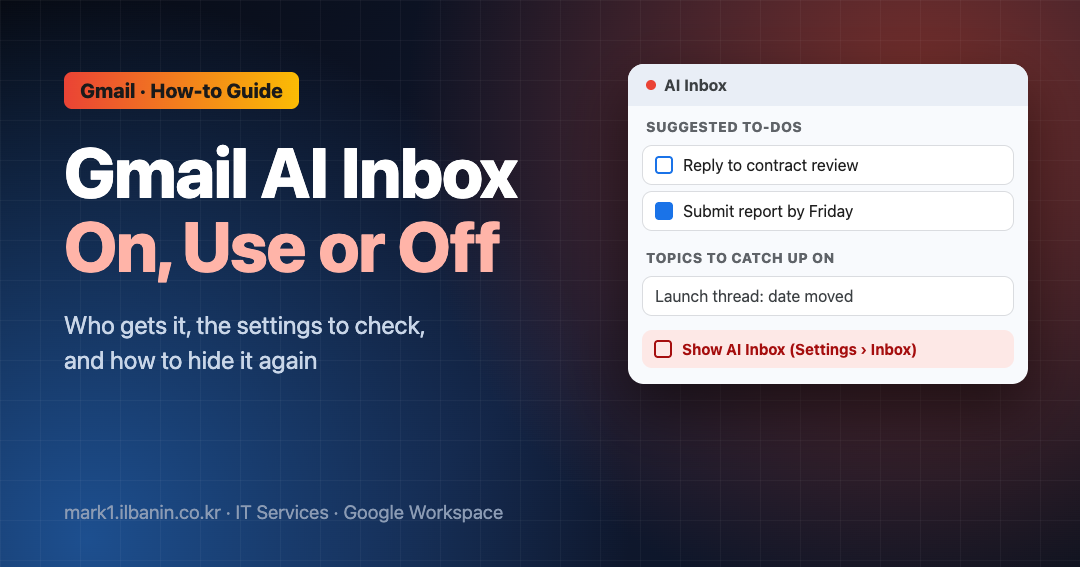
Gmail AI Inbox is a new view in the Gmail left panel. It lists suggested to-dos and short topic summaries pulled from your Primary inbox. To get it, you need a US account with English as the language, an eligible paid plan, and both Gmail smart features settings turned on. To hide it, go to Settings → See all settings → Inbox and uncheck Show AI Inbox.
Google first showed AI Inbox to trusted testers in January 2026. On October 15, 2026, it announced the rollout to paid Google Workspace accounts. Rapid Release domains started on October 12, and Scheduled Release domains start on October 26, 2026. This guide covers who can get it, how to open and use it, why it may be missing, and how to turn it off. It is based on Google's Help Center, the Workspace Updates blog and the Workspace Admin Help pages, checked on October 21, 2026. We describe the documented behavior. We did not test it on a live account for this article.
What Gmail AI Inbox does
AI Inbox does not replace your inbox. It is a separate page that sits next to it and shows two lists.
| Section | What it shows | What you can do |
|---|---|---|
| Suggested to-dos | Action items, deliverables and deadlines found in your email | View, Reply, Mark done, Remove to-do |
| Topics to catch up on | Summaries of long or fast-moving threads, including recent decisions and status changes | Open the source, Mark all as read |
Each item links back to the email, chat or other source it came from, so you can check the original before you act on a summary.
Who can get AI Inbox (October 2026)
| Account type | Eligible plans | Rollout |
|---|---|---|
| Personal Google account | Google AI Plus, AI Pro or AI Ultra | Available per the Help Center |
| Workspace Business / Enterprise | Starter, Standard, Plus | Rapid Release from Oct 12, Scheduled from Oct 26 |
| Workspace other | Frontline Plus, AI Pro for Education | Same dates as above |
| Free personal accounts | Not listed | — |
Two limits apply to every account type:
- Region and language: US only, with English (US) set as the Gmail language.
- Rollout pace: Each Workspace rollout is gradual and can take up to 15 days before everyone sees it.
One point is unclear in Google's own post. It lists Business and Enterprise Starter as eligible, but it also says Starter and Education editions will get AI Inbox "in the coming months." If you are on a Starter plan and don't see it, that is the likely reason.
How to turn on Gmail AI Inbox
There is no separate "enable AI Inbox" switch. For Workspace accounts, Google says there is no admin control for the feature. It appears once your account qualifies and the right settings are on.
Step 1: Check language and region
Open Gmail on a computer, then go to Settings → See all settings → General → Language. Set it to English (US) and save. Your account also has to be in the US.
Step 2: Turn on both smart features settings
AI Inbox needs Smart features in Google Workspace and Smart features in other Google products. Both live in the same panel:
- In Gmail, click Settings → See all settings.
- On the General tab, scroll to Google Workspace smart features.
- Click Manage Workspace smart feature settings.
- Turn on Smart features in Google Workspace and Smart features in other Google products.
- Click Save at the bottom right.
Note that a different checkbox, "Turn on smart features in Gmail, Chat, and Meet," sits under the Smart features heading on the same tab. Google says it works separately from the Workspace settings above, so check both areas.
Smart features can take a few hours to take effect. Your first to-dos and topics can take up to 7 days to appear.
Step 3: Open AI Inbox
- Computer: Open Gmail and click AI Inbox in the left panel. Click Refresh at the top for the latest items.
- Mobile: Open the Gmail app menu and look for AI Inbox. The Workspace announcement says it is available in the mobile app menu, but the Help Center does not list mobile steps yet.

View PlantUML source
@startuml
left to right direction
skinparam shadowing false
skinparam defaultFontSize 15
skinparam rectangleBackgroundColor #EEF4FF
skinparam rectangleBorderColor #3367D6
rectangle "1. US account\nEnglish (US)" as A
rectangle "2. Eligible plan\nAI Plus/Pro/Ultra\nor Workspace" as B
rectangle "3. Both smart\nfeatures on\n(wait up to 7 days)" as C
rectangle "4. Rollout reached\nyour domain\n(up to 15 days)" as D
rectangle "AI Inbox in\nleft panel" as E #DFF5E1
A --> B : yes
B --> C : yes
C --> D : yes
D --> E : yes
@enduml
How to use AI Inbox: to-dos and topics
Work through suggested to-dos
- Click an action button such as View or Reply next to a to-do.
- Click the link next to the item to open the source email.
- Click Mark done when you finish it.
- To drop a suggestion, click More options → Remove to-do.
- Click View all at the bottom (in a web browser) to see every suggested to-do and topic.
Catch up on topics
- Click the link next to a topic to read the source thread.
- Mark all as read marks the updates as acknowledged. Be careful: it also marks the related emails as read in your normal inbox.
Send feedback
Under More options, choose Positive feedback or Negative feedback. Use Report abuse for unsafe suggestions. AI Inbox is labeled beta, so feedback is the main way to report wrong summaries.
What AI Inbox ignores
Knowing the limits explains most "empty AI Inbox" cases.
| Ignored | Details |
|---|---|
| Other tabs | Only the Primary tab is used. Social and Promotions are skipped. |
| Filtered mail | Spam, and mail you archived, deleted, muted or snoozed |
| Unsupported content | Attachments, delegated inboxes, encrypted emails |
| Quiet inboxes | It can look empty if you haven't sent or received mail recently |
So if your important mail lands in a delegated mailbox or arrives as encrypted messages, AI Inbox won't summarize it. Keep checking those the usual way.
How to turn off Gmail AI Inbox
To hide the AI Inbox view:
- Click Settings → See all settings.
- Open the Inbox tab.
- Uncheck Show AI Inbox and save.
Your regular inbox is not affected. If you want to stop Gmail content being used by Gemini features in general, turn off Smart features in Google Workspace in the panel from Step 2. That also turns off other smart features, such as Gemini in Workspace apps.
For Workspace admins
The rollout post says there is no admin control for AI Inbox itself. However, Google's admin documentation says users "may also lose access to AI Inbox" if Gmail is turned off as a Workspace Intelligence data source:
- In the Admin console, go to Menu → Generative AI → Gemini for Workspace.
- Click the Workspace Intelligence panel.
- Optionally pick an organizational unit or group.
- Click Edit next to Gmail, select Off, and click Save.
This needs the Gemini Settings administrator privilege, and changes can take up to 48 hours. It is a broader switch: Gemini features stop actively searching Gmail, and users may also lose AI Overviews in Gmail search. Test it on one organizational unit first.
FAQ
Is Gmail AI Inbox free? No free personal plan is listed. Personal accounts need Google AI Plus, AI Pro or AI Ultra. Work accounts need an eligible Workspace edition.
Why don't I see AI Inbox in Gmail? Check four things: US account with English (US), an eligible plan, both smart features settings on, and whether the rollout has reached your domain. Scheduled Release domains only start on October 26, 2026, and the rollout can take up to 15 days.
Does AI Inbox change or delete my emails? It doesn't delete mail. But Mark all as read on a topic also marks the related emails as read in your inbox.
Can AI Inbox read my attachments? No. Google lists attachments, delegated inboxes and encrypted emails as unsupported.
Can my admin turn AI Inbox off? There is no direct switch. Turning off Gmail as a Workspace Intelligence data source may remove access, along with other Gemini features that use Gmail.
Summary
Gmail AI Inbox adds a to-do and topic summary view next to your inbox. Make sure your account is in the US with English (US), use an eligible plan, turn on both smart features settings, and give it up to 7 days to fill in. To hide it, uncheck Show AI Inbox on the Inbox settings tab.
Written on October 21, 2026, based on Google's documentation as of that date. AI Inbox is in beta, so menu names and eligibility may change. If you build your own AI tools on Google's models, see our guide to the Gemini 4 Argon API and migrating from Gemini 3.x. For a do-it-yourself automation route, read how to run Claude Code headless with n8n on macOS.
References
- Manage to-dos & topics with AI Inbox — support.google.com (checked Oct 21, 2026)
- Gmail's AI Inbox is rolling out to paid Workspace users (Oct 15, 2026) — workspaceupdates.googleblog.com (checked Oct 21, 2026)
- Learn about smart features & controls for Google Workspace & other Google products — support.google.com (checked Oct 21, 2026)
- Control Workspace Intelligence for generative AI features — knowledge.workspace.google.com (checked Oct 21, 2026)
- Gmail is entering the Gemini era (Jan 8, 2026) — blog.google (checked Oct 21, 2026)
3 thoughts on “Gmail AI Inbox: How to Turn It On, Use It or Turn It Off”