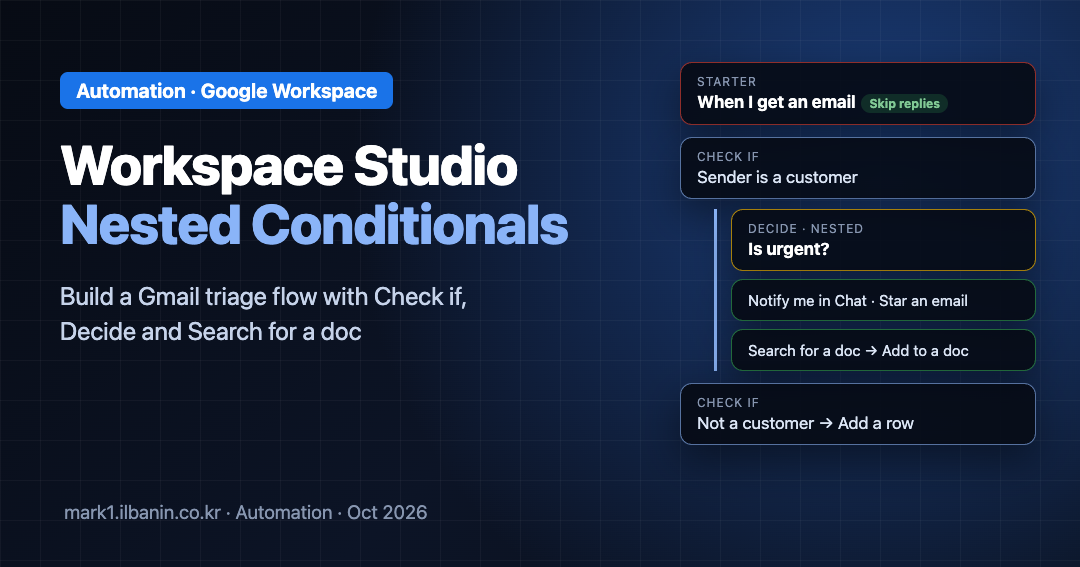
Workspace Studio nested conditionals let you put one Check if or Decide step inside another, so a single flow can ask "is this from a customer?" and then "is it urgent?" before it acts. Google added them in the October 2026 feature release, along with Skip thread replies for the Gmail starter and a new Search for a doc step for Drive. This guide builds one email triage flow that uses all three, step by step.
The rollout started on October 13, 2026 and can take up to 15 days to reach your account, so some screens may not show the new options yet. Everything below comes from Google's Workspace Updates post and the Workspace Studio Help Center, checked on October 23, 2026. I describe the documented behavior and an example design; I have not run this exact flow in a production inbox, so test it with Test run before you turn it on.
What changed in the October 2026 Workspace Studio release
Workspace Studio is Google's no-code automation builder for Gmail, Chat, Drive, Docs, Sheets and Calendar. It is the product that replaced the earlier name Workspace Flows. A flow has a starter (the event or schedule that starts it), steps (the actions) and variables (data passed from one step to the next).
Google's October 9, 2026 post lists four additions:
| Feature | Where | What it does |
|---|---|---|
| Nested conditionals | Logic steps | A condition inside a condition, for multi-layer decisions |
| Skip thread replies | Gmail starter | Runs only on the first email of a new conversation |
| Meet Calendar outputs | Meeting outputs | More event data, such as the full invitee list |
| Search for a doc | Drive steps | Finds a Google Doc you own by its title |
Rollout facts from the same post:
- Start: October 13, 2026, gradual, for both Rapid Release and Scheduled Release domains.
- Visibility: up to 15 days after the start.
- Users: on by default in the flow builder. No new switch to flip.
- Admins: the features follow your existing Workspace Studio policies at domain and organizational unit (OU) level.
Why nesting matters: you can't mix AND and OR
The Check if step compares values. Each condition has three parts: a variable, an operator (such as is, is not, contains or starts with) and a value. You can join conditions with AND or with OR, but Google's help page says you can't mix the two in one step.
That is the gap nesting fills. "From customer A or customer B, and the message is urgent" used to need two separate flows or a messy workaround. Now the outer step handles the OR, and the inner step handles the AND.
One warning: Google's older "Tips for conditional steps" article still says nested conditional steps aren't allowed and that substeps can't contain another Check if. The newer Starters and Steps reference and the October 9 announcement both describe nesting as supported. If your builder won't let you drop a condition inside another one, the rollout hasn't reached your account yet.
Before you start: availability, admin settings and limits
Who can use it. Google says the October features reach all Google Workspace customers and Workspace Individual subscribers who already have access to Workspace Studio. Google's Business edition comparison lists Workspace Studio for Business Starter, Standard and Plus, with a note that the domain must be verified. Personal Google accounts need Workspace Experiments for some starters and steps. Users under 18 on school accounts can't use any AI step, including Decide.
Admin check. If the builder is missing, or Drive or Gmail steps are greyed out, an admin should check two places in the Google Admin console:
- Menu → Apps → Google Workspace → Workspace Studio, then confirm Service status is ON for the right OUs or groups.
- On the same page, open Steps & features, click Edit next to an app (for example Google Drive), tick the steps you want to allow and click Save.
Limits. The Help Center limits page, checked on October 23, 2026, lists these. Google notes that limits are subject to change.
| Limit | Value |
|---|---|
| Flows per user (on or off) | 25 |
| Steps per flow | 20 |
| Active flows with a Gmail starter | 25 |
| Runs per 24 hours (all flows) | Daily cap, number not published |
When you hit the daily run cap, your active flows stop until the 24-hour window resets. Keep that in mind before you point a flow at a busy shared inbox.
Build the email triage flow with nested conditionals
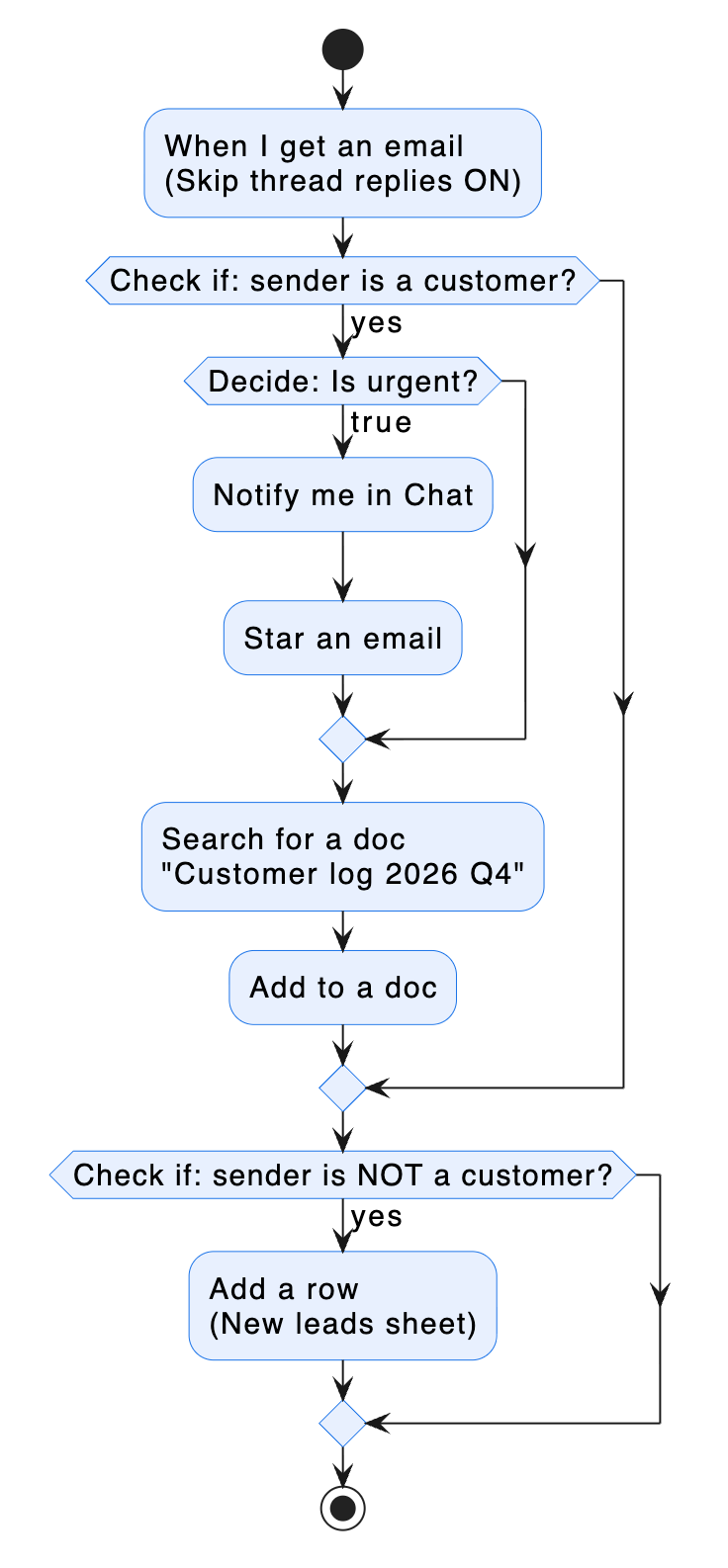
The example flow does three things for each new email thread:
- Email from a key customer domain → log it in a Google Doc. If Gemini also judges it urgent, ping you in Google Chat and star it.
- Email from anyone else → add the sender to a "New leads" sheet.
- Replies inside an existing thread → do nothing.
The diagram below is the plan, not a screenshot. It uses the step names you will see in the builder.
View PlantUML source
@startuml
skinparam defaultFontSize 15
skinparam ActivityBorderColor #1a73e8
skinparam ActivityBackgroundColor #e8f0fe
start
:When I get an email\n(Skip thread replies ON);
if (Check if: sender is a customer?) then (yes)
  if (Decide: Is urgent?) then (true)
    :Notify me in Chat;
    :Star an email;
  endif
  :Search for a doc\n"Customer log 2026 Q4";
  :Add to a doc;
endif
if (Check if: sender is NOT a customer?) then (yes)
  :Add a row\n(New leads sheet);
endif
stop
@enduml
Step 1: Prepare a log doc and a leads sheet
Create two files in Google Drive first, so the flow has somewhere to write:
- A Google Doc titled exactly
Customer log 2026 Q4. You must own it, because Search for a doc only finds Docs you own. - A Google Sheet named
New leadswith one header row, for exampleSenderin column A. Google's docs recommend unique header names for Sheets steps.
Step 2: Set the Gmail starter and turn on Skip thread replies
- Go to
studio.workspace.google.comand start a new flow. - Pick the starter When I get an email.
- Add filters if you only want part of your inbox, such as To for a shared alias or Has the words.
- Turn on Skip thread replies. The flow now runs only on the first email in a new conversation, not on every "Thanks!" that follows.
- Leave Include messages sent by flows off. It is off by default and stops flows from triggering each other in a loop.
The Gmail starter has some filter limits. You can't use search operators such as label:finance or date filters in the search text, and the Email label filter only works with default Gmail labels, not custom ones.
Step 3: Add the outer Check if for customer domains
- Add a Check if step.
- For the value to check, type
@(or click Variables +) and pick the starter's Sender email address variable. - Choose contains and enter
@<CUSTOMER_DOMAIN_1>. - Click OR and add a second condition: Sender email address contains
@<CUSTOMER_DOMAIN_2>.
Everything you add below this step as a substep runs only when the condition matches. Top-level steps after it run on every flow run.
Step 4: Nest a Decide step for urgency
Inside the outer Check if, add a Decide step. Decide uses Gemini to judge a condition as true or false, and adding it automatically creates a paired Check if set to is true.
- In the Decide prompt, click the suggested use case Is urgent, or write your own condition.
- Add the email's message body variable so Gemini judges the real content.
- Under the paired Check if (is true), add two substeps: Notify me in Chat and Star an email.
Here is a Decide prompt you can paste and adjust. Google's tips for AI steps recommend giving context and passing variables from earlier steps:
Decide if this email needs a reply from me today.
Treat it as urgent if it mentions an outage, a failed payment,
a legal or security issue, or a deadline within 48 hours.
Ignore newsletters and automatic notifications.
Email body: @<Message body variable>
No Gemini access? Use a nested Check if instead: message body contains urgent. It is cruder than Decide, but it needs no AI feature, which Google's docs name as the reason to pick Check if over Decide.
For the Chat text, insert the Sender email address variable so you know who wrote in. Variables inserted as text in Notify me in Chat won't create real @mentions.
Step 5: Log the email with Search for a doc
Still inside the outer Check if, but after the urgency block:
- Add Search for a doc and enter
"Customer log 2026 Q4"with the quotes. Quotes match the exact phrase. Without quotes, the words can match in any order. - Add Add to a doc and, for the target document, pick the result of Search for a doc from the variables list.
- In the text, insert Sender email address and any other email variables you want in the log.
If several Docs match, the step uses the most recently modified one. That is the reason to keep the title unique. It also makes a quarterly switch easy: create Customer log 2027 Q1 in January and change one search phrase.
Step 6: Add the "else" branch as a second Check if
Workspace Studio has no Else. Google's own workaround is a second Check if with the opposite condition, added as a top-level step after the first one.
- Add a new top-level Check if.
- Set Sender email address with the negative operator (the docs pair is with is not), for
@<CUSTOMER_DOMAIN_1>. - Join the second domain with AND, not OR. "Not customer 1 and not customer 2" is the true opposite of "customer 1 or customer 2".
- Add the substep Add a row, pick the
New leadssheet and map Sender email address to theSendercolumn.
Step 7: Test run, then turn it on
- Click Test run, choose the starting conditions, and click Start. A Run Completed message means the flow finished.
- Send yourself two test emails from different accounts, one that matches a customer domain and one that doesn't, and check the Doc, the Sheet and Chat.
- Reply in one of the threads. With Skip thread replies on, the reply should not start a new run.
- Click Turn on.
Three rules that trip up conditional flows
Variables stay inside their branch. Google's help page says variables created in substeps can't be used in main-flow steps. In this example, the result of Search for a doc lives inside the customer branch, so the leads branch can't reuse it.
Watch the 20-step budget. The example has nine steps after the starter, counting the Check if that Decide adds for you. Google's limits page doesn't say whether the starter counts toward the cap. Add a few more branches and you can reach the 20-step cap fast. Split very different jobs into separate flows instead.
Shared inboxes burn through the daily cap. Google doesn't publish the daily run number. Use the starter's filters so the flow only starts on mail it actually needs to sort, and Skip thread replies so replies don't count as runs.
For a broader look at Gmail's own AI triage, see my guide to Gmail AI Inbox. If your automations live outside Google Workspace, the same "trigger, check, act" pattern applies to Make event subscriptions with signed webhooks and to running Claude Code headless from n8n.
FAQ
Do I need to switch anything on to get nested conditionals in Workspace Studio? No. Google says the October features are on by default for end users. They roll out gradually from October 13, 2026, with up to 15 days before they show up, so wait if you don't see them yet.
Is there an Else option in Workspace Studio? No. Add a second top-level Check if with the opposite condition. For a Decide step, you can also change its paired Check if from is true to is false.
Can Search for a doc find files shared with me or PDFs? The Help Center describes it as finding a Google Doc you own by title. Files you don't own, and other file types, are outside what Google documents for this step.
Should I use Decide or Check if? Use Check if for exact values, such as a domain or a word in the subject. Use Decide when the condition needs judgment, such as urgency or tone. Decide needs Gemini access.
How many flows can I create? The limits page lists 25 flows per user, on or off, and up to 25 active flows with a Gmail starter. Each flow can have up to 20 steps.
Summary
Nested conditionals close the biggest logic gap in Workspace Studio: you can now combine OR and AND by putting one condition inside another. Pair them with Skip thread replies so only new conversations start a run, and with Search for a doc so the flow writes to a Doc you find by title. Build the outer customer check first, nest the urgency check, add the opposite Check if as your "else", then test with real emails before you turn the flow on.
Written on October 23, 2026. All sources were checked on October 23, 2026.
References
- New logic and search steps in Workspace Studio help expand automation capabilities — Google Workspace Updates, October 9, 2026 (checked Oct 23, 2026)
- Guide to Starters & Steps in Workspace Studio — Workspace Studio Help (checked Oct 23, 2026)
- Tips for conditional steps — Google Workspace Learning Center (checked Oct 23, 2026)
- Create a flow with Gemini AI — Workspace Studio Help (checked Oct 23, 2026)
- Use variables to pass data in your flow — Workspace Studio Help (checked Oct 23, 2026)
- Learn about Google Workspace Studio limits — Workspace Studio Help (checked Oct 23, 2026)
- Get started with Workspace Studio: set up guide for admins — Google Workspace Admin Help (checked Oct 23, 2026)
- Allow or block Workspace service-specific steps — Google Workspace Admin Help (checked Oct 23, 2026)
- Compare Business editions — Google Workspace Admin Help (checked Oct 23, 2026)
1 thought on “Workspace Studio Nested Conditionals: Email Triage Tutorial”