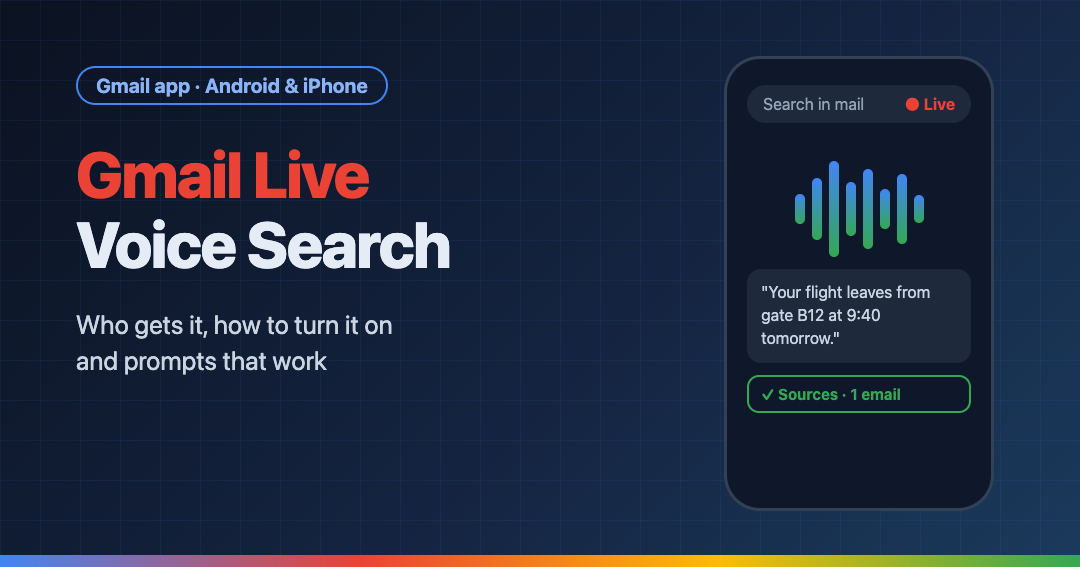
Gmail Live is a voice search mode in the Gmail app for Android and iPhone: you tap Gmail Live at the top of the app, ask a question out loud, and Gemini answers by voice with links to the emails it used. Since October 15, 2026, it has been rolling out to paid Google Workspace plans, after reaching Google AI Plus, Pro and Ultra subscribers in September. To use it, you need a US account set to English (US), an eligible plan and both Gmail smart features settings turned on.
This guide covers who can get Gmail Live, the settings to check, how to run a session, prompts that work well, privacy, and fixes for when the button is missing. It is based on Google's Help Center and Workspace Updates posts, checked on October 28, 2026. Gmail Live is still labeled beta, so menus and limits may change.
What Gmail Live does
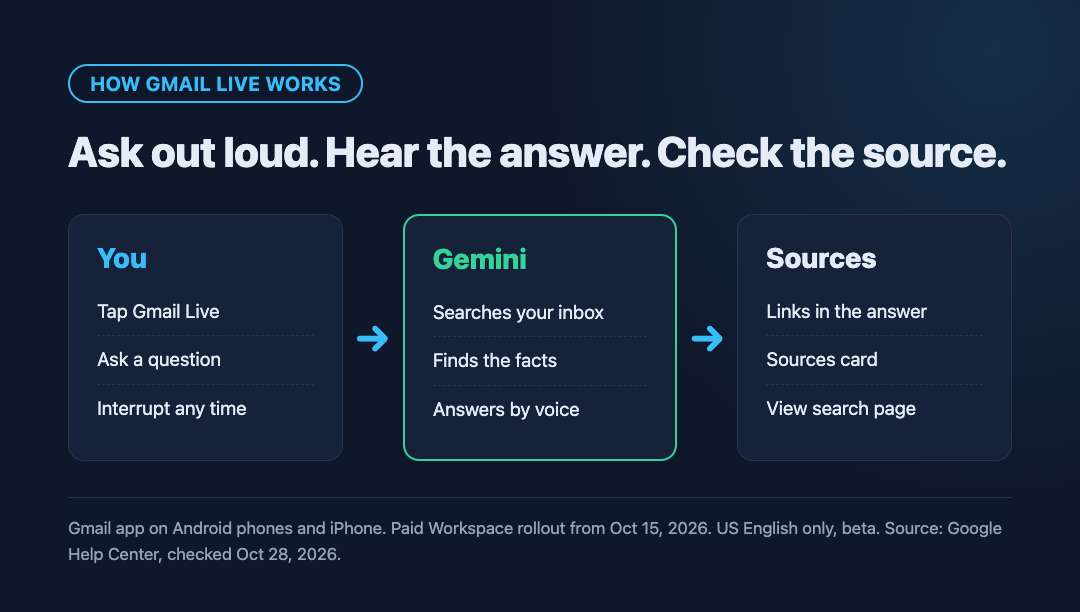
Gmail Live turns inbox search into a spoken conversation. Instead of typing keywords and scanning a results list, you ask a question such as "When does my flight leave tomorrow?" and hear a short answer. Each answer comes with links and a Sources card, so you can open the exact emails behind it.
| Item | Detail (as of Oct 28, 2026) |
|---|---|
| Where it runs | Gmail app on Android phones and iPhone |
| How to start | Tap Gmail Live at the top of the app |
| Answers | Spoken, with links to the source emails |
| Language and region | English (US), US users only |
| Status | Beta |
Google first announced Gmail Live on September 3, 2026, for Google AI Plus, Pro and Ultra subscribers, together with Docs Live and Keep Live. The October 15 Workspace Updates post extended it to paid business plans.
Who can use Gmail Live
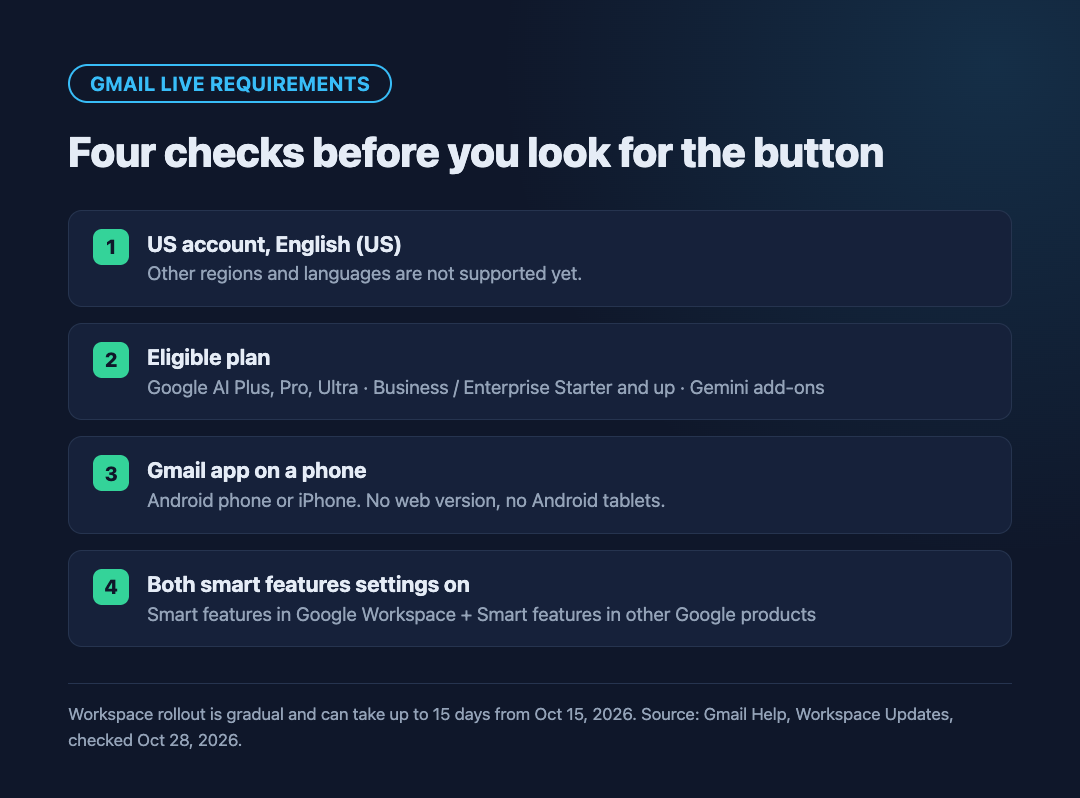
Gmail Live has three hard limits: plan, language and device. If any one of them fails, the button does not appear.
| Account type | Eligible plans |
|---|---|
| Personal Google account | Google AI Plus, Pro or Ultra, or Google Workspace Experiments |
| Business and Enterprise | Business Starter, Standard, Plus; Enterprise Starter, Standard, Plus |
| Other Workspace | Frontline Plus, Workspace for Nonprofits, Google AI Pro for Education |
| Add-ons | Gemini Business, Gemini Enterprise, AI Expanded Access, AI Ultra Access |
On top of the plan, the Help Center lists these conditions:
- Language: English only, and the October announcement limits it to users in the US with English (US) as their language.
- Devices: the Gmail app on Android phones and iPhone. Android tablets are not supported. There is no Gmail Live on the web.
- Work and school accounts: your admin must give you access to Gemini, and may need to enable Beta features.
For Workspace domains, the rollout started on October 15, 2026, for both Rapid Release and Scheduled Release, and it is gradual. Google says it can take up to 15 days for the feature to show up, so some accounts may only see it in early November.
How to turn on Gmail Live
There is no separate Gmail Live switch for users. It appears when the account qualifies and the right settings are on. Work through these steps in order.
Step 1: Update the Gmail app
Install the latest Gmail app from Google Play or the App Store. Google notes that the mobile app may not reflect settings changes right away, and updating the app is its first fix.
Step 2: Turn on both Workspace smart features settings
Gmail Live needs Smart features in Google Workspace and Smart features in other Google products. The Help Center gives the steps for Gmail on a computer, and the settings apply to every device where you are signed in:
- Open Gmail on a computer.
- Click Settings (gear icon), then See all settings.
- On the General tab, scroll to Google Workspace smart features.
- Click Manage Workspace smart feature settings.
- Turn on Smart features in Google Workspace and Smart features in other Google products.
- Click Save.
On the same General tab there is a separate checkbox, Turn on smart features in Gmail, Chat, and Meet, under the Smart features heading. The Gmail Live Help Center page only names the two Workspace settings above, but if Gmail smart features are off you may lose other features too, so it is worth checking both areas. These are the same settings that Gmail AI Inbox depends on.
Step 3 (admins): Allow Gemini in Gmail
For organizations with Gemini in Workspace access, Gmail Live is on by default and follows the users' smart features settings. If your users cannot see it, check that Gemini is allowed for Gmail:
- In the Google Admin console, go to Menu > Generative AI > Gemini for Workspace.
- Open Feature access.
- Pick the organizational unit or configuration group (or leave it at the top level for everyone).
- Click the edit icon next to Gmail, select On, and click Save.
You need the Gemini Settings administrator privilege for this page. Because the Help Center says work accounts need access to Gemini Beta, also check your organization's Beta features setting if access is still missing. If you run other Gemini automations in your domain, such as flows in Workspace Studio, the same Gemini access controls apply.
How to use Gmail Live on your phone
Once the account qualifies, a session takes a few taps.
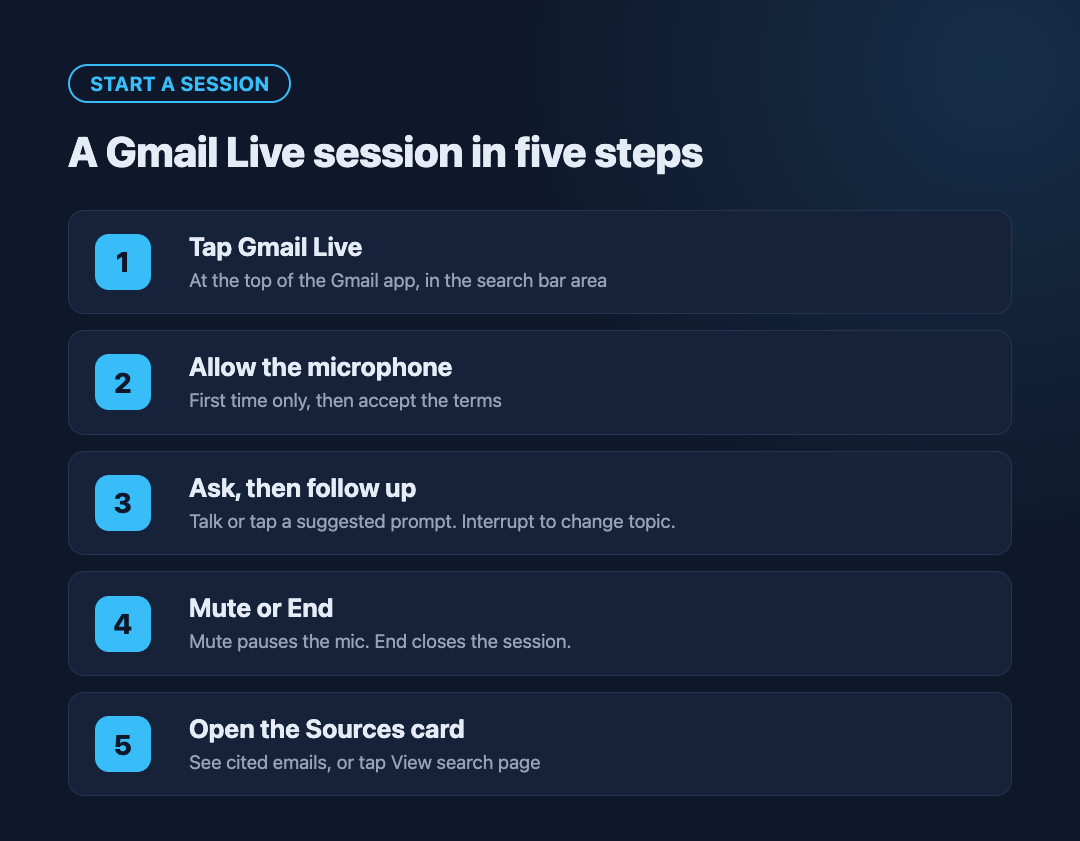
- Open the Gmail app on your Android phone or iPhone.
- At the top, tap Gmail Live (it sits in the search bar area).
- The first time, allow microphone access and accept the terms.
- Start talking, or tap one of the suggested prompts.
- Ask follow-up questions. You can interrupt Gemini to change topic without starting over.
- Tap Mute to pause your microphone, and Unmute to continue.
- Tap End to close the session.
To check an answer, tap a link inside the response, or tap the Sources card at the bottom to see every email Gemini cited. Opening an email from the list ends the live session. To see the same results as a normal list, scroll to the bottom of the source menu and tap View search page.
One detail differs between Google's pages. The October 15 Workspace post says you can pick a preferred voice, while the Gmail Live Help Center page (checked October 28, 2026) says you can't change the voice. Treat the Help Center as the current behavior and expect this to change during the beta.
Gmail Live prompts that work well
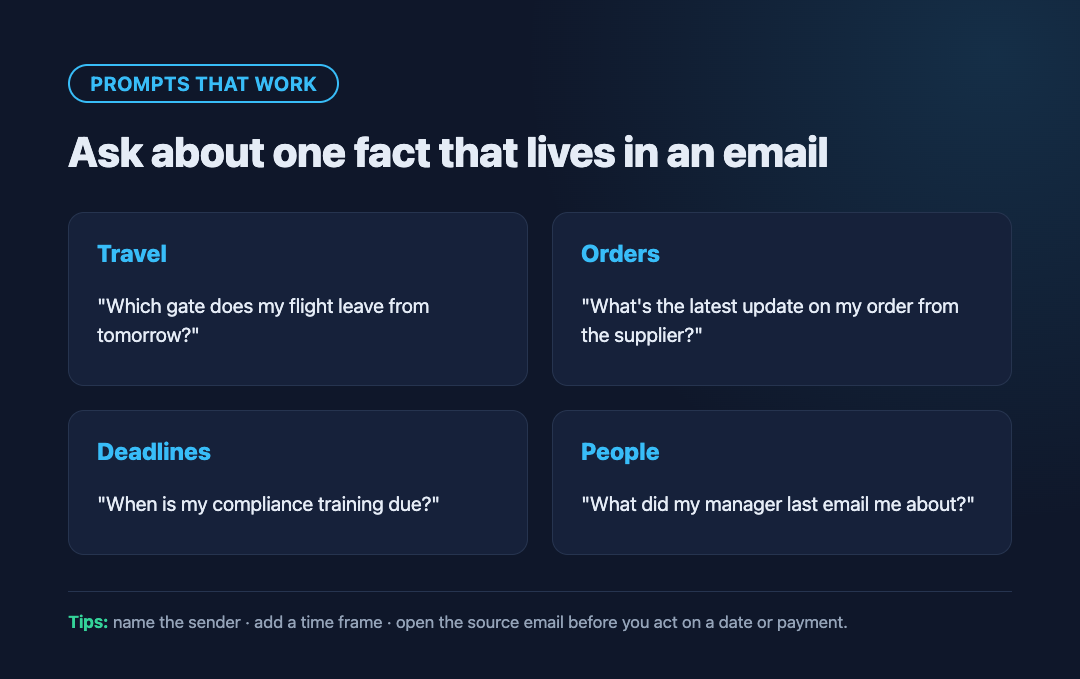
Gmail Live answers from your email, so the best questions point to one fact that lives in a message. Google's own examples are order status with a supplier, a training deadline, the latest message from your manager, and the departure gate for tomorrow's flight. Here are prompts in the same style:
| Goal | What to say |
|---|---|
| Travel | "Which gate does my flight leave from tomorrow?" |
| Orders | "What's the latest update on my order from <SUPPLIER_NAME>?" |
| Deadlines | "When is my compliance training due?" |
| People | "What did <MANAGER_NAME> last email me about?" |
| Follow-up | "Who sent that, and when?" |
A few habits help:
- Name the sender or company. "From Delta" or "from the IT team" narrows the search far more than a general topic.
- Add a time frame. "This week" or "since Monday" helps when the same sender writes often.
- Verify before you act. Gemini can make mistakes, and Gmail Live is in beta. Open the source email before you reply to a deadline, a payment or a booking.
Gmail Live vs Gmail search vs AI Inbox
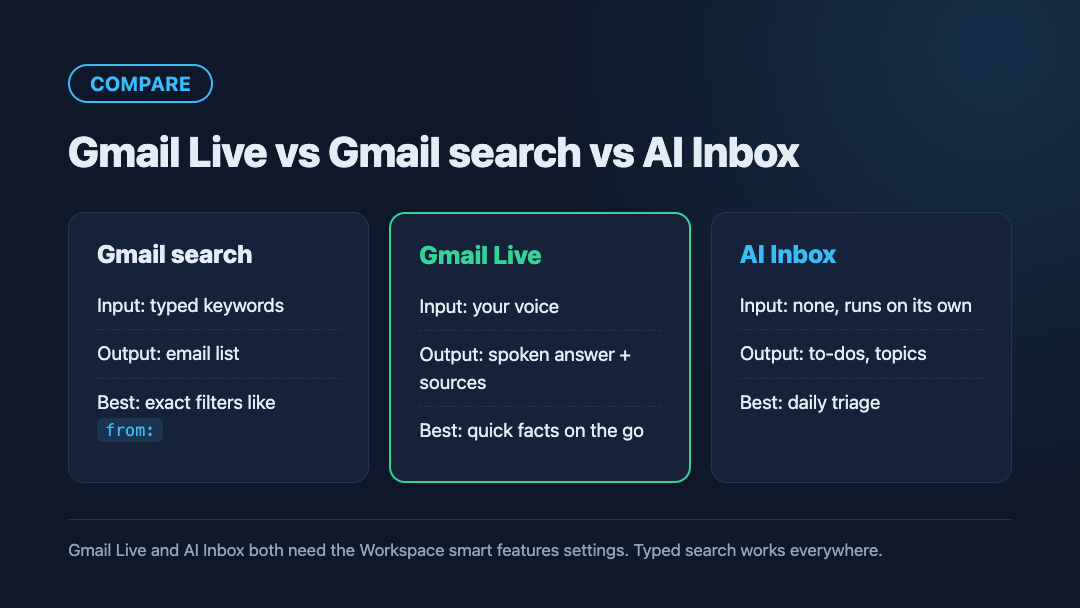
Gmail now has three ways to find things, and they solve different problems.
| Feature | Input | Output | Best for |
|---|---|---|---|
| Gmail search | Typed keywords, operators | List of emails | Exact filters (from:, has:attachment) |
| Gmail Live | Your voice | Spoken answer + sources | Quick facts on the go |
| AI Inbox | Nothing, it runs on its own | To-dos and topic summaries | Daily triage |
Gmail Live does not replace search operators. If you need every email with an attachment from one sender in a date range, typed search with from: and after: is still faster and exact. Gmail Live is for hands-busy moments when you want one answer, not a list.
Privacy: what Gmail Live saves and how to stop it
According to the Help Center, Gmail Live saves session transcripts to your Gemini in Workspace conversation history. You can view and delete that history from a web browser. Use of Gmail Live is covered by the Google Cloud Terms of Service.
If you do not want Gemini features to read your Gmail at all, turn off Smart features in Google Workspace in the panel from Step 2. That also turns off other Gemini features in Workspace apps, such as AI Inbox. Admins can turn Gemini off for Gmail per organizational unit in Feature access, as shown in Step 3. Just ignoring the button also works: nothing runs until you start a session.
Gmail Live not showing or not working? Fixes
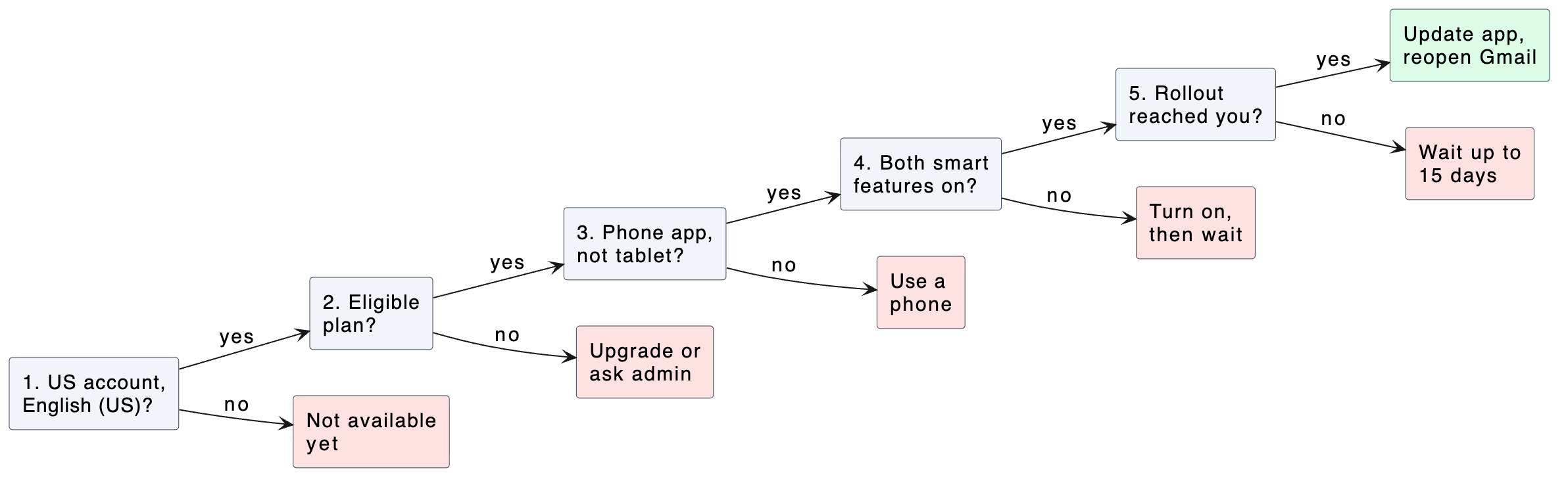
Most problems are eligibility, not bugs. Run through the checks in this order.
View PlantUML source
@startuml
left to right direction
skinparam shadowing false
skinparam defaultFontSize 15
skinparam rectangleBackgroundColor #F1F5F9
skinparam rectangleBorderColor #334155
rectangle "1. US account,\nEnglish (US)?" as A
rectangle "2. Eligible\nplan?" as B
rectangle "3. Phone app,\nnot tablet?" as C
rectangle "4. Both smart\nfeatures on?" as D
rectangle "5. Rollout\nreached you?" as E
rectangle "Update app,\nreopen Gmail" as F #DCFCE7
rectangle "Not available\nyet" as A2 #FEE2E2
rectangle "Upgrade or\nask admin" as B2 #FEE2E2
rectangle "Use a\nphone" as C2 #FEE2E2
rectangle "Turn on,\nthen wait" as D2 #FEE2E2
rectangle "Wait up to\n15 days" as E2 #FEE2E2
A --> B : yes
B --> C : yes
C --> D : yes
D --> E : yes
E --> F : yes
A --> A2 : no
B --> B2 : no
C --> C2 : no
D --> D2 : no
E --> E2 : no
@enduml
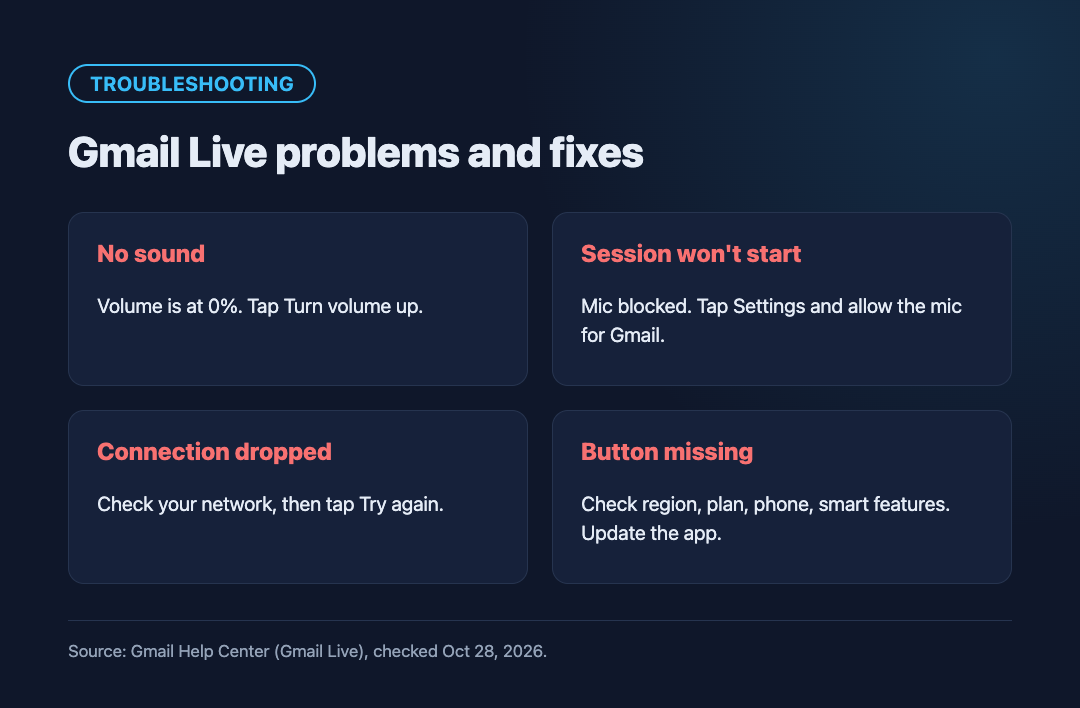
If the button appears but a session fails, the Help Center lists these fixes:
| Problem | Fix |
|---|---|
| No sound | Device volume is at 0%. Tap Turn volume up or use the volume buttons. |
| Session won't start | Microphone is blocked. Tap Settings on the error screen and allow the mic for Gmail. |
| Connection dropped | Check your network, then tap Try again. |
| Button missing after settings change | Update the Gmail app and reopen it. |
FAQ
Is Gmail Live free? No. It needs a paid plan: Google AI Plus, Pro or Ultra for personal accounts, or an eligible Google Workspace plan or Gemini add-on for work accounts. Personal accounts in Google Workspace Experiments can also get it.
Can I use Gmail Live on the Gmail website? No. As of October 28, 2026, Gmail Live works only in the Gmail app on Android phones and iPhone. Android tablets are not supported.
Does Gmail Live work outside the US or in other languages? Not yet. The October 2026 rollout is limited to US users with English (US) as their language, and the Help Center lists English only.
Can I change the Gmail Live voice? The Help Center says no, although the October 15 Workspace announcement mentions choosing a preferred voice. Check the Help Center for the current behavior.
Can Gmail Live send or delete emails for me? Google describes Gmail Live as voice search over your inbox: it answers questions and links to source emails. The official pages do not describe sending, deleting or archiving through Gmail Live.
References
All links checked on October 28, 2026.
- Google Workspace Updates: Gmail Live is rolling out to paid Workspace users (official, October 15, 2026)
- Gmail Help: Gmail Live (official)
- Gmail Help: Smart features and personalization settings (official)
- Google Workspace Admin Help: Manage access to Gemini features in Workspace services (official)
- Google Workspace Admin Help: Release options (official)
- Google Blog: Voice features in Gmail, Docs and Keep (official, September 3, 2026)
Gmail Live answers questions about your mail. For the to-do list side of Gemini in Gmail, see the guide to turning Gmail AI Inbox on or off.
2 thoughts on “Gmail Live: How to Turn On and Use Voice Search in Gmail”