Claude computer use is now in beta for Team and Enterprise plans (announced November 20, 2026), and it is off by default. An Owner turns it on in Organization settings > Capabilities, can limit it by role (Enterprise only) and by app, and IT can keep it off on specific machines with the computerUseEnabled MDM key. This guide walks through each switch in the order you should set it, with the commands to find app IDs and verify the policy.
Written November 21, 2026. All settings paths, limits and error messages come from Anthropic's help center articles and release notes, checked the same day. The shell and PowerShell commands are standard macOS and Windows tools shown as examples; I did not run them against a live Claude organization, so test on one machine first.
What Claude computer use does in Team and Enterprise
Computer use lets Claude see a user's screen and work in the desktop apps that user allows. It is different from a connector or the built-in browser: Claude clicks and types in real apps on the real computer. Anthropic's admin article is blunt about the risk: there is "no sandbox between Claude and a user's applications."
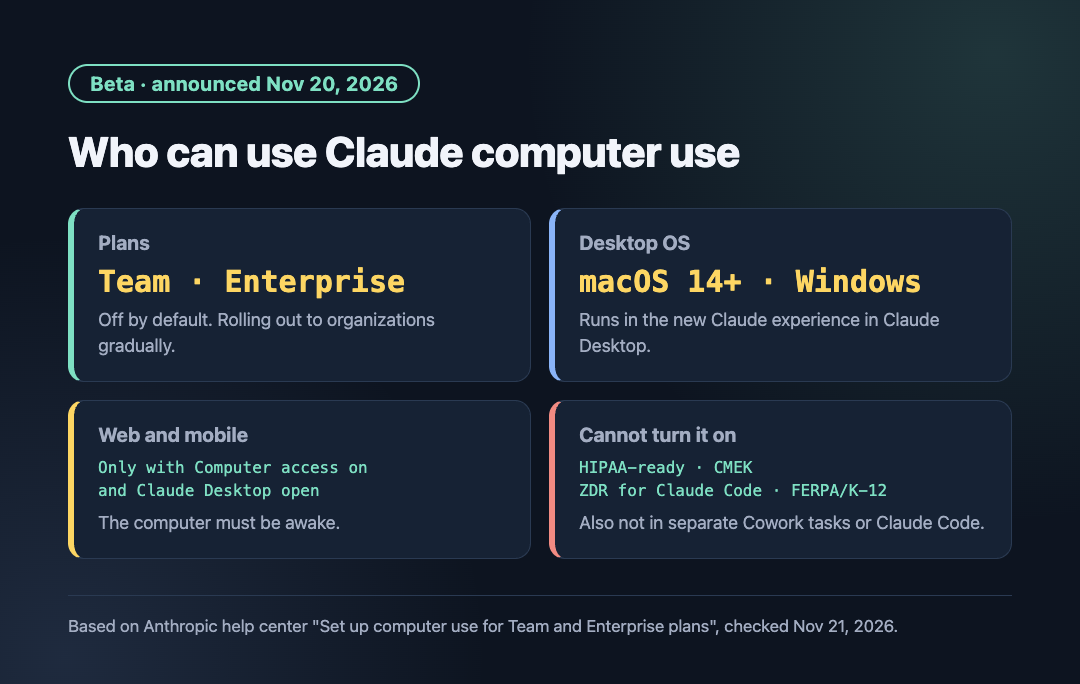
Here is where it works and where it does not, as of November 21, 2026:
| Item | Status |
|---|---|
| Plans | Team and Enterprise (beta, gradual rollout) |
| Desktop OS | macOS 14 or later, Windows |
| Where it runs | New Claude experience in Claude Desktop |
| Web and mobile | Only with Computer access on and Desktop open |
| Not available | Separate "Cowork" tasks, Claude Code |
Some organizations cannot turn it on at all: those with the HIPAA-ready configuration, ZDR for Claude Code, customer-managed encryption keys (CMEK), or FERPA/K-12 settings. If you are in one of those, the toggle will not appear and no setting changes that.
Pro, Max and Ultra users have had computer use in Cowork and Claude Code since the March 2026 research preview. The November 20 change is that organizations now get it too, with admin controls on top.
Three switches decide whether Claude computer use works
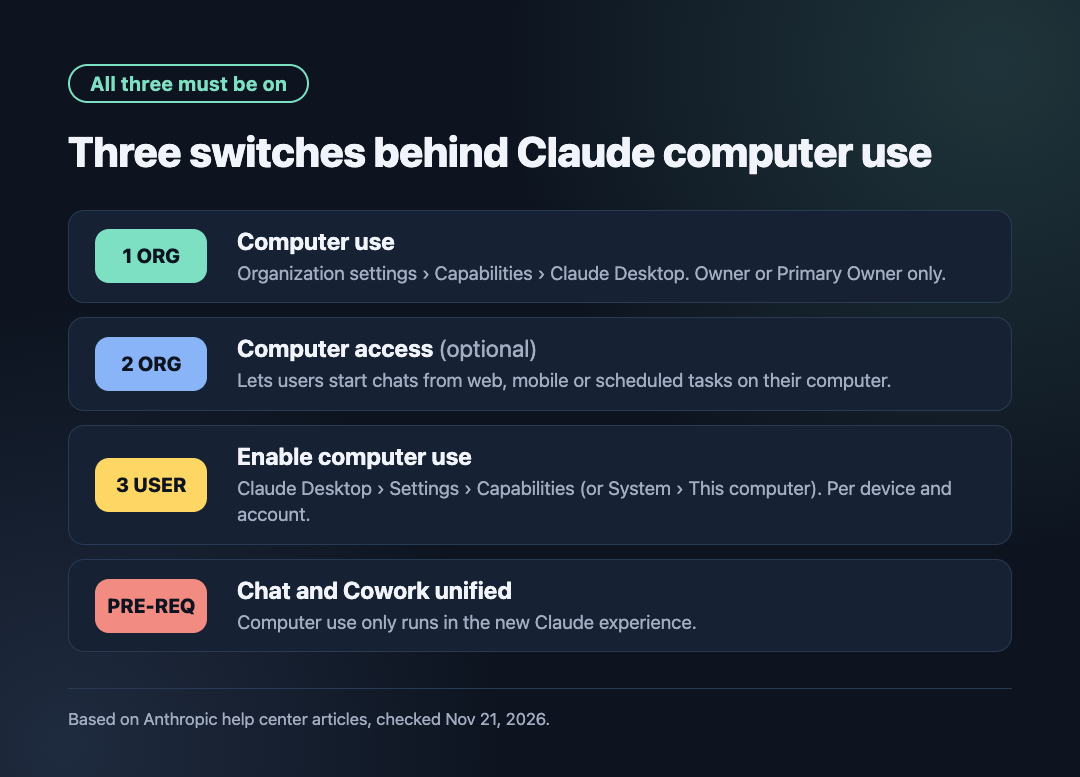
Most "why can't I see it" tickets come from mixing up three separate settings. All three must be on.
- Organization: Computer use (Owner or Primary Owner). Lets Claude see the screen and use apps.
- Organization: Computer access (Owner). Lets users reach their computer from the web, mobile or scheduled tasks. Only needed if people want to start computer-use chats away from the desk.
- User: Enable computer use in Claude Desktop. Set per computer and per account.
On top of that, the organization needs Chat and Cowork unified turned on, because computer use only runs in the new Claude experience.
Turn on Claude computer use: admin steps
Before you flip anything, decide who gets it and which apps it may touch. Removing access later takes about an hour or more to reach each computer, and until then Claude can still see the screen and use allowed apps.
Step 1: Prepare roles (Enterprise only)
Team plans have no custom roles, so on Team everyone gets computer use once you turn it on. On Enterprise, anyone with a built-in role (User, Admin, Owner, Primary Owner) gets it immediately. To exclude people:
- Move them to a Custom role and wait 15 minutes before turning computer use on.
- Make sure custom roles that should have it include Chat and Cowork unified.
- A role set to "All capabilities" cannot be cleared from the selection list. Change its Capability access to "Only selected", turn off Computer use on that role, wait 15 minutes, then turn computer use on and clear the role.
Step 2: Flip the organization setting
- Sign in as Owner or Primary Owner.
- Open Organization settings > Capabilities (
https://claude.ai/admin-settings/capabilities). - Confirm Chat and Cowork unified is on.
- Under Claude Desktop, find Computer use and turn it on.
- On Enterprise, if a role list appears, clear roles that should not have it, then click Turn on.
If Computer use is missing from the page, the beta has not reached your organization yet or your organization is not eligible.
Step 3: Tell users what to enable
Each user needs the latest Claude Desktop, open on the machine Claude will use. Then:
- Go to Settings > Capabilities in Claude Desktop. If there is no Computer use section there, look in Settings > System under This computer.
- Turn on Enable computer use.
- Start a chat in the new Claude experience. Claude asks permission before it uses each app.
On macOS 15 or later, Claude works in background windows by default and does not take over the pointer or keyboard. It asks before taking the full screen for the first time in a session. Users can change this with How Claude uses the apps you allow ("Full control").
View PlantUML source
@startuml
skinparam shadowing false
skinparam defaultFontSize 15
start
:Decide pilot roles\n(Enterprise only);
:Set App access list;
:Turn on Chat and Cowork unified;
:Turn on Computer use;
if (Machines that must stay off?) then (yes)
  :Deploy computerUseEnabled = false;
endif
:Users turn on Enable computer use;
:Approve each app on first use;
stop
@enduml
macOS permissions users will be asked for
Claude Desktop needs two permissions in System Settings > Privacy & Security:
- Accessibility (shown as "Device Control and Data Access" on macOS 27)
- Screen & System Audio Recording
Users who are not Mac administrators may need an admin's name and password. Windows needs no OS-level permission. To check which Claude Desktop version a Mac has, read the app bundle:
defaults read /Applications/Claude.app/Contents/Info.plist CFBundleShortVersionStringLimit which apps Claude can use
The App access setting sits right below Computer use in Organization settings > Capabilities > Claude Desktop. Only an Owner or Primary Owner can change it. You choose one mode:
- Block these apps: everything except the listed apps can be requested.
- Allow only these apps: only listed apps can be requested, and users still approve each one.
Click Add app, pick from the list or paste IDs into App IDs, one per line, then click Done. Changes take about an hour or more to reach users.
Find the app ID on macOS
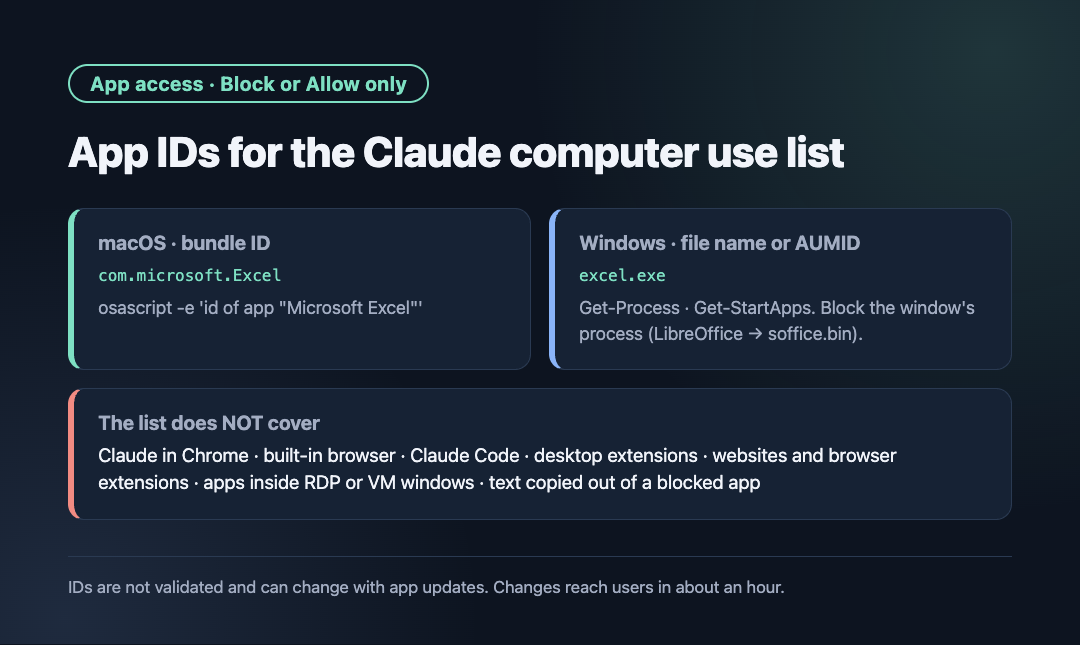
On a Mac the ID is the bundle ID, for example com.microsoft.Excel. Two built-in ways to read it:
osascript -e 'id of app "Microsoft Excel"'
mdls -name kMDItemCFBundleIdentifier -r "/Applications/Microsoft Excel.app"
Both should print something like com.microsoft.Excel. Repeat for each app you want on the list.
Find the app ID on Windows
On Windows the ID is the executable file name (such as excel.exe) or, for Store apps, the AUMID. With the app open, the first PowerShell command lists processes that have a visible window, and the second lists AUMIDs for Start menu and Microsoft Store apps:
Get-Process | Where-Object { $_.MainWindowTitle } |
  Select-Object ProcessName, Path

Get-StartApps | Where-Object { $_.Name -like "*Excel*" }
ProcessName drops the extension, so EXCEL means you add excel.exe. Some apps draw their window from a different process. Anthropic's example is LibreOffice, whose window belongs to soffice.bin; block the window's file name, not the launcher.
App list gotchas
- Nothing validates a typed ID, and a new app version can change its ID. Test after every change.
- If you remove the last app from an allow list in use, Claude cannot use any app.
- While an allow list is in use, users on an older Claude Desktop lose computer use until they update.
- The list is sent to every computer. Users are not shown it but could find it, so do not put anything confidential in app names.
The list does not cover: Claude in Chrome, the built-in browser, Claude Code, desktop extensions, websites and browser extensions (such as a password manager), apps inside a remote desktop or VM window, text copied out of a blocked app, or personal accounts a user switches to. On Windows, a denied app's notifications, the Start menu, search and File Explorer still appear in screenshots.
To test a change: wait a minute, fully quit and reopen Claude Desktop, then ask for the app by its exact name in a new chat.
Keep Claude computer use off on specific machines (MDM)
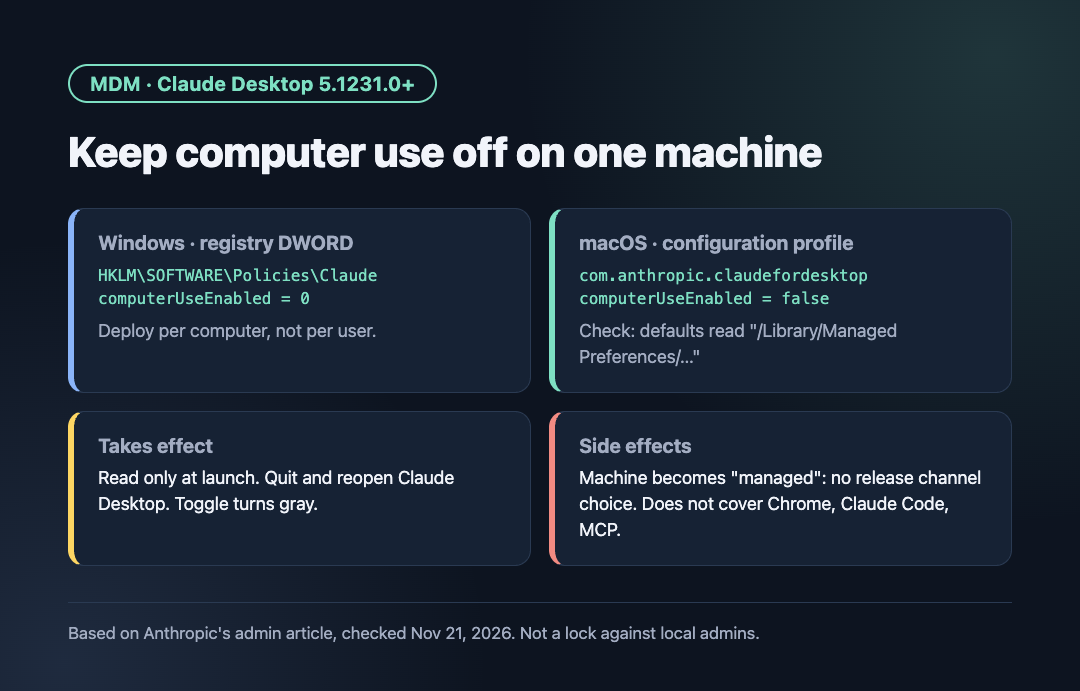
Shared kiosks, finance workstations or build machines may need computer use off no matter what the org setting says. Anthropic documents a machine-level policy key, computerUseEnabled, which needs Claude Desktop 5.1231.0 or later. Deploy it to the computer, not to a user.
Windows: registry policy
reg add "HKLM\SOFTWARE\Policies\Claude" /v computerUseEnabled /t REG_DWORD /d 0 /f
reg query "HKLM\SOFTWARE\Policies\Claude" /v computerUseEnabled
The query should return computerUseEnabled REG_DWORD 0x0. In Intune or Group Policy, push the same value to HKEY_LOCAL_MACHINE\SOFTWARE\Policies\Claude. The help article warns that an older Windows build of the app can reject the whole policy key if it finds no setting it recognizes, so update Claude Desktop before rolling this out.
macOS: configuration profile
Set computerUseEnabled as a Boolean false in a custom settings payload for the domain com.anthropic.claudefordesktop. The relevant part of the payload looks like this:
<key>PayloadType</key>
<string>com.anthropic.claudefordesktop</string>
<key>computerUseEnabled</key>
<false/>
After the profile installs, confirm the managed value on the Mac:
defaults read "/Library/Managed Preferences/com.anthropic.claudefordesktop" computerUseEnabledAn output of 0 means the policy is in place. The key is read only at launch, so users must fully quit and reopen Claude Desktop. When it works, the toggle is grayed out with a message that the organization has turned off computer use on this computer.
Two side effects are easy to miss. Setting the key to either true or false makes the machine "managed", so users can no longer pick a release channel and the app stops reading their own values for other behavior settings. And the key does not cover Record a skill, Claude in Chrome, the built-in browser, Claude Code in a terminal, local MCP servers or desktop extensions. Anthropic says plainly it is not a lock against someone who can change the app or the computer's settings.
Pre-approve macOS Accessibility with PPPC
For Macs where you do want computer use, a PPPC payload can grant Accessibility (Allow) to identifier com.anthropic.claudefordesktop, type bundleID. Copy the full code requirement (team ID Q6L2SF6YDW) from Anthropic's admin article rather than typing it. Screen Recording cannot be granted by a profile; AllowStandardUserToSetSystemService only lets non-admin users turn it on themselves. Do not use a PPPC Deny to block computer use: a Deny wins over every Allow and also breaks quick entry. Use computerUseEnabled instead.
Security and data: what to brief users on
These points come from Anthropic's own articles, and they are worth copying into your internal announcement:
- Prompt injection is real. Content on screen, like a web page or an email, can lead Claude into unintended actions. Anthropic scans for injection and runs an automated action review, but the user article says "These safeguards aren't perfect."
- Folder limits do not apply. Computer use is not restricted to folders a user connected. Through approved apps, Claude can open, change or delete files elsewhere, and "Read only" folder settings do not apply. Cowork's deletion protection does not cover it either.
- Screenshots are stored with the chat and can contain confidential data. The automated check sees the latest screenshot, and Anthropic may keep a copy in its record of that check. No specific retention period is published; data falls under the Commercial Terms and Data Processing Addendum.
- Built-in limits: Claude can see browsers and many trading or crypto apps but cannot click or type in them. In terminals and code editors it can click and scroll but not type (a click can still run code). Music, video streaming and e-book apps are off limits.
- Anthropic recommends not granting banking, healthcare or government apps, and closing sensitive files before a session.
If your team already sandboxes coding agents, the same thinking applies here. See how to sandbox AI agents with Microsoft Execution Containers for a Windows-side option, and the EMBRACE flaws in AI coding tools for a recent example of on-screen content steering an AI tool.
Should you turn it on now?
| Your situation | Suggestion |
|---|---|
| Enterprise, IT can pilot by role | Pilot now with an allow list |
| Team plan (no custom roles) | Wait or start with a block list |
| Regulated data on desktops | Keep off; use computerUseEnabled |
| HIPAA-ready, CMEK, ZDR, K-12 | Not available |
This is a judgment table built from the documented controls, not an Anthropic recommendation. Team plans get computer use for everyone at once, which is why a strict app list matters more there.
Claude computer use not showing? Fix by message
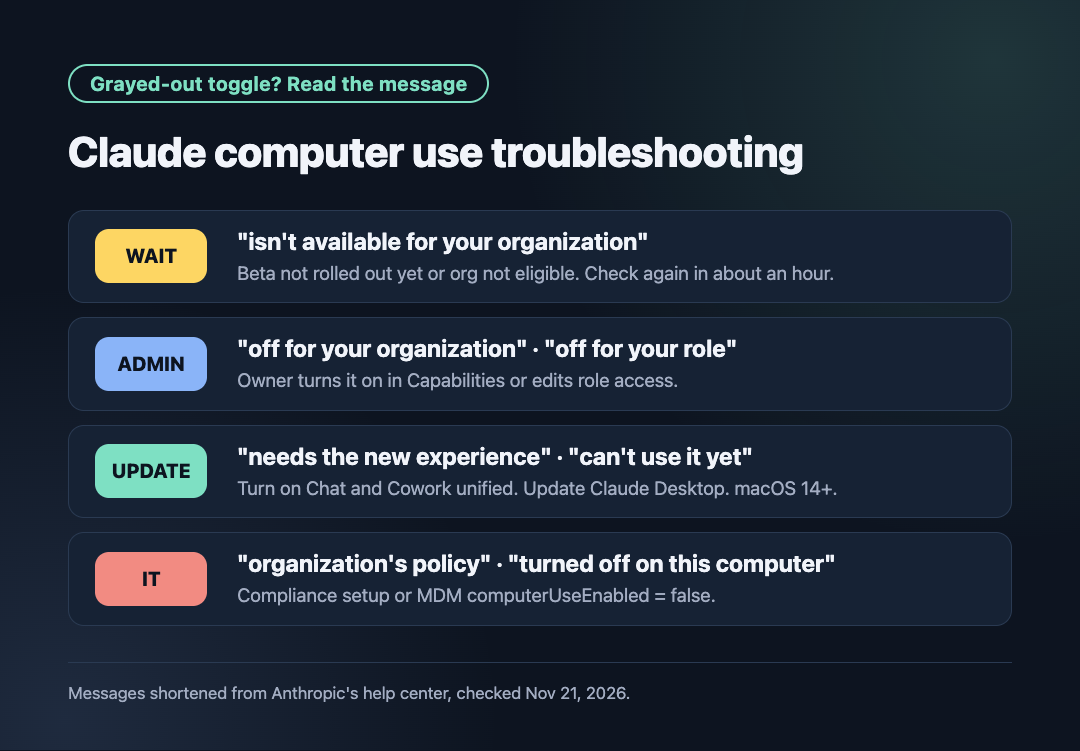
When the user toggle is grayed out, Claude Desktop shows a message. Match it here:
| Message (shortened) | Meaning | Fix |
|---|---|---|
| "isn't available for your organization" | Beta not rolled out or not eligible | Check again in about an hour |
| "is off for your organization" | Org toggle off | Owner turns it on in Capabilities |
| "is off for your role" | Role excluded | Admin edits role access |
| "needs the new Claude experience" | Unified experience off | Turn on Chat and Cowork unified |
| "this app can't use it yet" | Old Claude Desktop | Update the app |
| "disabled by your organization's policy" | Compliance setup | No setting turns it on |
| "turned off computer use on this computer" | MDM key set to false | IT changes the policy |
| "requires macOS 14 or later" | Old macOS | Upgrade macOS |
Two more cases from the articles: if Claude says an app is blocked or not on the list, an Owner limited apps through App access. And if a change you made "did nothing", remember the one-hour propagation delay and the quit-and-reopen step. Also note the computer has to be awake with Claude Desktop open for web or mobile chats to use it.
FAQ
Is Claude computer use free on Team and Enterprise? The release note and admin article describe it as a beta capability of those plans and do not list a separate add-on price. Neither page says how computer-use sessions count toward usage limits, so check your plan terms if that matters.
Can I enable Claude computer use for only a few people on a Team plan? No. Team plans have no custom roles, so the toggle applies to the whole organization. You can narrow what it can touch with an Allow only these apps list, and keep it off on specific machines with the computerUseEnabled MDM key.
Can MDM turn computer use on or approve apps for users? No. According to Anthropic, MDM cannot turn computer use on, flip a user's own switch, approve apps, or grant Screen Recording. It can only keep computer use off and pre-grant Accessibility on macOS.
Does it work in Claude Code or in Cowork tasks? Not for Team and Enterprise in this beta. It works in the new Claude experience in Claude Desktop, and from web or mobile when Computer access is on. Tasks started with the separate "Cowork" option and Claude Code are excluded.
How fast does turning it off take effect? About an hour, sometimes longer, for each Claude Desktop to pick up the change. Until then Claude can still see the screen and use allowed apps, so for an urgent stop, also ask users to turn off Enable computer use themselves.
Summary
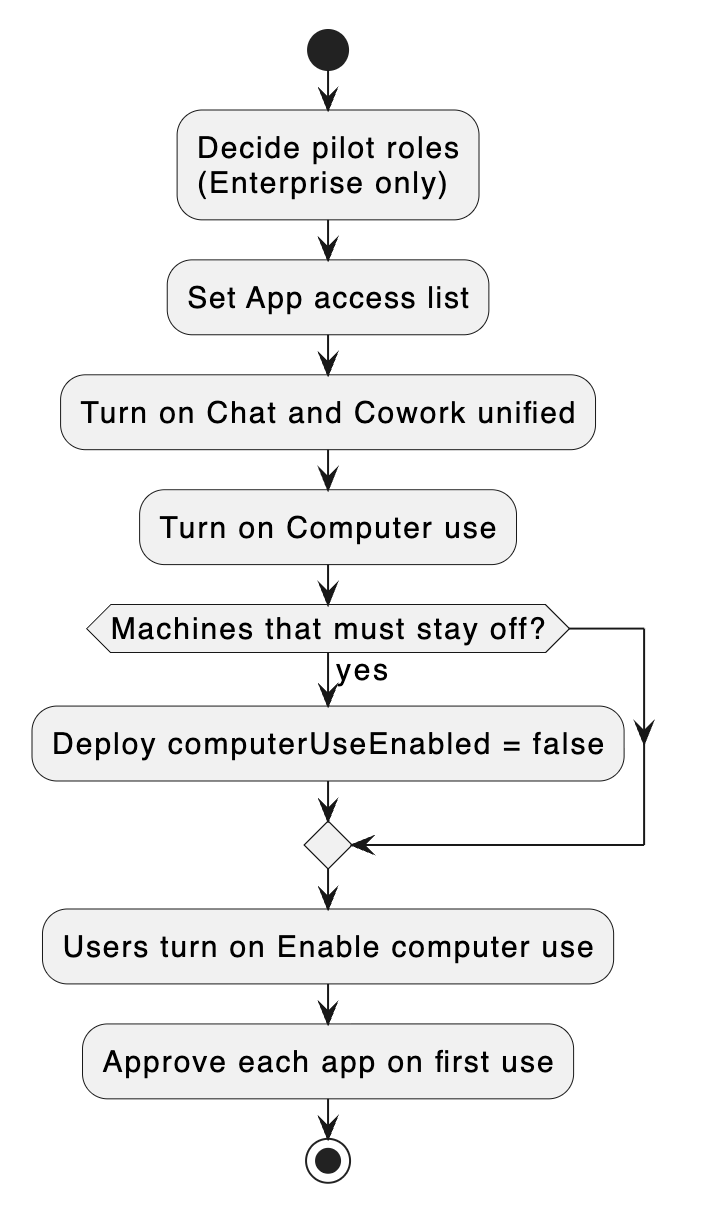
Turn on Claude computer use in this order: decide roles, set the app list, enable Chat and Cowork unified, flip Computer use, push computerUseEnabled = false to machines that must stay off, then have users enable it in Claude Desktop. Next, read how to turn off classic Outlook's What's New dialog if you are already pushing registry policies to the same Windows fleet.
References
All checked November 21, 2026.
- Claude Help Center: Set up computer use for Team and Enterprise plans
- Claude Help Center: Let Claude use your computer in Cowork
- Claude Help Center: Release notes (November 20, 2026 entry)
- Claude Help Center: Use Claude Cowork safely
- Claude Help Center: Enterprise configuration for Claude Desktop
- Apple Platform Deployment: Privacy Preferences Policy Control payload