The classic Outlook What's New dialog is coming back in November 2026, and you can turn it off with one registry value: DontShowWhatsNew set to 1 under HKCU\Software\Policies\Microsoft\Office\16.0\Outlook. That stops the automatic monthly pop-up and hides the What's New button on the ribbon. It does not stop the visual refresh (new icons, spacing and alignment) that Microsoft is rolling out at the same time. This guide shows how to check a PC, set the value on one machine, push it with Group Policy or Intune, and undo it.
Written November 8, 2026. Facts checked on November 8, 2026 (KST) against Microsoft Learn ("What's New in classic Outlook for Windows", updated November 3, 2026), Microsoft 365 message center post MC1506730 (published October 13, updated November 4, 2026) and the Microsoft Office Administrative Template download page. I did not test these commands on a PC that already has the new dialog. The registry value comes from Microsoft's page; the PowerShell and Intune scripts are my own examples built on it.
What's changing in classic Outlook for Windows
Microsoft announced the change in message center post MC1506730 on October 13, 2026. On November 3 it added the What's New dialog to the plan, after users asked for more information about what was changing.
| Item | What Microsoft says | Admin action |
|---|---|---|
| Visual refresh | New icons, spacing and alignment in mail and calendar | None, and no off switch |
| What's New dialog | Opens on its own at most once a month | Optional: turn it off |
| What's New button | New button on the ribbon to reopen it | Hidden by the same setting |
| Rollout | Beta in early November, Current Channel through late November | Tell your help desk |
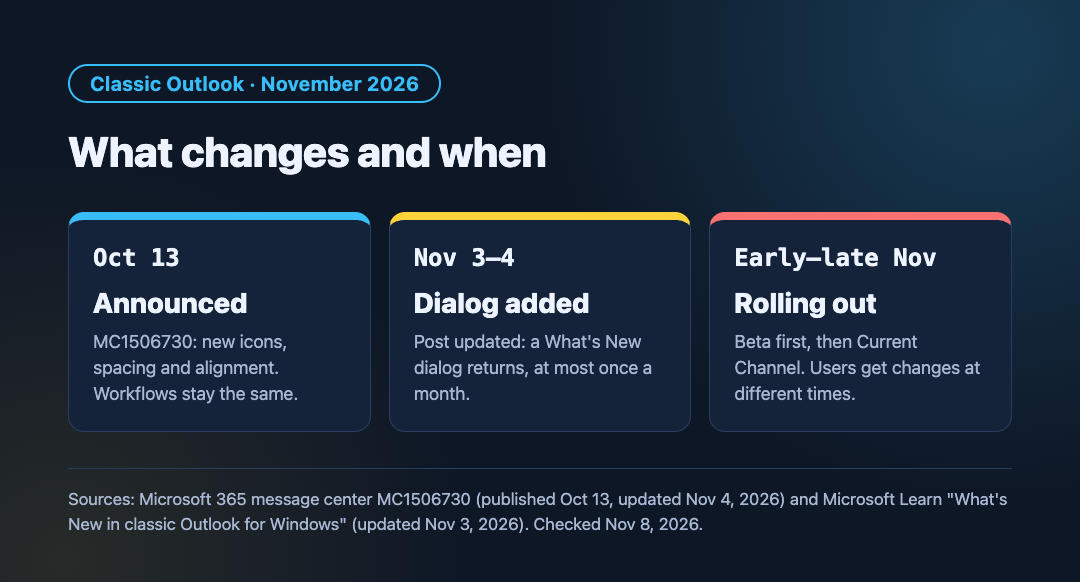
A few details matter for planning:
- Workflows stay the same. Microsoft says the ribbon, menus and features keep working as before. This is cosmetic.
- Users get it at different times. The rollout is gradual, so two people on the same build may see different things for a while.
- Current Channel first. Both the Learn page and MC1506730 name Beta and Current Channel. Neither says when Monthly Enterprise Channel or Semi-Annual Enterprise Channel get it, so don't assume those channels are excluded for good.
- Bigger changes come later. Microsoft says it will give advance notice before changes that affect navigation or workflows.
What DontShowWhatsNew turns off (and what it doesn't)
Here is the setting exactly as Microsoft documents it:
| Setting | Value |
|---|---|
| Registry key | HKEY_CURRENT_USER\Software\Policies\Microsoft\Office\16.0\Outlook |
| Value name | DontShowWhatsNew |
| Value type | REG_DWORD |
| Value data | 1 |
It is a per-user setting (HKCU). Microsoft's page says it "controls the What's New experience" and "does not turn off visual updates."
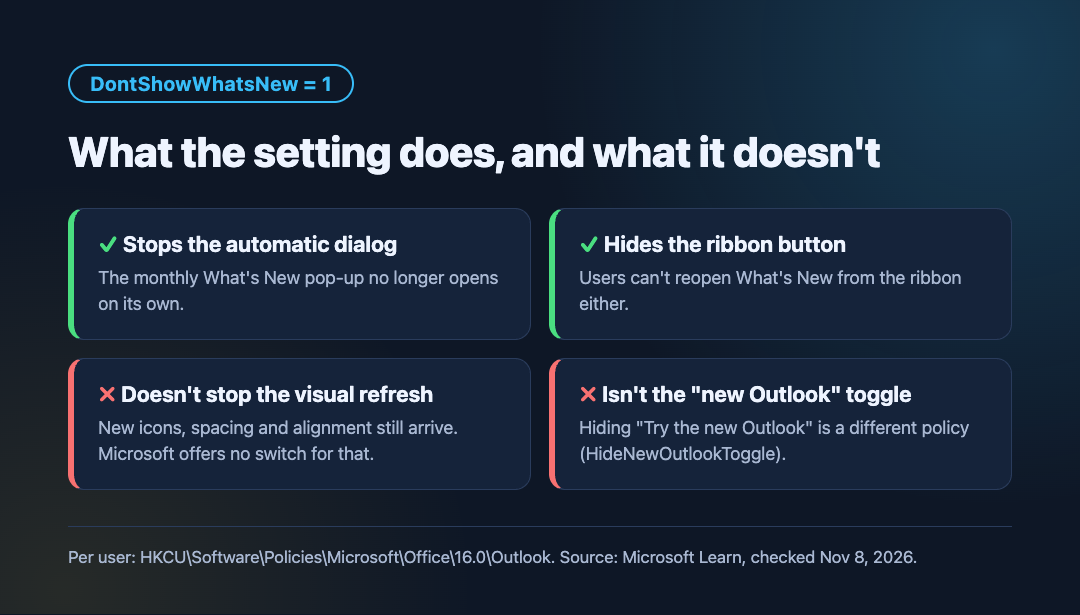
Don't mix this up with the "Try the new Outlook" toggle. That one uses a separate policy (HideNewOutlookToggle) and controls whether users can switch to new Outlook. Setting DontShowWhatsNew leaves that toggle alone.
How to check your Outlook before you change anything
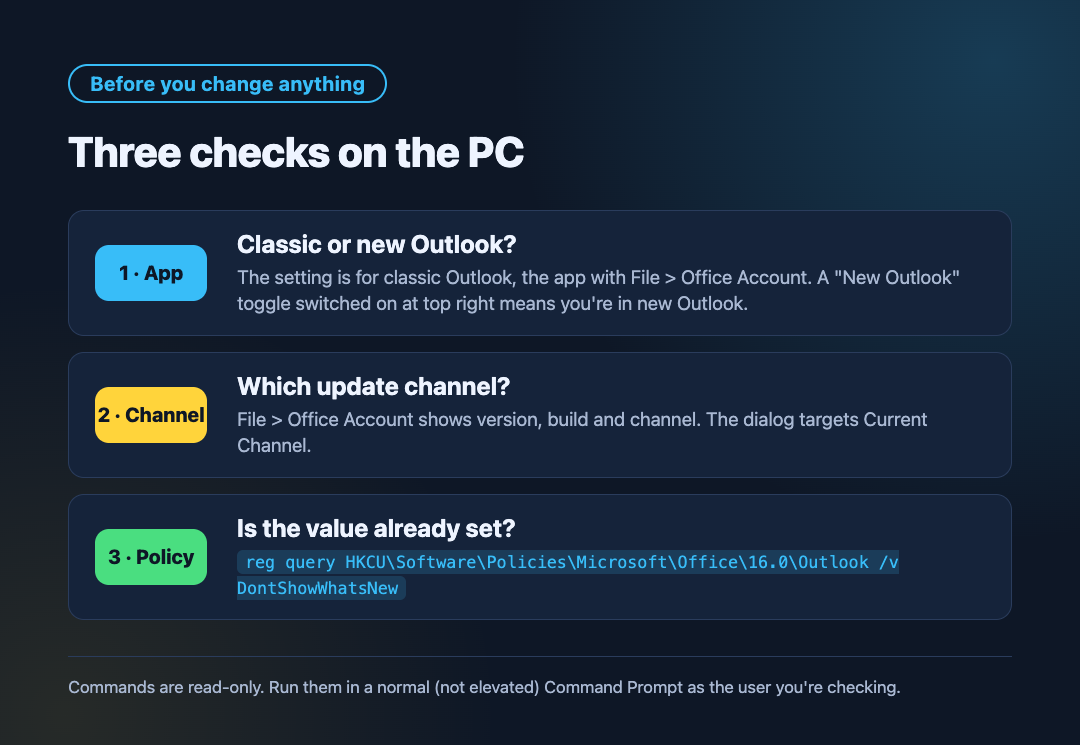
Run these checks as the user who sees the dialog, in a normal Command Prompt or PowerShell window (not "Run as administrator" under a different account).
1. Confirm it's classic Outlook. Classic Outlook has a File tab with Office Account. If you see a New Outlook toggle switched on at the top right, you're in new Outlook and this setting doesn't apply.
2. Check the version and channel. Go to File > Office Account. The About Outlook area shows the version, build and update channel. You can also read the build from the registry:
reg query "HKLM\SOFTWARE\Microsoft\Office\ClickToRun\Configuration" /v VersionToReport
reg query "HKLM\SOFTWARE\Microsoft\Office\ClickToRun\Configuration" /v CDNBaseUrl
CDNBaseUrl ends in a channel ID. If your organization sets the channel by policy, it sits under HKLM\SOFTWARE\Policies\Microsoft\office\16.0\Common\officeupdate (UpdateBranch or UpdatePath), which takes priority over CDNBaseUrl according to Microsoft's channel documentation.
3. Check whether the value is already set.
reg query "HKCU\Software\Policies\Microsoft\Office\16.0\Outlook" /v DontShowWhatsNewIf you get ERROR: The system was unable to find the specified registry key or value, the setting isn't there yet. If you see DontShowWhatsNew REG_DWORD 0x1, it's already on.
Turn off the classic Outlook What's New dialog
Pick the method that fits how the PC is managed. All three write the same value.
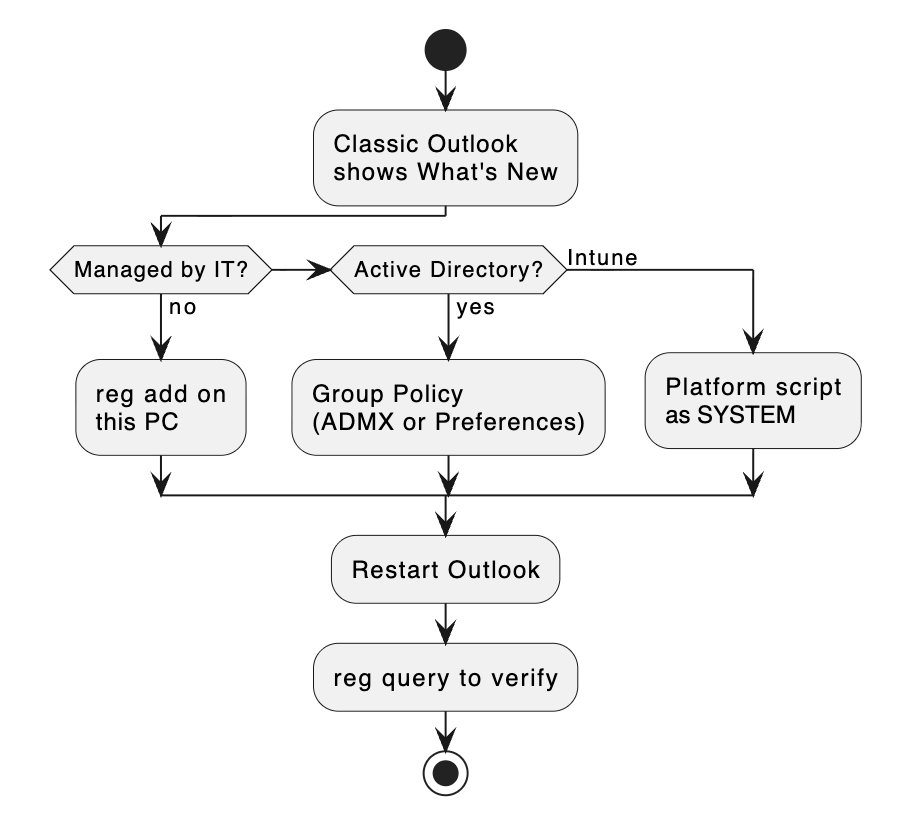
View PlantUML source
@startuml
start
:Classic Outlook\nshows What's New;
if (Managed by IT?) then (no)
  :reg add on\nthis PC;
elseif (Active Directory?) then (yes)
  :Group Policy\n(ADMX or Preferences);
else (Intune)
  :Platform script\nas SYSTEM;
endif
:Restart Outlook;
:reg query to verify;
stop
@enduml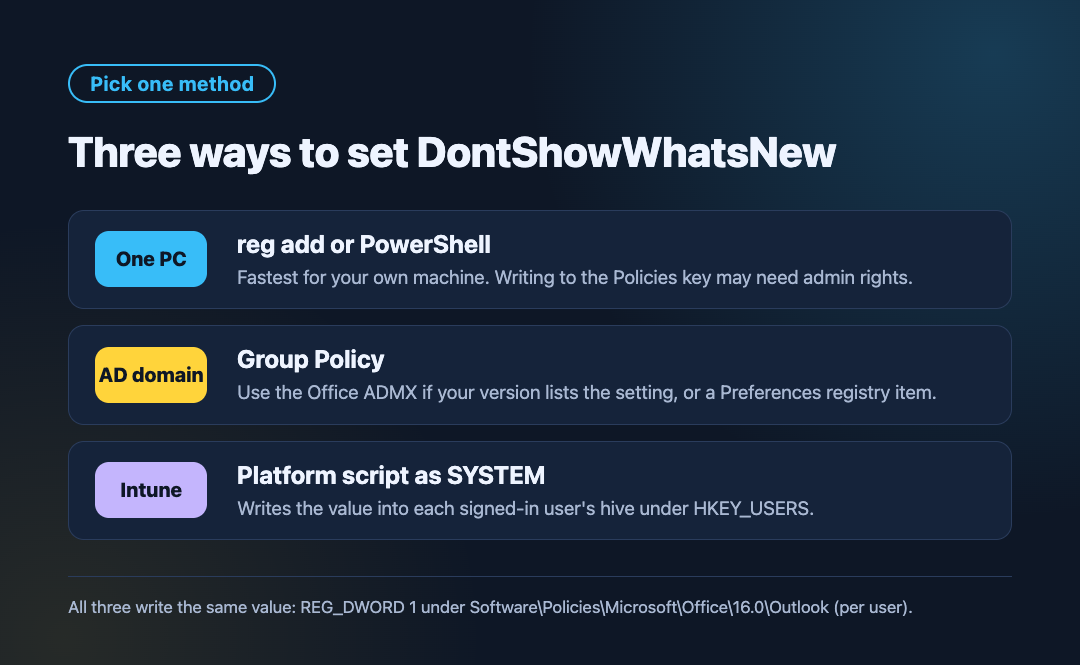
Option 1: One PC with reg add or PowerShell
Close Outlook first. Then run this in Command Prompt as the affected user:
reg add "HKCU\Software\Policies\Microsoft\Office\16.0\Outlook" /v DontShowWhatsNew /t REG_DWORD /d 1 /fThe PowerShell version does the same thing:
$path = 'HKCU:\Software\Policies\Microsoft\Office\16.0\Outlook'
New-Item -Path $path -Force | Out-Null
New-ItemProperty -Path $path -Name 'DontShowWhatsNew' -PropertyType DWord -Value 1 -Force | Out-Null
Get-ItemProperty -Path $path -Name 'DontShowWhatsNew'
If you get Access is denied, your account can't write to the Policies branch. Windows usually lets standard users read that branch but not change it, which is the point of policy keys. In that case ask IT to deploy it with Option 2 or 3. Don't work around it by running an elevated prompt under a different admin account: that writes to the admin's HKCU, not yours.
Start Outlook again. Microsoft doesn't say whether Outlook reads the value only at startup, so a full restart is the safe test.
Option 2: Group Policy in an Active Directory domain
Microsoft's Learn page says to download the Administrative Template files (ADMX/ADML) for Microsoft Office, add them to your Group Policy Central Store (or local PolicyDefinitions folder), and set the policy in the Group Policy Management Console.
One caveat. On November 8, 2026 the download page still listed version 5568.1000, published August 10, 2026, which is before this feature was announced. Microsoft's page doesn't name the ADMX setting, and I couldn't confirm that this template version includes it. Look under User Configuration > Policies > Administrative Templates > Microsoft Outlook 2016. If you can't find a What's New setting there, use a Group Policy Preferences registry item, which writes the exact value Microsoft documents:
- Create or edit a GPO linked to the OU that holds your user accounts.
- Go to User Configuration > Preferences > Windows Settings > Registry.
- Select New > Registry Item and set:
- Action: Update
- Hive: HKEY_CURRENT_USER
- Key path:
Software\Policies\Microsoft\Office\16.0\Outlook - Value name:
DontShowWhatsNew - Value type: REG_DWORD
- Value data:
1(Decimal)
- On the Common tab, leave Run in logged-on user's security context cleared. Group Policy processes the item as SYSTEM, which can write to the Policies branch.
- On a test PC, run
gpupdate /force, sign out and in, then run thereg queryfrom the check section.
Preferences items aren't removed automatically when you unlink the GPO. If you want the value to go away with the GPO, tick Remove this item when it is no longer applied on the Common tab (that option needs the action set to Replace, not Update).
Option 3: Intune platform script
The documented setting is a registry value, and I couldn't confirm a matching entry in the Intune settings catalog as of November 8, 2026. A PowerShell platform script run as SYSTEM can write the value into every signed-in user's hive:
$users = Get-ChildItem Registry::HKEY_USERS |
  Where-Object { $_.PSChildName -match '^S-1-(5-21|12-1)-[\d-]+$' }

foreach ($u in $users) {
  $path = "Registry::HKEY_USERS\$($u.PSChildName)\Software\Policies\Microsoft\Office\16.0\Outlook"
  New-Item -Path $path -Force | Out-Null
  New-ItemProperty -Path $path -Name 'DontShowWhatsNew' -PropertyType DWord -Value 1 -Force | Out-Null
}
In the Intune admin center, add it under Devices > Scripts and remediations > Platform scripts, set Run this script using the logged on credentials to No, and assign it to a device group. The S-1-5-21 pattern matches on-premises and hybrid accounts, and S-1-12-1 matches Entra ID-only accounts. The script skips _Classes hives on purpose.
The limit: it only reaches users whose hive is loaded when the script runs, which normally means users who are signed in. Platform scripts run once per device, so a user who signs in for the first time later won't get the value. If that matters, run the same logic as an Intune remediation on a schedule instead. If you also manage Entra settings, my Entra SSPR registered methods guide covers another November 2026 Microsoft 365 change worth checking.
How to undo it
Delete the value and restart Outlook. The dialog and ribbon button come back under Microsoft's normal schedule.
reg delete "HKCU\Software\Policies\Microsoft\Office\16.0\Outlook" /v DontShowWhatsNew /fSetting the value to 0 may also work, but Microsoft only documents 1. Deleting the value is the cleaner rollback. For Group Policy, remove the registry item or set the ADMX policy to Not Configured, then make sure the value is actually gone on a test PC.
Troubleshooting: the What's New dialog still shows up
| Symptom | Likely cause | Fix |
|---|---|---|
| Dialog still opens | Value under HKLM or the non-policy key | Use HKCU\Software\Policies\...\Outlook |
| Works for admin, not user | Elevated prompt wrote to the admin's HKCU | Deploy by GPO or SYSTEM script |
| No effect after GPO | GPO not applied or computer-scoped | gpupdate /force, gpresult /r |
| Value present, no change | Wrong type (REG_SZ) | Recreate as REG_DWORD 1 |
| Icons still changed | Expected | Visual refresh has no off switch |
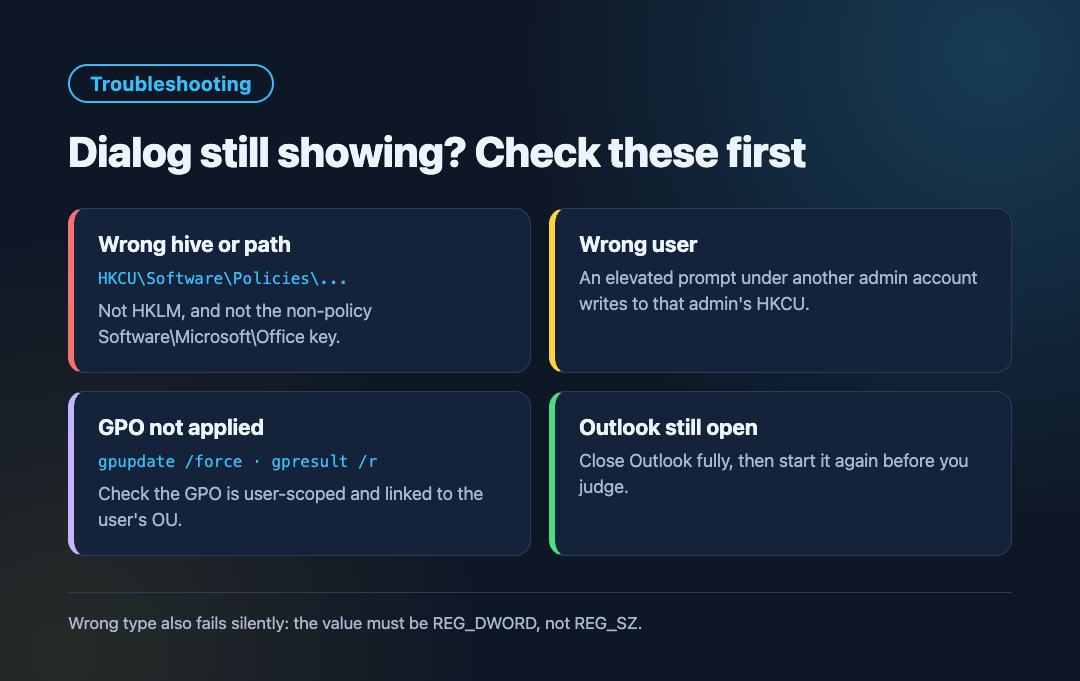
To see which GPOs reached a user, run this as that user:
gpresult /r /scope userIf the dialog never appeared in the first place, that's normal too. The rollout runs from early to late November and reaches users at different times. Setting the value ahead of time is fine.
The visual refresh itself can't be turned off. If your concern is user confusion, the better fix is a short heads-up to staff and the help desk, which is exactly what Microsoft recommends in MC1506730. If you also support users in Canadian time zones, my Windows time zone update guide covers fixing Outlook meeting times after the November clock change.
FAQ
Does DontShowWhatsNew stop the new Outlook icons and layout? No. Microsoft says the setting controls only the What's New experience. The visual updates arrive regardless, and there's no documented setting to block them.
Does this setting switch users to new Outlook or block new Outlook? Neither. It only affects the What's New dialog and button in classic Outlook. Controlling the "Try the new Outlook" toggle uses the separate HideNewOutlookToggle policy.
Do I need admin rights to set it? Usually, yes. The value lives under Software\Policies, which standard users normally can't write to. On managed PCs, deploy it with Group Policy or an Intune script.
Will Monthly Enterprise Channel get the What's New dialog? Microsoft's page and MC1506730 only mention Beta and Current Channel as of November 8, 2026. They don't give dates for other channels, so set the value now if you want consistent behavior later.
Is it safe to set the value before the dialog appears? Yes. It's a single per-user policy value, and Microsoft documents it as the way to turn the experience off. A build that doesn't have the What's New feature yet has nothing for it to turn off.
References
- Microsoft Learn: What's New in classic Outlook for Windows (updated Nov 3, 2026; checked Nov 8, 2026)
- Microsoft 365 message center MC1506730, mirrored at mc.merill.net (published Oct 13, updated Nov 4, 2026; checked Nov 8, 2026)
- Microsoft Download Center: Administrative Template files (ADMX/ADML) for Microsoft Office (version 5568.1000, Aug 10, 2026; checked Nov 8, 2026)
- Microsoft Learn: Change the Microsoft 365 Apps update channel (policy precedence table; checked Nov 8, 2026)
- LazyAdmin: Classic Outlook – How to Turn Off the What's New Dialog (updated Nov 5, 2026; checked Nov 8, 2026)
Next, if you're planning more Windows changes this month, see how to move off Windows 11 24H2 before updates end.