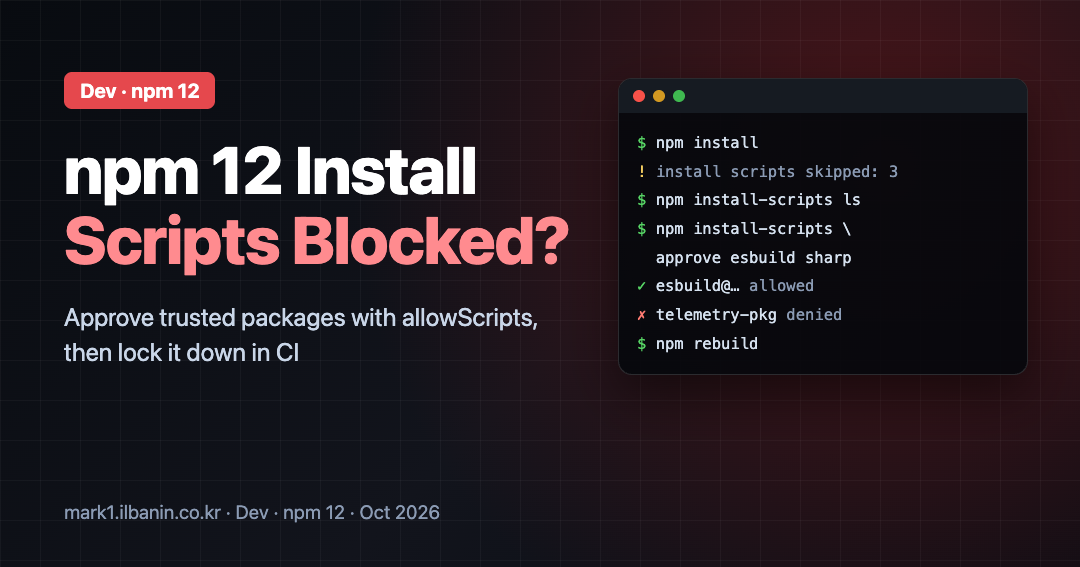
npm 12 install scripts are blocked by default: npm install skips the preinstall, install and postinstall scripts of every dependency that is not listed in the new allowScripts field of your package.json. To fix a broken install, run npm install-scripts ls to see what was skipped, approve the packages you trust with npm install-scripts approve <pkg>, then run npm rebuild and commit package.json.
This guide walks through that flow step by step, plus the two other npm 12 defaults that break installs (Git and tarball-URL dependencies) and how to lock it all down in CI. It was written on October 24, 2026, against npm 12.2.1, the latest release in the npm changelog on that date. All commands and defaults come from the npm docs, the npm 12.0.0 release notes and GitHub's changelog. I did not run a benchmark or migrate a production project for this post.
Why npm 12 install scripts stopped running
npm 12.0.0 shipped on July 8, 2026. It flipped three install defaults that npm 11 only warned about. Many teams are hitting them now, as they upgrade npm by hand, and since GitHub's Dependabot added npm 12 support on October 20, 2026.
| Behavior | npm 11.16+ | npm 12 |
|---|---|---|
| Dependency install scripts | Run, with a warning | Skipped unless in allowScripts |
| Git dependencies | Allowed | Blocked (allow-git=none) |
| Remote tarball URLs | Allowed | Blocked (allow-remote=none) |
| Your own root scripts | Run | Run (root preinstall now runs before deps install) |
"Install scripts" here means a dependency's preinstall, install and postinstall scripts. It also covers the implicit node-gyp rebuild that npm runs for packages with a binding.gyp file, and prepare for Git, file and link dependencies. Your own npm run build, npm test and npm start are not affected.
GitHub explains the reason in its npm 12 announcement: install scripts are a common way for malicious packages to run code on a developer machine or CI runner the moment you install them. With npm 12, running that code becomes a decision you make once and commit.
What breaks in practice
The install itself usually succeeds. By default npm prints a warning and lists the packages it skipped. The failure shows up later, when you use a package that needed its script:
- Native addons (packages that compile C/C++ with node-gyp) fail with "module not found" or binding errors at runtime.
- Packages that download a platform binary in
postinstall(bundlers, image tools, browser automation, database clients) fail on first use. npm installfails outright if a dependency points to a Git repository or a tarball URL.
Check your npm version and upgrade to npm 12
npm 12 supports Node.js ^22.22.2, ^24.15.0 or >=26.0.0. The Node.js release team noted that npm 12 arrived too late to ship inside Node.js 26, so you install it yourself:
node --version
npm --version

npm install -g npm@12    # upgrade the global npm CLI to the latest 12.x
npm --version
If you are still on Node.js 24, see how to upgrade to Node.js 26 LTS from Node 24 first. npm 12 also runs on 24.15.0 and later, so a Node upgrade is not required.
How to approve npm install scripts step by step
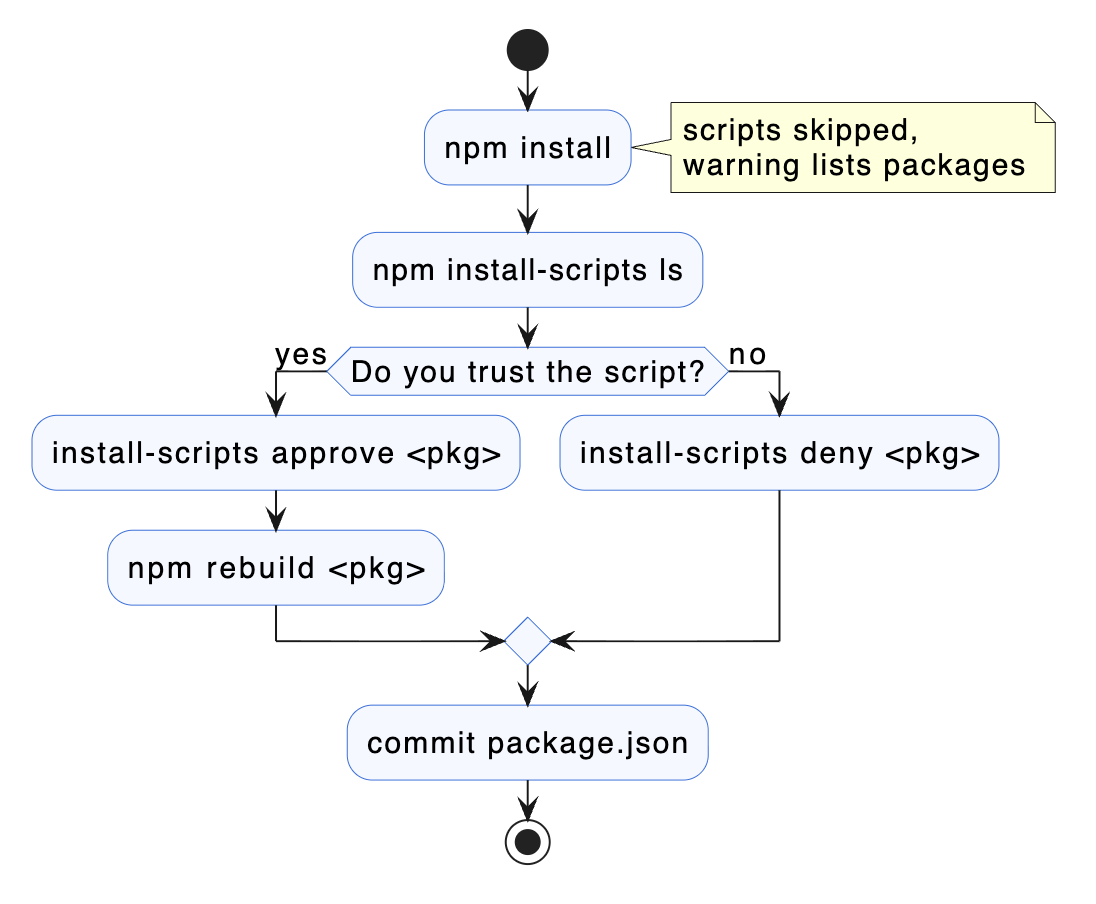
The commands live under npm install-scripts. npm 12 also ships npm approve-scripts and npm deny-scripts. The source code describes them as aliases for install-scripts approve and install-scripts deny, and GitHub's announcement uses those names, so you will see both in guides.
View PlantUML source
@startuml
skinparam defaultFontSize 15
skinparam ActivityBackgroundColor #F5F8FF
skinparam ActivityBorderColor #3B6FD8
start
:npm install;
note right: scripts skipped,\nwarning lists packages
:npm install-scripts ls;
if (Do you trust the script?) then (yes)
  :install-scripts approve <pkg>;
  :npm rebuild <pkg>;
else (no)
  :install-scripts deny <pkg>;
endif
:commit package.json;
stop
@enduml
Step 1: Install and read the skipped list
npm installAfter the install, npm lists the dependencies whose scripts it skipped. Keep this output. It is your review queue.
Step 2: List packages that still need a decision
npm install-scripts ls
npm approve-scripts --allow-scripts-pending    # same list, alias form
This is read-only. It shows every installed package with an install script that has no allowScripts entry yet, approved or denied. Add --json if you want to feed it to a script.
Step 3: Review what each script does
Do not approve on autopilot. Before you trust a package, look at the exact command it runs:
npm view esbuild scripts                  # scripts declared in the registry metadata
cat node_modules/esbuild/package.json     # or read the installed copy
A good rule: approve packages that need a native build or a platform binary, and that you depend on directly or know well. Deny packages whose script only prints a banner, collects telemetry or does nothing your app needs.
Step 4: Approve or deny
npm install-scripts approve esbuild sharp                   # pinned to the installed version (default)
npm install-scripts approve --no-allow-scripts-pin esbuild  # name only: any future version may run
npm install-scripts deny some-telemetry-pkg                 # explicit "no" that survives approve --all
npm install-scripts approve --all approves every pending package at once. It is handy for a first migration of a project you already trust, but it skips the review step, so use it with care.
Step 5: Run the approved scripts
Approval only writes to package.json. Nothing runs until you rebuild:
npm rebuild esbuild sharp    # only the packages you just approved
npm rebuild                  # or everything that is now allowed
Step 6: Commit the allowlist
git add package.json
git commit -m "chore: approve install scripts for npm 12"
Teammates and CI read the same allowScripts policy from package.json, so the next npm ci behaves the same everywhere.
What the allowScripts field looks like
The approve and deny commands write an allowScripts object into your root package.json. The docs describe three kinds of entries: a version-pinned approval (pkg@1.2.3), a name-only approval, and a false denial. A project could end up with something like this (package names and versions are only examples):
{
  "allowScripts": {
    "esbuild@0.25.10": true,
    "sharp@0.34.4": true,
    "canvas": true,
    "some-telemetry-pkg": false
  }
}| Entry | Written by | What it allows |
|---|---|---|
"pkg@1.2.3": true | approve (default) | Only that installed version |
"pkg": true | approve --no-allow-scripts-pin | Any version of the package |
"pkg": false | deny | Never; skipped silently |
The docs also mention multi-version entries such as pkg@1 || 2, which you write by hand. Pinned entries are the safer default. A new version of a package can ship a new script, so a pin makes you look again after each upgrade. When you upgrade, run approve for that package again. npm rewrites the pin to the new installed version. It never overrides an existing false entry.
Two cleanup commands keep the list tidy:
npm install-scripts prune --dry-run   # preview stale entries
npm install-scripts prune             # remove entries for packages no longer installed
One limit to know: the docs say these commands are not aware of workspaces. In a monorepo, check where the allowScripts changes landed before you commit.
Fix Git and tarball dependencies in npm 12
If npm install now fails on a dependency like github:org/repo or https://example.com/pkg.tgz, the cause is not scripts. It is the new allow-git and allow-remote defaults.
| Setting | npm 12 default | Values |
|---|---|---|
allow-git | none | none, root, all |
allow-remote | none | none, root, all |
root allows these sources only for dependencies listed in your root package.json. all also allows them deep in the tree. Tarballs on the same hostname as your configured registry still install normally, so private registries are not affected.
Prefer the narrowest scope that works, and set it per project in .npmrc:
; .npmrc in the project root
allow-git=root
Or pass it once on the command line:
npm install --allow-git=rootGitHub's announcement notes that a Git dependency's own .npmrc could point npm at a different Git executable, even with --ignore-scripts. That is why Git sources moved behind an opt-in. The better long-term fix is to publish the package to a registry and depend on a version.
Lock down npm 12 install scripts in CI
Your committed allowScripts policy already applies to npm ci. Two extra settings make CI strict instead of just noisy.
| Setting | Default | Use in CI |
|---|---|---|
strict-allow-scripts | false | Set true: an unreviewed script fails the build |
ignore-scripts | false | Remove true if set; it overrides allowScripts |
dangerously-allow-all-scripts | false | Do not use, except as a short migration escape hatch |
allow-scripts | empty | Only for global installs and npx (error in a project) |
- uses: actions/setup-node@v4
  with:
    node-version: 24
- run: npm install -g npm@12
- run: npm ci --strict-allow-scripts
- run: npm test
With strict mode, a new dependency that has an install script and no allowScripts entry fails npm ci. A developer then has to review it and commit an approval or denial. Denied packages are always skipped silently. GitHub's npm team suggested keeping strict mode on in CI, and not necessarily on laptops, because it also blocks quick local installs.
If you also pin your workflow actions, GitHub Actions lockfiles cover the other half of the CI supply chain.
Global installs and npx
npm install-scripts approve fails with an EGLOBAL error outside a project. For global tools and npx, use the allow-scripts config instead:
npm install -g --allow-scripts=canvas,sharp some-cli
npm config set allow-scripts=canvas,sharp --location=user
Dependabot and npm 12
Since October 20, 2026, Dependabot can update projects that use npm 12, as well as pnpm 11 and 12 and Bun 1.4. Two things to watch in your npm 12 repos:
- A Dependabot pull request that bumps a package with a pinned
allowScriptsentry changes the installed version, so the old pin no longer describes what is installed. Check the CI log on that branch for skipped scripts, then runnpm install-scripts approve <pkg>and commit the updated pin. - For pnpm 12 projects that pin a pnpm version, GitHub lists a known limit: when
pnpm-lock.yamlis written as two YAML documents, the dependency graph does not detect those dependencies yet. Version updates still work, but security alerts are not created for them.
pnpm has its own version of this policy. pnpm 11 uses an allowBuilds map in pnpm-workspace.yaml and the pnpm approve-builds command, so the npm commands above do not apply there.
FAQ
Does npm 12 fail the install when a script is blocked? Not by default. The install continues, the script is skipped, and npm lists the skipped packages. It fails only with strict-allow-scripts=true, or later at runtime when a package needed its script.
Is npm approve-scripts different from npm install-scripts approve? No. In the npm CLI source, approve-scripts and deny-scripts are aliases for install-scripts approve and install-scripts deny. To list pending packages, the alias form uses npm approve-scripts --allow-scripts-pending, and the namespaced form uses npm install-scripts ls.
Should I just set dangerously-allow-all-scripts=true? Only as a short bridge while you migrate. The npm docs call it a migration escape hatch and strongly discourage it, because it restores the exact risk npm 12 removes.
Do I need to approve scripts again after every upgrade? Only for pinned entries whose version changed. Run npm install-scripts approve <pkg> again and npm updates the pin. Name-only entries keep working across versions, at the cost of less review.
Can I keep ignore-scripts=true in .npmrc? You can, but then allowScripts has no effect, because ignore-scripts overrides it. GitHub's migration guidance says to remove it once you switch to an allowlist.
Summary
- npm 12 skips dependency install scripts unless
package.jsonhas a matchingallowScriptsentry. - Fix it with
npm install-scripts ls, review,approveordeny,npm rebuild, then commitpackage.json. - Git and tarball-URL dependencies need
allow-gitorallow-remote. Userootbeforeall. - In CI, run
npm ci --strict-allow-scriptsand removeignore-scripts=true.
Next, if your repos still rely on legacy branch protection, see how to migrate branch protection to rulesets to put the same review rules around the commits that change your allowlist.
References
- npm Docs, npm-install-scripts (v12) — docs.npmjs.com (checked Oct 24, 2026)
- npm Docs, npm-approve-scripts (v12) — docs.npmjs.com (checked Oct 24, 2026)
- npm Docs, Config: allow-scripts, allow-git, allow-remote, strict-allow-scripts (v12) — docs.npmjs.com (checked Oct 24, 2026)
- npm Docs, CLI changelog (12.0.0 to 12.2.1) — docs.npmjs.com (checked Oct 24, 2026)
- npm/cli, Release v12.0.0 — github.com (checked Oct 24, 2026)
- GitHub Changelog, "Upcoming breaking changes for npm v12" (Jun 24, 2026) — github.blog (checked Oct 24, 2026)
- GitHub Changelog, "Dependabot now supports npm 12, pnpm 11 and 12, and Bun 1.4" (Oct 20, 2026) — github.blog (checked Oct 24, 2026)
- GitHub Community, "Preparing for npm v12" discussion #198547 — github.com (checked Oct 24, 2026)
- Node.js Release, "Plans for npm 12" issue #1161 — github.com (checked Oct 24, 2026)
- pnpm Docs, pnpm approve-builds — pnpm.io (checked Oct 24, 2026)
1 thought on “npm 12 Install Scripts Blocked? How to Approve and Fix Them”