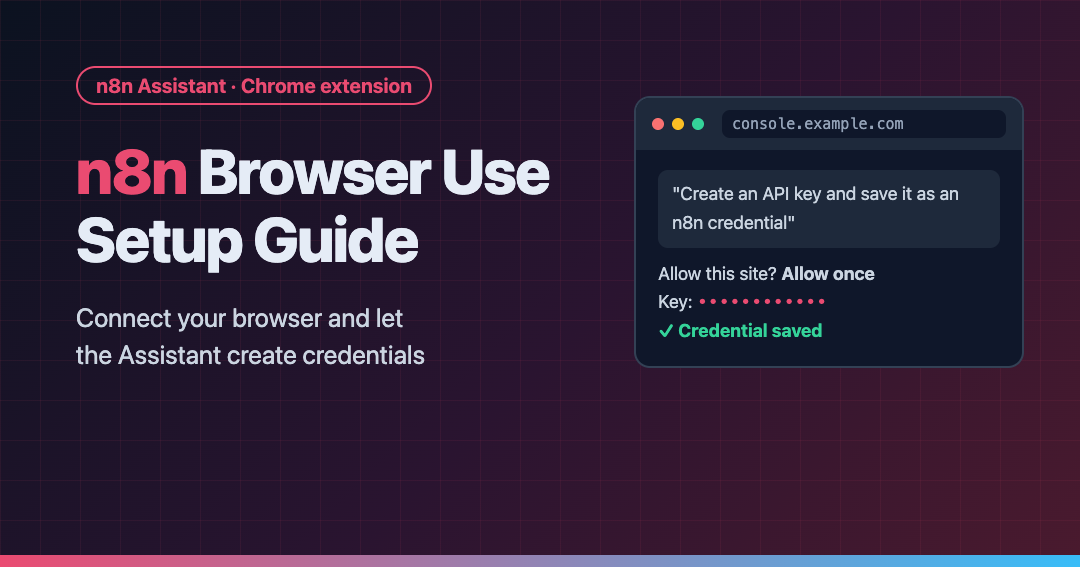
n8n Browser Use lets the n8n Assistant work inside your own Chrome, Edge or Brave window: it opens tabs, clicks, types, reads pages and can create an API key in a service's console and save it straight into an n8n credential. Since n8n 2.43 (October 6, 2026) it is open to all n8n Cloud Starter and Pro users. To start, an admin turns on Browser use in Settings > Assistant, you install the n8n Browser Use extension, and you pick + > Connect browser in the Assistant chat.
This guide covers the requirements, the exact connect steps, a credential setup walkthrough, the permission settings worth changing, and the limits that trip people up. It is based on the official n8n documentation and release notes, checked on October 28, 2026. Browser Use is still labeled Preview, so details may change.
What n8n Browser Use is and what changed in October 2026
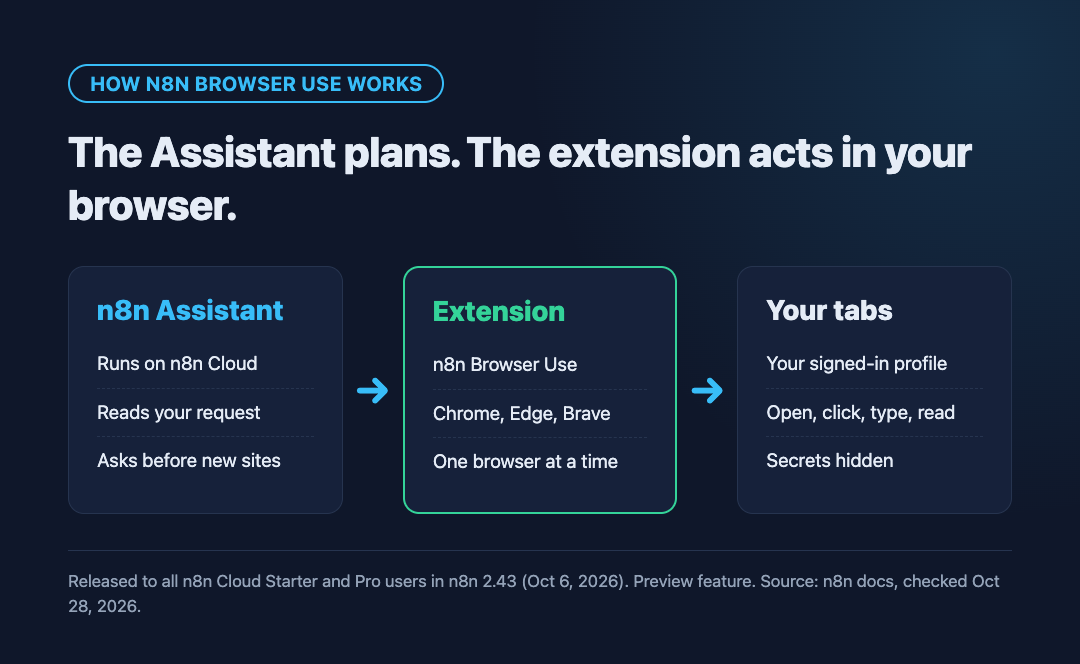
Browser Use is not a node. It is a connection for the n8n Assistant, the chat agent that builds and edits workflows for you. With Browser Use connected, the Assistant can act in your real browser profile, so it can use sites where you are already signed in. No extra local software is needed beyond the extension.
| Item | Detail (as of Oct 28, 2026) |
|---|---|
| Released to all users | n8n 2.43, October 6, 2026 |
| Where it runs | Your Chromium browser, through the n8n Browser Use extension |
| Plans | n8n Cloud Starter and Pro |
| Self-hosted | Not available (per the Browser Use docs) |
| Status | Preview, may make mistakes |
The 2.43 release notes add two details. Browser Use is controlled by the instance setting N8N_INSTANCE_AI_BROWSER_USE_ENABLED, which is on by default, and the experimental Set up automatically credential option is now off by default for everyone. The extension itself (publisher: n8n) was at version 0.0.9, last updated October 22, 2026, when I checked the Chrome Web Store listing.
n8n Browser Use requirements
Check these four things before you look for the connect button. Most "I can't find it" problems come from one of them.
| Requirement | What to check |
|---|---|
| Plan | n8n Cloud Starter or Pro |
| Browser | Google Chrome, Microsoft Edge, Brave or another Chromium browser on desktop |
| Device | Not phones or tablets, including iPads in desktop mode |
| Admin switch | Browser use turned on in Settings > Assistant |
Safari and Firefox are not supported. If your team runs n8n self-hosted, Browser Use will show a "Can't connect to your instance" message, because the docs limit it to n8n Cloud. The n8n Assistant itself does run self-hosted (Community, Registered Community and Business), just without Browser Use.
On n8n Cloud, Assistant usage is billed in Assistant credits, which are based on model tokens. Every plan has a monthly allowance shared by the whole instance. Long browser sessions are long conversations, so expect them to use more credits than a short chat.
How to connect n8n Browser Use step by step
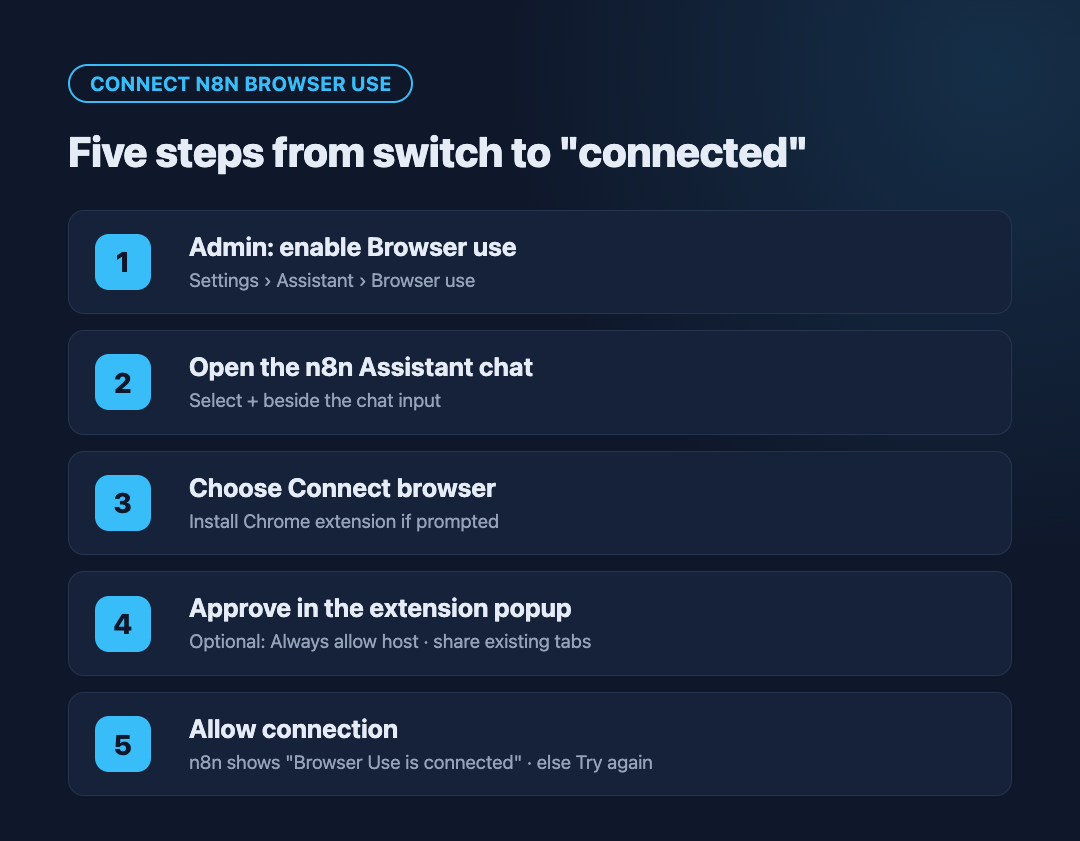
- Turn it on (admin). Go to Settings > Assistant and enable Browser use.
- Open the Assistant. In the n8n Assistant chat, select + beside the chat input, then Connect browser.
- Install the extension if asked. Select Install Chrome extension, add n8n Browser Use from the Chrome Web Store, then return to the n8n tab.
- Approve the connection in the extension popup:
- Optional: tick Always allow
<your-instance-host>to skip the prompt next time. - Optional: expand Allow access to existing tabs and choose tabs to share.
- Select Allow connection.
- Optional: tick Always allow
- Confirm. n8n shows Browser Use is connected. If the popup closed or never appeared, select Try again.
Use the same browser profile for n8n and the extension. Only one browser can be connected at a time, so disconnect the first one before you switch machines.
Set up credentials with n8n Browser Use
Credential setup is the job Browser Use was clearly built for. Creating an OAuth app or API key usually means ten minutes of clicking through a developer console and copying a secret into n8n. With Browser Use, the Assistant does the clicking, and the secret never passes through the chat.
The docs give this example prompt:
Use my browser to create an OpenAI API key and save it as an n8n credential.Here is what happens next, according to the official flow:
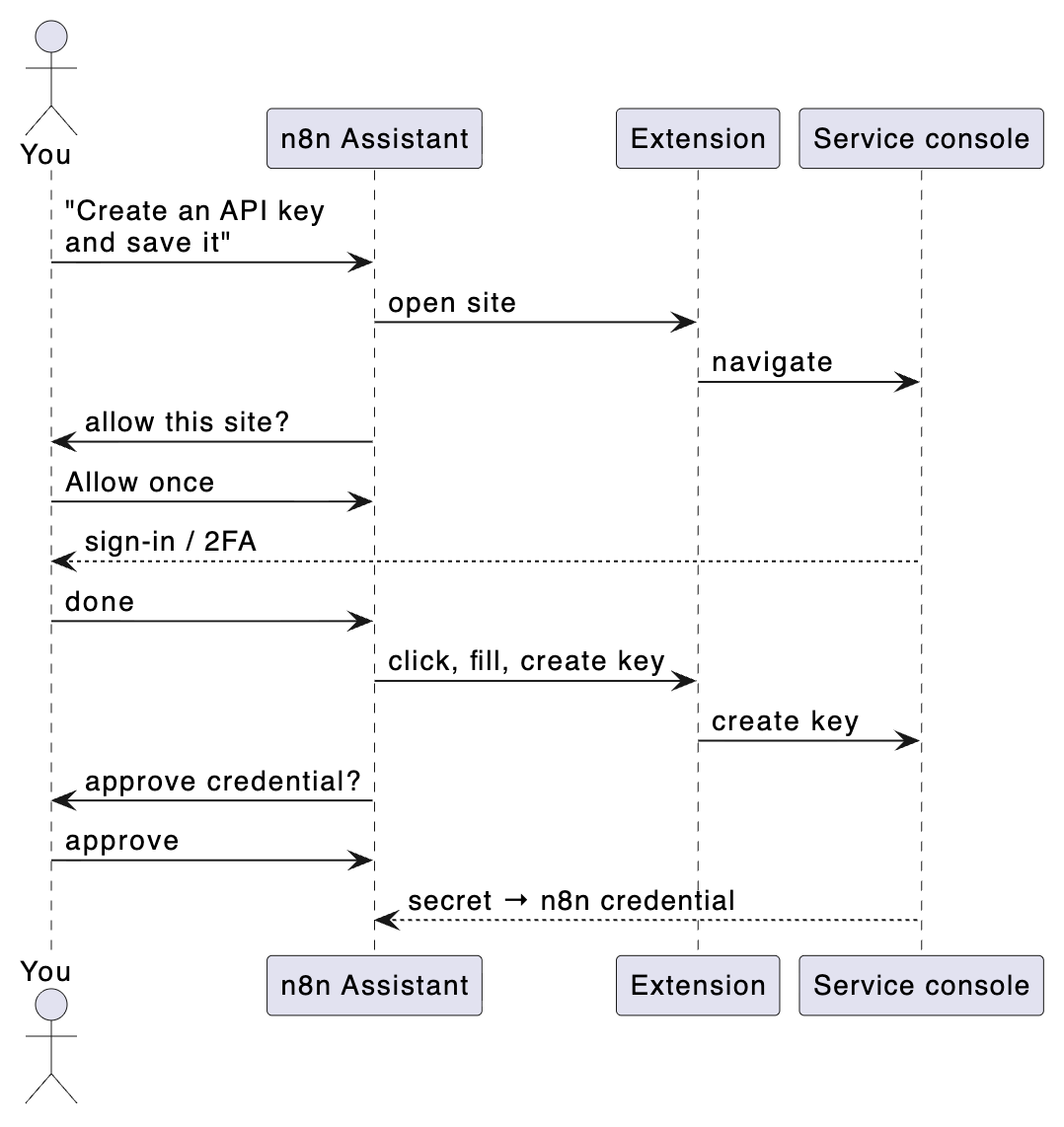
- The Assistant opens the service's site and follows the setup steps.
- It asks you in chat for choices such as a project or app name.
- It pauses for sign-in, two-factor authentication or a CAPTCHA. You complete those yourself and reply in chat.
- It captures the secret from the page and asks you to approve creating the credential.
- The secret goes from the page directly into the n8n credential. The Assistant does not see it, and you never paste it anywhere.
View PlantUML source
@startuml
skinparam shadowing false
skinparam defaultFontSize 14
actor You
participant "n8n Assistant" as A
participant "Extension" as E
participant "Service console" as S
You -> A : "Create an API key\nand save it"
A -> E : open site
E -> S : navigate
A -> You : allow this site?
You -> A : Allow once
S --> You : sign-in / 2FA
You -> A : done
A -> E : click, fill, create key
E -> S : create key
A -> You : approve credential?
You -> A : approve
S --> A : secret → n8n credential
@enduml
A few prompts that fit the same pattern (my own examples, not from the docs, so adjust names to your accounts):
Use my browser to create a Slack app for this workspace and save the bot token as an n8n credential.
Use my browser to open the Google Cloud console, create OAuth client credentials for Gmail, and set up the n8n credential.
Open https://<YOUR_SERVICE_DOCS_URL> and summarize which API scopes the webhook needs.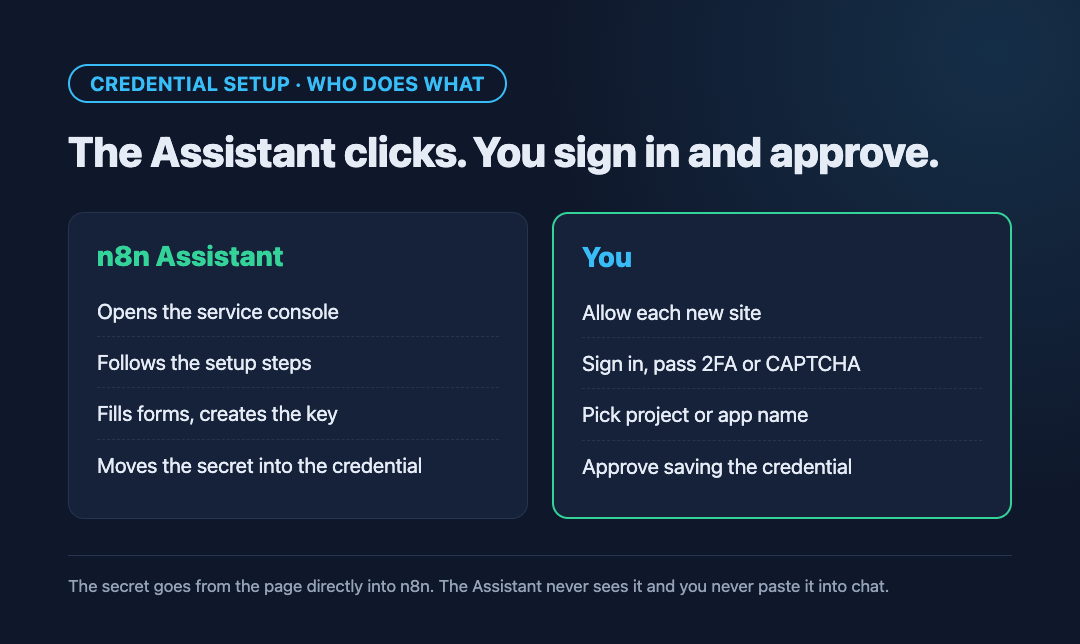
Beyond credentials, the docs list three more jobs: browsing and research (open pages, follow links, read content), filling in forms (type, pick options, upload files, submit), and managing tabs (open, switch, close). A practical use is asking the Assistant to read an API's docs page while it builds the HTTP Request node for that API.
If you are planning a bigger n8n change at the same time, run the n8n Migration Report before the 3.0 upgrade first, so new credentials land in workflows that will survive the upgrade.
Lock down n8n Browser Use permissions
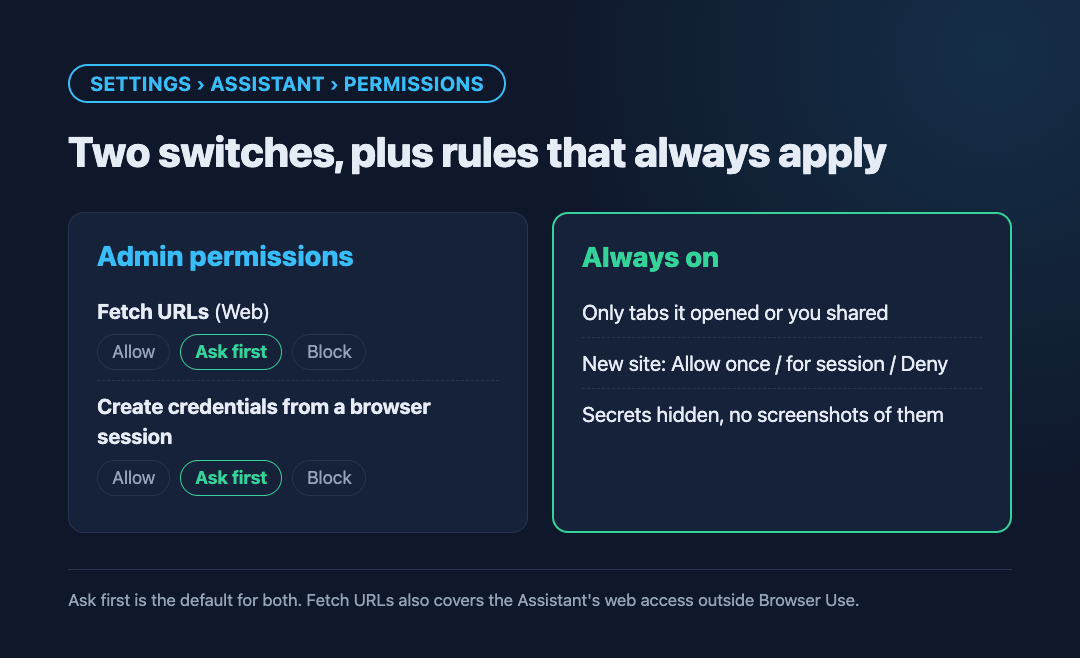
Browser Use acts with your signed-in sessions. That is what makes it useful, and it is also the risk: an approved click in your bank or cloud console is a real click. n8n puts three guardrails in place by default.
- Tabs. The Assistant can only use tabs it opens itself and tabs you shared when connecting. Shared tabs apply to the current connection only.
- Sites. Before it uses a new site, it asks: Allow once, Allow for session or Deny.
- Secrets. n8n hides API keys, passwords and other secrets from the Assistant when it reads pages, and blocks screenshots of pages that show secrets.
Admins can tune two related permissions in Settings > Assistant > Permissions. Each can be Allow, Ask first (the default) or Block.
| Permission | Section | What it controls | Suggested setting |
|---|---|---|---|
| Fetch URLs | Web | The site prompt, and the Assistant's web access outside Browser Use too | Ask first |
| Create credentials from a browser session | Credentials | Whether it asks before saving a credential it set up | Ask first |
The "suggested" column is my recommendation, not n8n's. Keeping both on Ask first means every new domain and every saved secret needs a human click. Switch to Block if your instance handles regulated data and nobody should drive a browser from it.
Two habits help as well. Share no existing tabs unless the task needs them, and avoid Always allow on shared or public computers.
What n8n Browser Use cannot do
The limits matter more than the features when you decide where Browser Use fits.
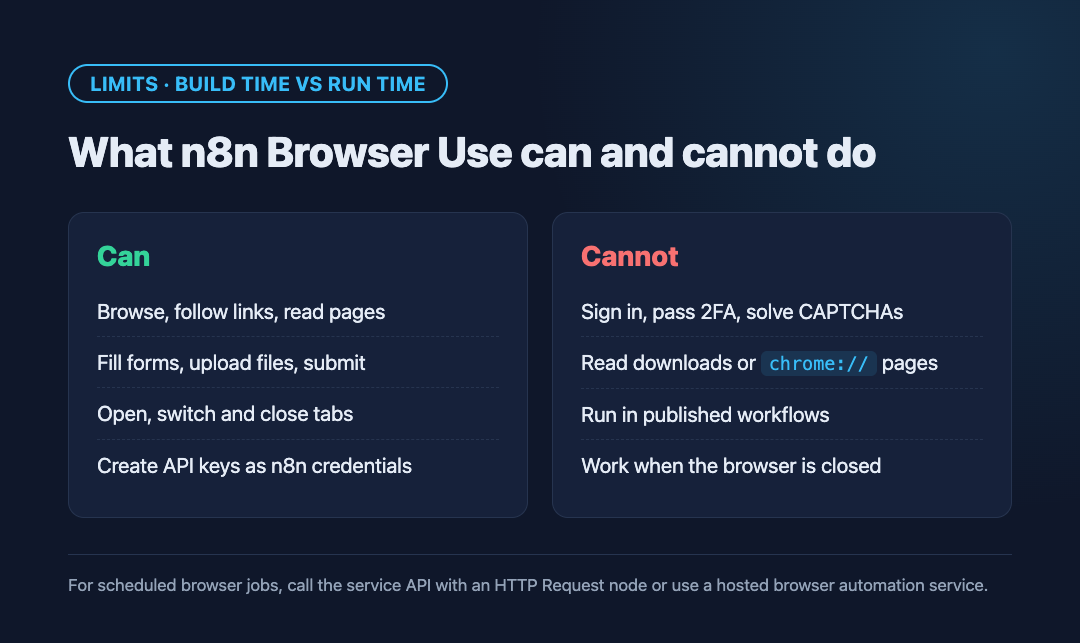
- It cannot sign in, complete two-factor authentication or solve CAPTCHAs. You do those steps.
- It cannot read downloaded files or open internal pages such as
chrome://pages. - It works only while your browser is open and connected. It cannot run inside published workflows.
- Only one browser can be connected at a time.
The third point is the big one. Browser Use helps you build automations, but it is not a scheduled browser robot. If a production workflow needs to scrape or submit forms on a timer, call the service's API with an HTTP Request node, or use a dedicated hosted browser automation service through its API. Browser Use is the setup assistant, not the runtime.
n8n Browser Use troubleshooting
| Message or symptom | Likely cause | Fix |
|---|---|---|
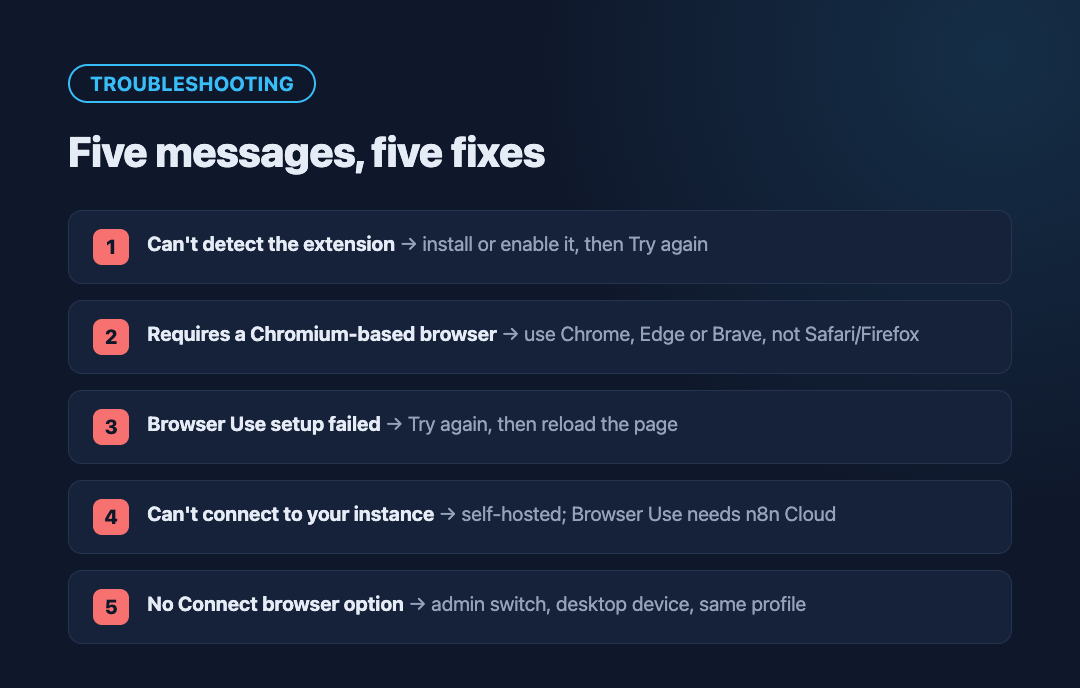
| n8n can't detect the extension | Extension missing or disabled | Install or enable it, then Try again |
| Requires Google Chrome or another Chromium-based browser | Safari or Firefox | Open n8n in Chrome, Edge or Brave |
| Browser Use setup failed | Popup closed or timed out | Try again, then reload the page |
| Can't connect to your instance | Self-hosted n8n | Browser Use needs n8n Cloud |
| No Connect browser option | Admin switch off, mobile device, or an older instance | Check Settings > Assistant, use a desktop |
One community thread from August 2026 (before the general release, on n8n 2.35.3) reported the extension stuck at "Disconnected" on Edge. The poster's suggested workaround was to use Google Chrome with n8n and the extension in the same profile. That is a user report, not official guidance, but the same-profile check is quick to try.
Disconnect or revoke access
Select + beside the chat input, then Disconnect next to Browser Use, or select Disconnect in the extension popup. That only ends the current connection. If you chose Always allow, the extension reconnects automatically next time. To stop that, remove your instance under Allowed instances in the extension.
For the wider security picture on your n8n instance, see the n8n security update for the October 2026 advisories. If you prefer to drive an AI agent from n8n rather than inside it, the Claude Code headless with n8n on macOS guide covers that setup.
FAQ
Is n8n Browser Use free? It has no separate price as of October 28, 2026, but it runs inside n8n Assistant conversations. On n8n Cloud those use Assistant credits from your plan's monthly allowance, and long browser sessions use more.
Can I use n8n Browser Use on self-hosted n8n? No. The official docs say it is available on n8n Cloud Starter and Pro only, and self-hosted instances get a "Can't connect to your instance" message.
Does the Assistant see my API keys or passwords? According to the docs, no. n8n hides secrets when the Assistant reads pages, blocks screenshots of pages showing secrets, and moves a captured key directly into the credential after you approve.
Can a published workflow use Browser Use on a schedule? No. Browser Use works only while your browser is open and connected to the Assistant. For scheduled jobs, use an API through the HTTP Request node or a hosted browser automation service.
Does it work in Firefox or Safari? No. It needs Google Chrome or another Chromium browser such as Edge or Brave, on a desktop.
Summary
n8n Browser Use turns the slowest part of building a workflow, creating API keys and OAuth apps, into a chat request. Enable Browser use in Settings > Assistant, install the n8n Browser Use extension, connect from + > Connect browser, and keep both permissions on Ask first. Treat it as a build-time helper: it cannot sign in for you and cannot run in published workflows.
Written on October 28, 2026. Features and labels are from the n8n documentation and release notes checked that day; Browser Use is in Preview and may change.
References
- n8n Docs: Work with Browser Use (checked 2026-10-28)
- n8n Docs: Use n8n Assistant (checked 2026-10-28)
- n8n Docs: Release notes, n8n 2.43 "Release Browser Use to all users" (checked 2026-10-28)
- Chrome Web Store: n8n Browser Use extension (checked 2026-10-28)
- n8n Community: Browser Use extension on Edge (user report, August 2026, checked 2026-10-28)