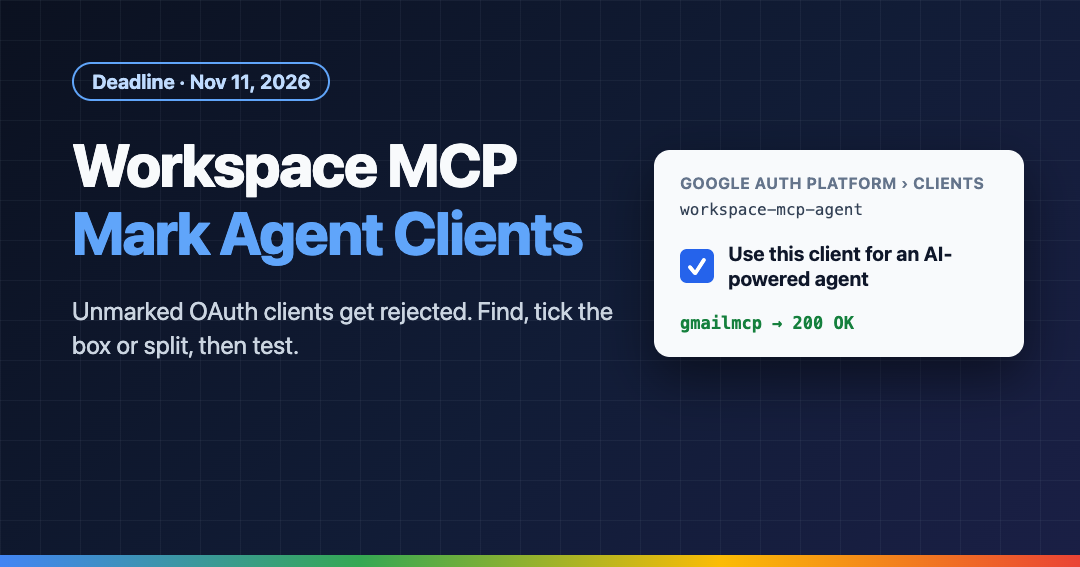
Google Workspace MCP agentic OAuth clients become mandatory on November 11, 2026. From that date, Google's hosted Gmail, Drive, Calendar, Docs, Sheets, Slides and Chat MCP servers reject requests from any OAuth client that is not marked "Use this client for an AI-powered agent." If your AI agent connects to a *mcp.googleapis.com endpoint, open Google Auth Platform > Clients, tick that box on the agent's client (or create a new client for the agent), and do it before November 12, when unmarked clients stay non-agentic for good.
Written November 7, 2026. Facts checked on November 7, 2026 against the Google Workspace developer release notes (entry dated October 12, 2026), the "Configure the Google Workspace MCP servers" guide, the Gmail MCP server guide, and the Google Cloud Help page "Manage OAuth Clients". The Workspace MCP servers are a Developer Preview product. The commands below are standard shell, jq and curl commands. They were not run against a live Google Cloud project for this post, so check the results in your own console.
What changed: agentic OAuth clients for Workspace MCP
Google posted the same announcement under the Gmail, Calendar, Docs, Drive, Sheets, Slides and Chat API release notes on October 12, 2026. Project owners also got an email with the subject "[Action Required] Mark AI agent OAuth clients as agentic for Google Workspace MCP by Nov 11, 2026".
The rules in the release note are short:
- OAuth 2.0 clients that call a Google Workspace MCP server must have Use this client for an AI-powered agent selected in Google Auth Platform > Clients.
- Starting November 11, 2026, the MCP servers reject requests from apps whose OAuth client is not marked as agentic.
- Clients not marked by November 12, 2026 stay non-agentic and cannot call the MCP servers. To use MCP after that, you create a new client, mark it, and switch your app to it.
- Apps that are not AI agents, such as integrations that only call the Workspace REST APIs, are not affected.
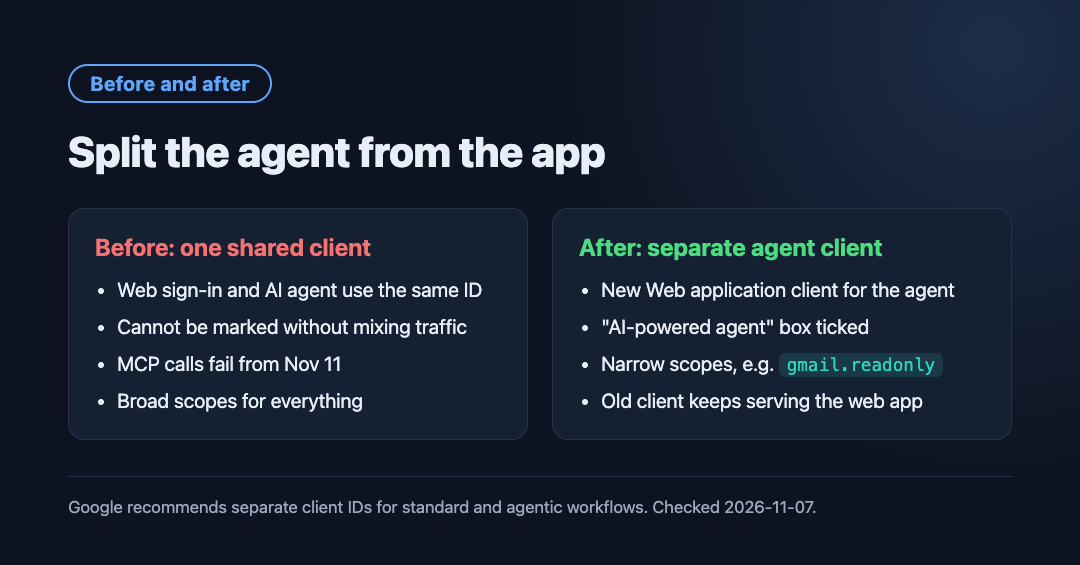
- If one client serves both agent and non-agent features, Google says to create a separate client for the agent and mark only that one.
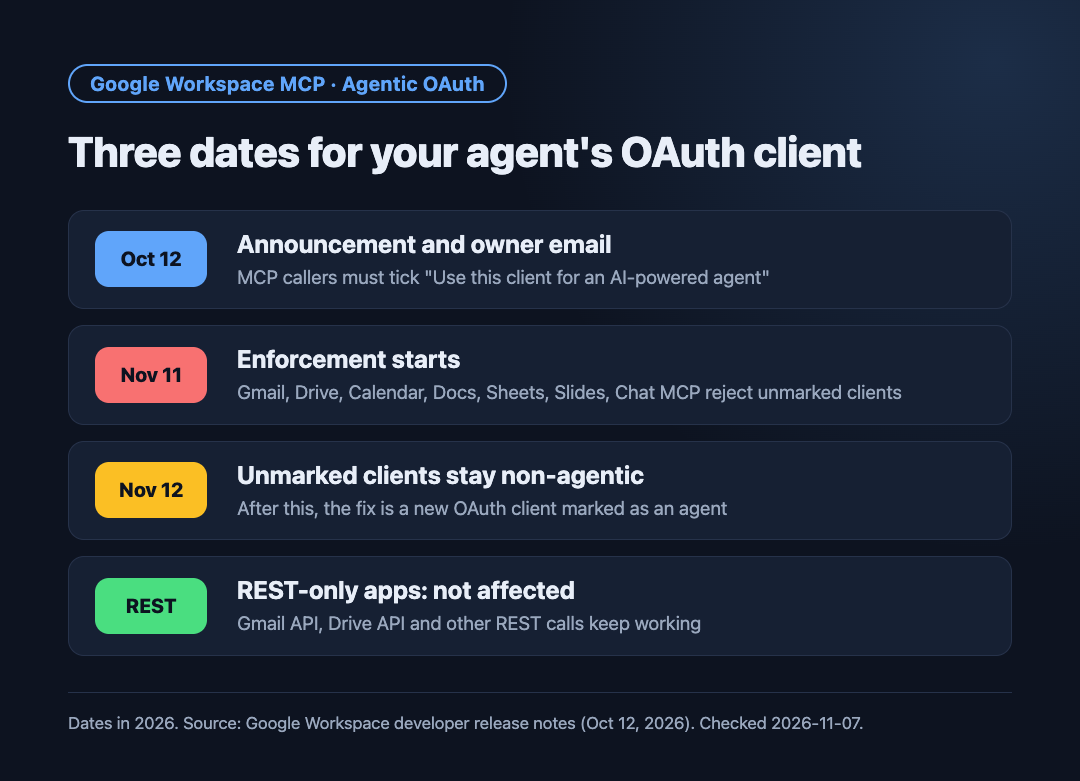
| Date (2026) | What happens | Your action |
|---|---|---|
| Oct 12 | Announcement and email to project owners | Find agent clients |
| Before Nov 11 | Marking is optional but available | Tick the agent box |
| Nov 11 | Unmarked clients are rejected by MCP servers | Requests fail |
| Nov 12 onward | Unmarked clients stay non-agentic | New client needed |
The Google Cloud Help page adds one useful detail: tagging a client as an agent "does not grant additional scopes or privileges to access user data." It is a declaration, not a permission upgrade.
Are you affected? Check your agent setup
You need to act only if a user-delegated OAuth client sends requests to one of Google's hosted MCP servers. These are the endpoints listed in Google's setup guide:
| Product | MCP endpoint |
|---|---|
| Gmail | gmailmcp.googleapis.com/mcp/v1 |
| Drive | drivemcp.googleapis.com/mcp/v1 |
| Calendar | calendarmcp.googleapis.com/mcp/v1 |
| Docs / Sheets / Slides | docsmcp / sheetsmcp / slidesmcp |
| Chat | chatmcp.googleapis.com/mcp/v1 |
| People / Classroom | people / classroommcp |
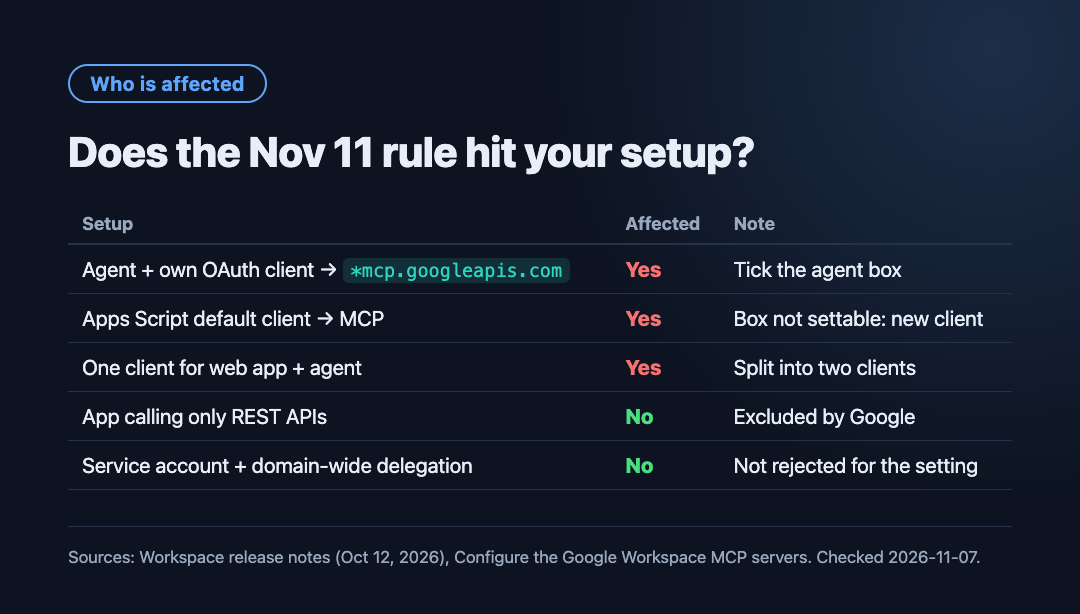
| Setup | Affected? | Why |
|---|---|---|
Agent with your own OAuth client → *mcp.googleapis.com | Yes | Must be marked |
| App calling only Gmail/Drive REST APIs | No | Release note excludes it |
| Service account with domain-wide delegation | No | Guide: not rejected for the missing setting |
| Apps Script with its default OAuth client | Yes, if it calls MCP | Box cannot be set on the default client |
Community MCP servers that wrap the REST APIs are a common source of confusion. The maintainer of the popular taylorwilsdon/google_workspace_mcp project concluded on October 20, 2026 that their server calls REST APIs and needs no change, quoting the "not affected" line from Google's note. That is the maintainer's reading for that project. If your tool sends requests to a googleapis.com/mcp/v1 URL, it is in scope.
Find MCP endpoints and client IDs in local configs
Start with the config files your MCP clients read. The Antigravity path comes from Google's guide. The others are the usual project and user config files for Claude Code, Cursor and VS Code.
The first loop finds Google-hosted MCP endpoints. The jq command then prints the OAuth client ID next to each one (Antigravity format).
for f in ~/.gemini/config/mcp_config.json ~/.claude.json .mcp.json \
         ~/.cursor/mcp.json .cursor/mcp.json .vscode/mcp.json; do
  [ -f "$f" ] && grep -Hn "mcp.googleapis.com\|people.googleapis.com/mcp" "$f"
done

jq -r '.mcpServers | to_entries[]
  | select(.value.serverUrl // "" | test("googleapis.com/mcp"))
  | "\(.key)\t\(.value.oauth.clientId // "no clientId")"' \
  ~/.gemini/config/mcp_config.json
Client IDs end in .apps.googleusercontent.com. Write each one down with the project it belongs to. If you use Claude.ai or Claude Desktop custom connectors, the client ID is under the connector's advanced settings, not in a local file.
For a whole repo or a team share, a wider search helps:
grep -rIn --exclude-dir={node_modules,.git} \
  -e "mcp.googleapis.com" -e "apps.googleusercontent.com" .
Mark an OAuth client as agentic in Google Auth Platform
The setting lives on the client, not on the consent screen. Google's guide describes it only in the Cloud console, so plan to click through it once per project.
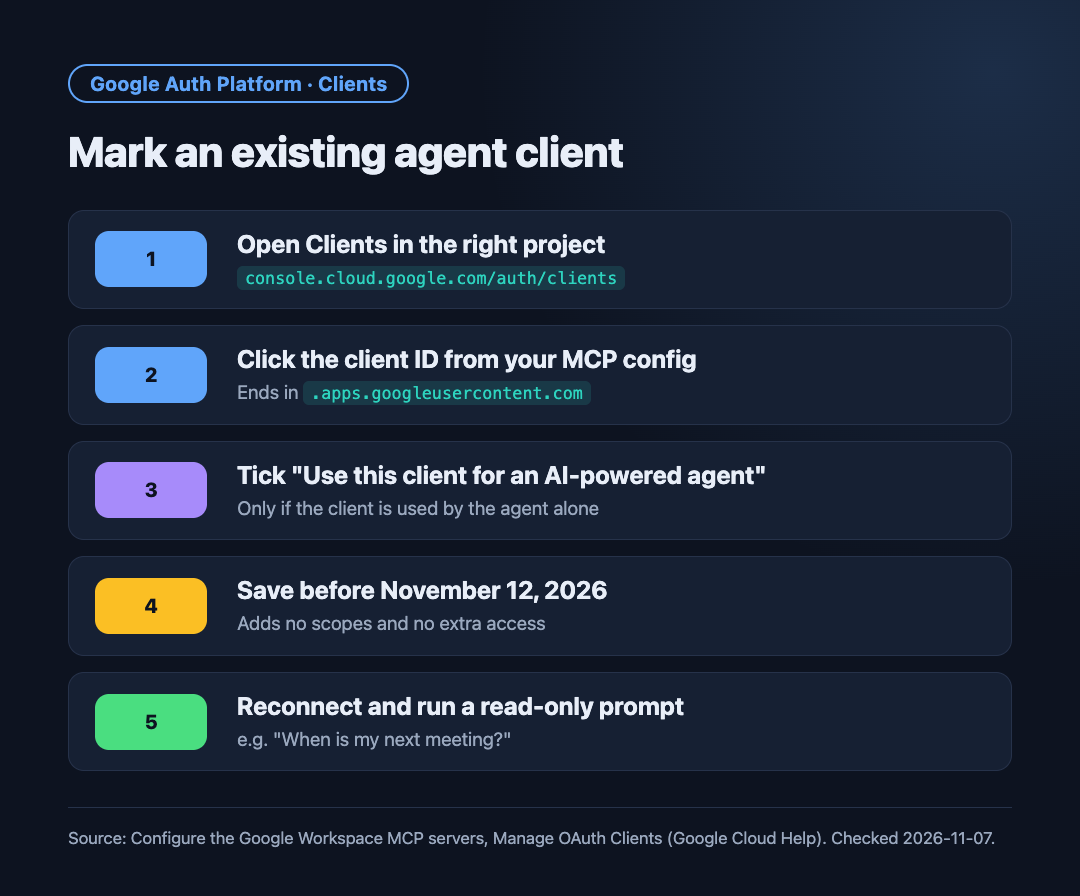
- Open the Google Cloud console and go to Google Auth Platform > Clients (
console.cloud.google.com/auth/clients). Select the right project at the top. - Click the client ID you found in your MCP config.
- Select Use this client for an AI-powered agent.
- Click Save.
- Reconnect the MCP client and run one read-only prompt, for example "When is my next meeting?" for Calendar.
If the same client also signs users into a normal web app or runs non-agent jobs, do not mark it. Create a separate client for the agent instead, as Google recommends.
Create a new agent client (the clean option)
Google's setup guide uses a Web application client:
- In Google Auth Platform > Clients, click Create client.
- Application type: Web application. Give it a clear name such as
workspace-mcp-agent. - Add the redirect URI your MCP client needs:
- Antigravity:
https://antigravity.google/oauth-callback - Claude:
https://claude.ai/api/mcp/auth_callback
- Antigravity:
- Select Use this client for an AI-powered agent.
- Click Create and copy the client ID and secret into a password manager.
Then update the agent's config. In Antigravity, each server entry has a serverUrl and an oauth block:
{
  "mcpServers": {
    "gmail": {
      "serverUrl": "https://gmailmcp.googleapis.com/mcp/v1",
      "oauth": {
        "clientId": "<YOUR_AGENT_CLIENT_ID>.apps.googleusercontent.com",
        "clientSecret": "<YOUR_AGENT_CLIENT_SECRET>"
      }
    }
  }
}
For Claude, go to Settings > Connectors > Add custom connector, enter the server URL, and put the new client ID and secret under Advanced settings. Repeat for each Workspace product you connect. Other clients need the server URL, Streamable HTTP transport and OAuth 2.0.
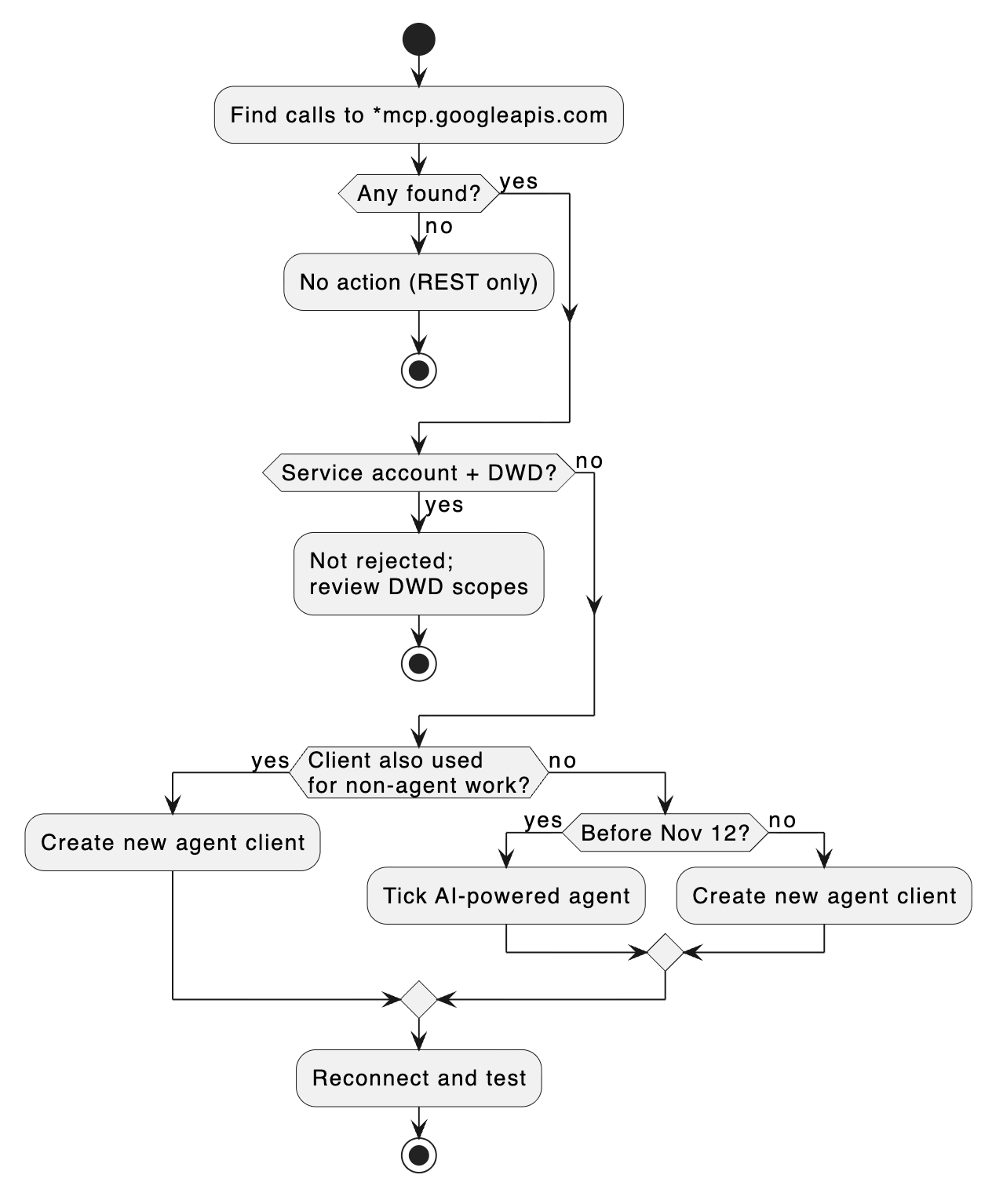
View PlantUML source
@startuml
skinparam shadowing false
skinparam defaultFontSize 14
start
:Find calls to *mcp.googleapis.com;
if (Any found?) then (no)
  :No action (REST only);
  stop
else (yes)
endif
if (Service account + DWD?) then (yes)
  :Not rejected;\nreview DWD scopes;
  stop
else (no)
endif
if (Client also used\nfor non-agent work?) then (yes)
  :Create new agent client;
else (no)
  if (Before Nov 12?) then (yes)
    :Tick AI-powered agent;
  else (no)
    :Create new agent client;
  endif
endif
:Reconnect and test;
stop
@enduml
Apps Script, service accounts and refresh tokens
Three setups behave differently, according to Google's MCP guides.
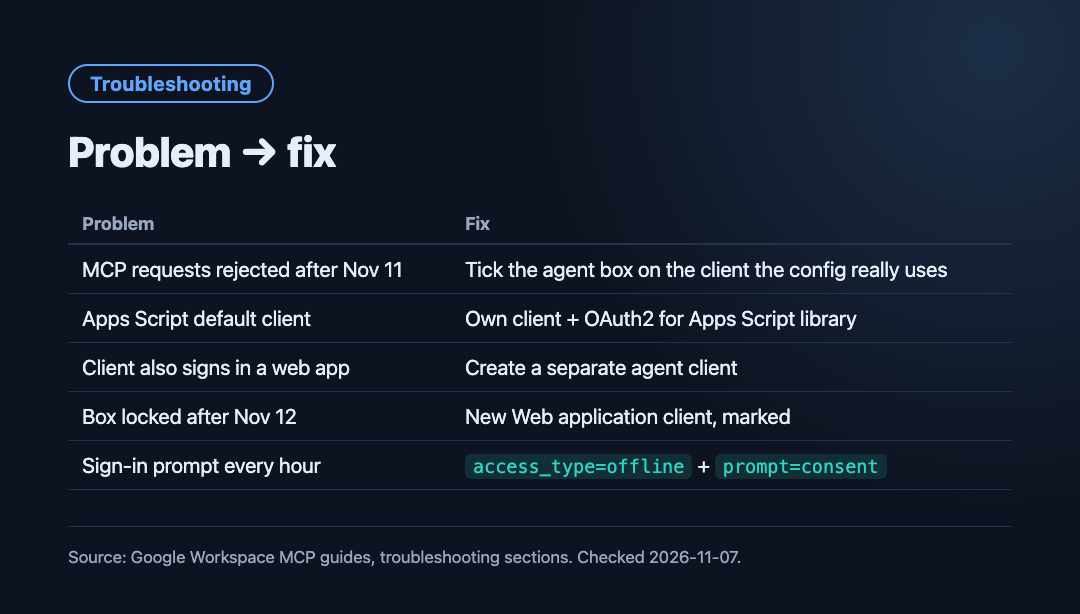
Apps Script. You cannot set the agent option on the default OAuth client that Apps Script creates for a script. Create your own OAuth client with the box ticked, authorize with the OAuth2 for Apps Script library, and send that access token to the MCP server. Do not send the token from ScriptApp.getOAuthToken().
Service accounts with domain-wide delegation. The agent setting is not available for these, and their MCP requests are not rejected for missing it. Access is controlled by the domain-wide delegation scopes your Workspace admin set. Sensitive tool calls still ask for confirmation.
Hourly sign-in prompts. These are not caused by the agentic change, but people often hit them while reconnecting. Without a refresh token, users sign in again about every hour. If your client allows custom authorization parameters, add access_type=offline, and add prompt=consent to get a fresh refresh token for a user who already granted access. Google notes that asking for an offline_access scope alone does not return one.
Test the agent client after the change
The quickest test is a read-only prompt in your MCP client. For a lower-level check, send an MCP initialize request with an access token issued to the new client. One way to get such a token is the OAuth 2.0 Playground with "Use your own OAuth credentials" and its redirect URI (https://developers.google.com/oauthplayground) added to the client. Remove that redirect URI after the test.
curl -s https://calendarmcp.googleapis.com/mcp/v1 \
  -H "Authorization: Bearer <YOUR_ACCESS_TOKEN>" \
  -H "Content-Type: application/json" \
  -H "Accept: application/json, text/event-stream" \
  -d '{"jsonrpc":"2.0","id":1,"method":"initialize","params":{
        "protocolVersion":"2025-06-18","capabilities":{},
        "clientInfo":{"name":"agentic-check","version":"1.0"}}}'
A JSON-RPC result with server info means the client works. Google's guides do not document a specific error message for unmarked clients, so if you get an error after November 11, compare the client ID behind the token with the one you marked first.
What to do if requests are still rejected
| Symptom | Likely cause | Fix |
|---|---|---|
| Rejected after Nov 11 | Box not ticked on the client in use | Check the client ID in the config, tick the box |
| Box cannot be changed | Client locked or Apps Script default | Create a new agent client |
| Web sign-in also uses this client | Mixed use | Split into two clients |
| Error persists after ticking | Old session or token | Disconnect and reconnect the MCP server |
| Works for you, not teammates | Admin API controls | Ask the admin to check OAuth log events |
The last row comes from Google's troubleshooting section: your Workspace admin can check OAuth log events in the security investigation tool and the API controls under Security > API controls in the Admin console. The reconnect step in the fourth row is general OAuth hygiene, not a documented requirement.
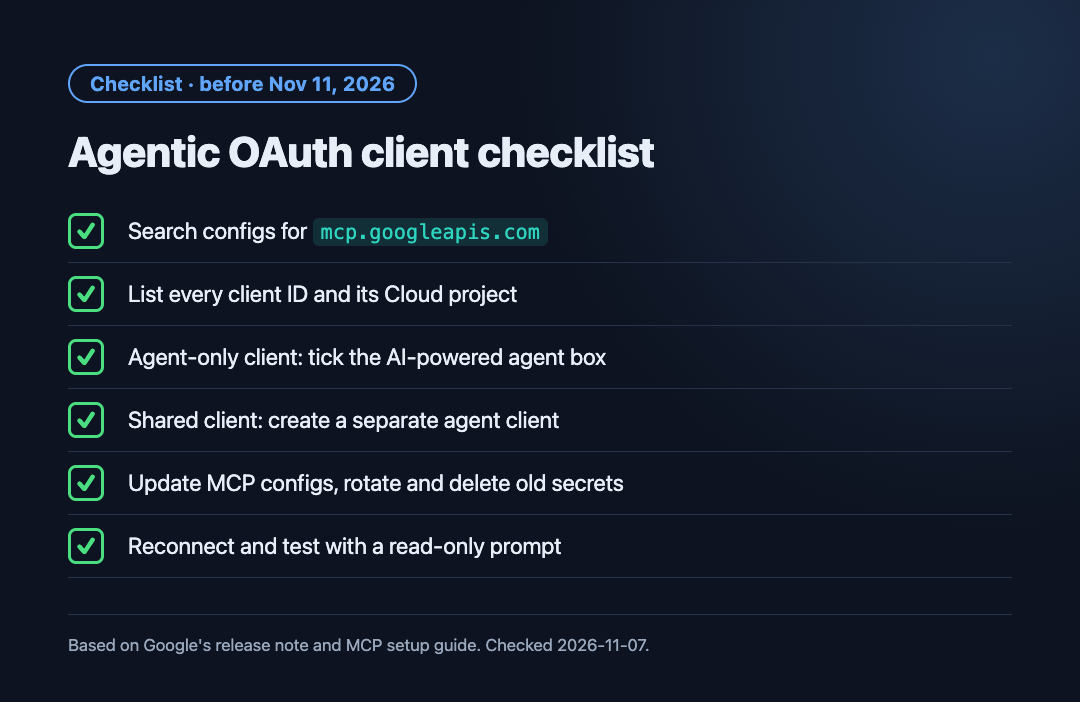
If you switch to a new client, retire the old secret carefully. Google's Help page describes the order: add a new secret (a client can hold two), move the app to it, disable the old one, and delete it once nothing breaks. Unused clients are deleted automatically after six months of inactivity, with an email 30 days before.
Why this matters for MCP security
Marking agent clients lets Google and your admins tell AI agent traffic apart from normal app traffic. It does not make an agent safe on its own. Google's guide warns about indirect prompt injection: an email or document can carry instructions your agent may follow. Connect only trusted MCP clients, keep scopes narrow (for example gmail.readonly instead of compose if you only search mail), and review the actions your agent takes. If your agent also runs third-party MCP servers from npm, check that they are still maintained: find and replace deprecated MCP servers.
FAQ
What happens on November 11, 2026 if I do nothing? Google's Workspace MCP servers start rejecting requests from OAuth clients that are not marked as agentic. Apps that only call the Workspace REST APIs keep working.
Can I mark an existing client after November 12? Google's release note says clients not marked by November 12, 2026 remain non-agentic and cannot call the MCP servers. The documented path after that date is a new OAuth client with the box ticked.
Does marking a client as agentic change consent or scopes? No. Google's Help page says the tag does not grant additional scopes or privileges. Your consent screen and scopes stay as they are.
My Gmail automation uses n8n or a Python script with the Gmail API. Do I need to change anything? Not for this change, as long as it calls the REST API and not a *mcp.googleapis.com endpoint. Google lists REST-only apps as not affected.
Is this change only for paid Workspace accounts? The release note does not limit it by edition. It applies to any OAuth client that calls the Workspace MCP servers, which are still a Developer Preview product.
Summary
Search your MCP configs for mcp.googleapis.com today. For each OAuth client behind those endpoints, open Google Auth Platform > Clients and tick Use this client for an AI-powered agent, or create a separate Web application client for the agent if the old one serves other work. Do it before November 12, 2026, then reconnect and run one read-only prompt. REST-only apps and service accounts with domain-wide delegation need no change. If you build Workspace automations without code, see how Workspace Studio nested conditionals route email as well.
References
- Google Workspace developer release notes — "Agentic OAuth clients for Google Workspace MCP servers", October 12, 2026, checked 2026-11-07
- Configure the Google Workspace MCP servers — endpoints, OAuth client setup, troubleshooting, checked 2026-11-07
- Configure the Gmail MCP server — agent setting, service accounts, Apps Script, checked 2026-11-07
- Set up the Google Chat MCP server — Chat MCP client setup, checked 2026-11-07
- Manage OAuth Clients — Google Cloud Help: AI agent setting, secret rotation, client deletion, checked 2026-11-07
- Agent tools and security updates for Workspace developers — Google Workspace Updates, May 2026, checked 2026-11-07
- google_workspace_mcp issue #1249 — community discussion of the agentic flag, closed 2026-10-23, checked 2026-11-07