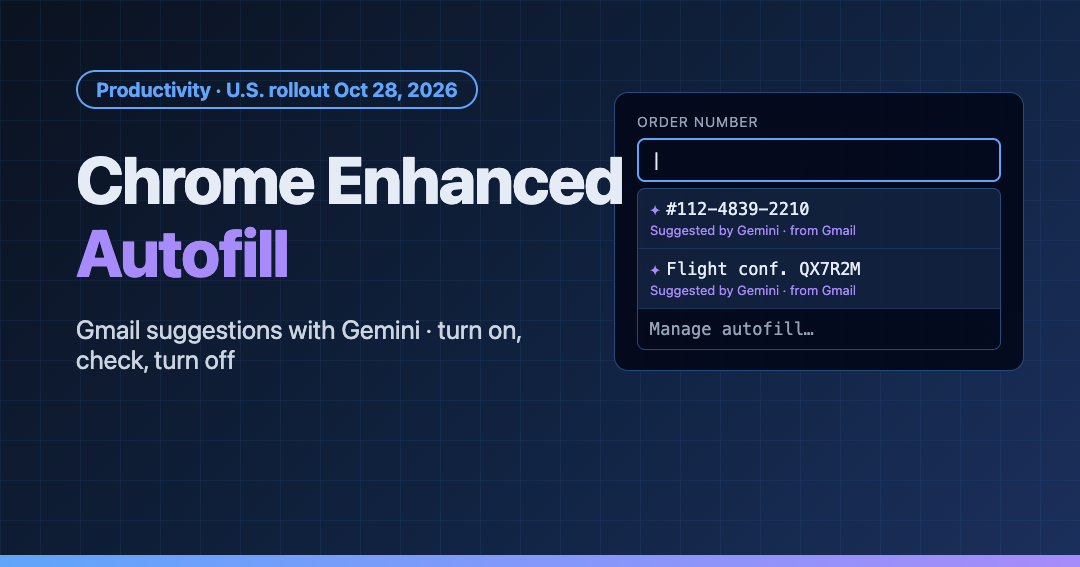
Chrome enhanced autofill can now fill web forms with details from your Gmail, such as order numbers, tracking numbers and flight bookings. Google started rolling it out in the U.S. on October 28, 2026, for desktop, Android and iOS. To use it, you need Gemini in Chrome with Personal Intelligence turned on. To turn it on or off, go to Settings → Autofill and passwords → Enhanced autofill and switch Find and fill with Gemini.
Written 2026-10-30. Requirements and menu labels below were checked that day against Google's announcement (Chrome blog, October 28, 2026), the Chrome Help page "Fill out forms automatically in Chrome" (desktop, Android and iOS versions) and the Gemini Apps Help page on connected apps. I am outside the rollout region, so I did not run the feature myself. Menu wording can change during a staged rollout.
What Chrome enhanced autofill does
Classic Chrome autofill only fills what you saved: addresses, contact info, payment cards and passwords. Enhanced autofill adds a second source. Gemini reads relevant Gmail messages through Personal Intelligence and offers details from them as form suggestions.
Google's Help page names flights, vehicles and orders as examples. The announcement highlights order numbers, tracking information and flight bookings. So the typical cases are a return form that asks for an order number, an airline check-in page that asks for a confirmation code, or a carrier site that asks for a tracking number.
| Classic autofill | Enhanced autofill | |
|---|---|---|
| Data source | What you saved in Chrome or Google Wallet | Your Gmail, read by Gemini |
| Typical fields | Name, address, phone, card | Order no., tracking no., flight booking |
| How it is marked | Normal dropdown entry | Gemini spark icon ("Suggested by Gemini") |
| Can you edit it in Chrome? | Yes | No, only remove it |
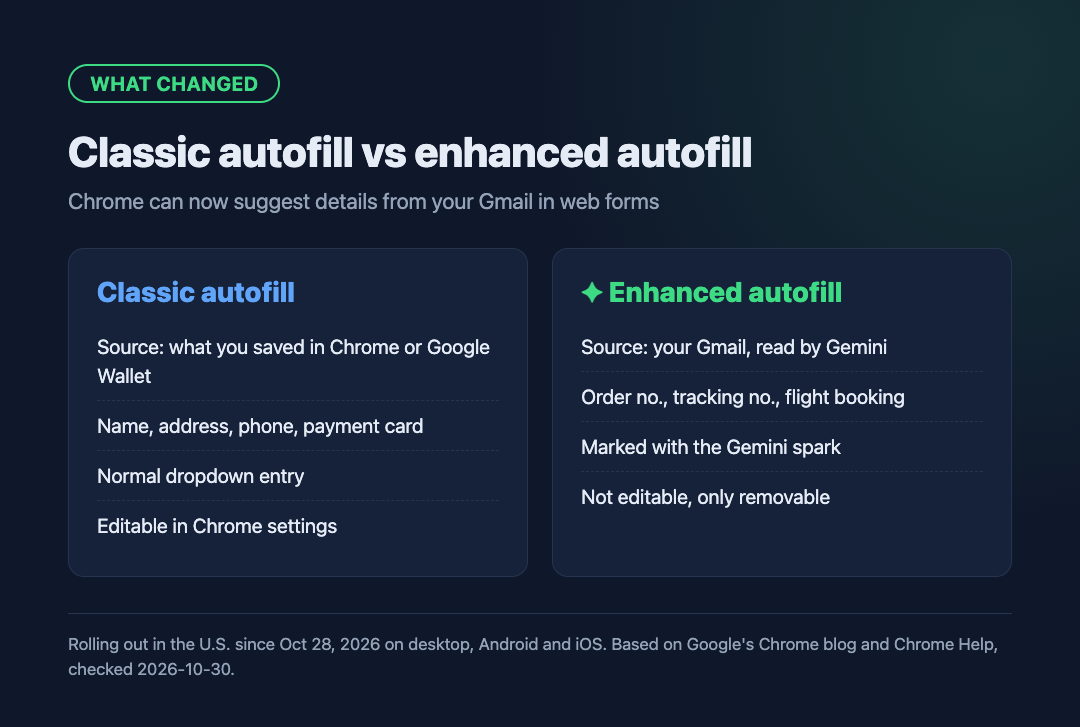
A Gemini suggestion is not stored as a regular autofill entry. You cannot edit it in Chrome. If you delete the source email, the suggestion goes away. Removing the suggestion in Chrome does not delete the email.
Requirements for Chrome enhanced autofill
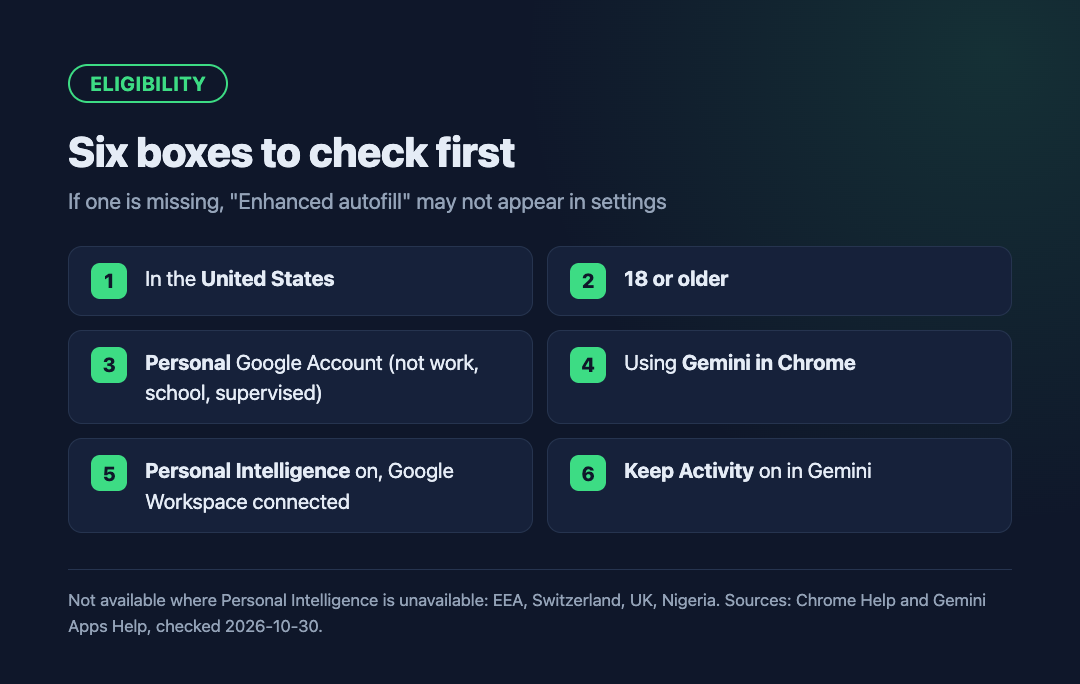
All of these must be true. If one is missing, the Enhanced autofill entry may not appear in settings at all.
| Requirement | Detail (as of 2026-10-30) |
|---|---|
| Country | United States only |
| Age | 18 or older |
| Account | Personal Google Account (not work, school or supervised) |
| Gemini in Chrome | You must be a Gemini in Chrome user |
| Personal Intelligence | Opted in, with Google Workspace (Gmail) connected |
| Keep Activity | On (needed for Personal Intelligence) |
| Platforms | Chrome on desktop, Android and iOS |
Personal Intelligence is not available in the European Economic Area, Switzerland, the United Kingdom or Nigeria, according to Gemini Apps Help. Google gave no date for other countries. Neither the Chrome Help page nor the announcement lists a paid plan as a requirement for this feature. If you are eligible, Gemini shows an opt-in card for Personal Intelligence.
How the Gmail suggestions reach a form
The flow has three switches. Gmail data only reaches a Chrome form when all three are on.

View PlantUML source
@startuml
skinparam shadowing false
skinparam defaultFontSize 14
left to right direction
rectangle "Gmail" as G
rectangle "Gemini\nPersonal Intelligence" as P
rectangle "Chrome\nEnhanced autofill" as C
rectangle "Form field\n(spark suggestion)" as F
G --> P : Workspace\nconnected
P --> C : Find and fill\nwith Gemini
C --> F : you pick it
@enduml
That also tells you where to cut access. Turning off the Chrome switch stops form suggestions. Disconnecting Google Workspace in Gemini stops Gemini from using Gmail anywhere, not only in Chrome.
Turn on Chrome enhanced autofill
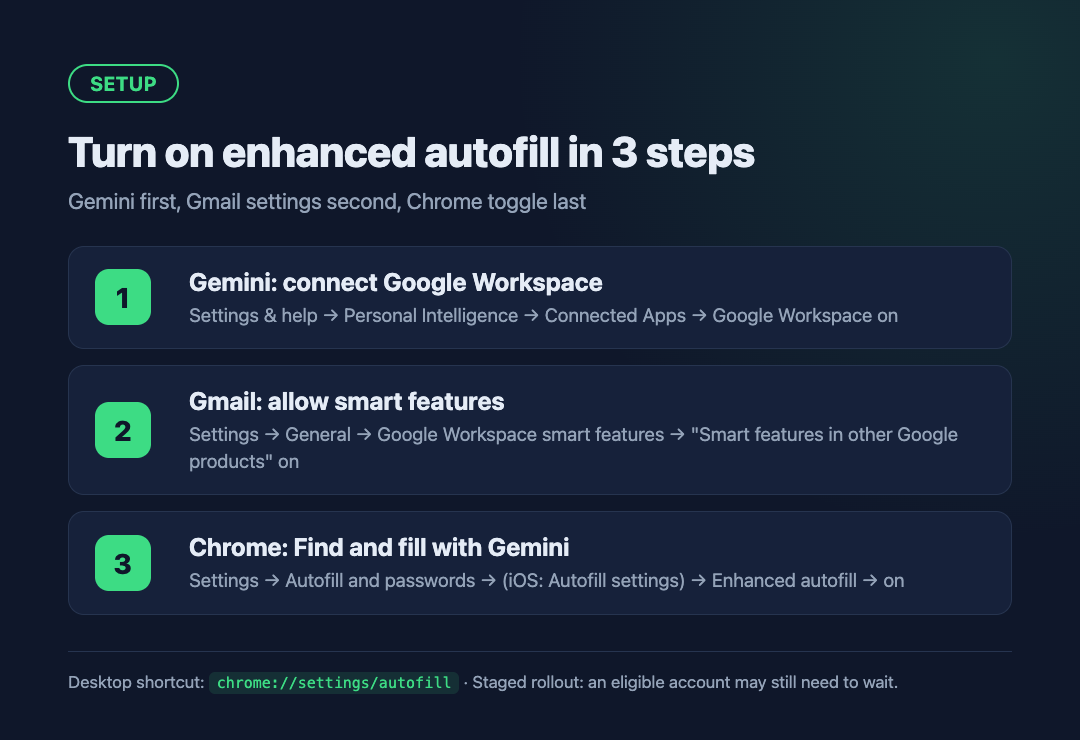
Step 1: Opt in to Personal Intelligence in Gemini
If Gemini shows an eligibility card, tap Get started and choose Connect all or Choose apps. If you choose apps, include Google Workspace, which covers Gmail.
If you skipped the card, connect it later:
- Web: go to gemini.google.com → Menu → Settings & help → Personal Intelligence → Connected Apps, then turn on Google Workspace.
- Gemini app (Android): Menu → your profile picture or initial → Personal Intelligence → Connected Apps, then turn on Google Workspace.
Gemini Apps Help also notes that Gemini cannot connect to Google Workspace when Gmail's Smart features in other Google products setting is off. In Gmail on the web, that setting is under Settings → See all settings → General → Google Workspace smart features → Manage Workspace smart feature settings.
We covered another Gemini-in-Gmail feature in Gmail Live: How to Turn On and Use Voice Search in Gmail; it relies on the same smart feature settings.
Step 2: Switch on "Find and fill with Gemini" in Chrome
The toggle sits in the same place on every platform. iOS has one extra tap.
| Platform | Path |
|---|---|
| Desktop | More (⋮) → Settings → Autofill and passwords → Enhanced autofill |
| Android | More (⋮) → Settings → Autofill and passwords → Enhanced autofill |
| iPhone / iPad | More (…) → Settings → Autofill and passwords → Autofill settings → Enhanced autofill |
Then turn Find and fill with Gemini on.
On desktop you can also paste this into the address bar to jump to the autofill section:
chrome://settings/autofillIf Enhanced autofill is missing, update Chrome first, then go back to the requirements table. Google is rolling the feature out in stages, so an eligible account may still have to wait.
Use, check and remove Gemini suggestions
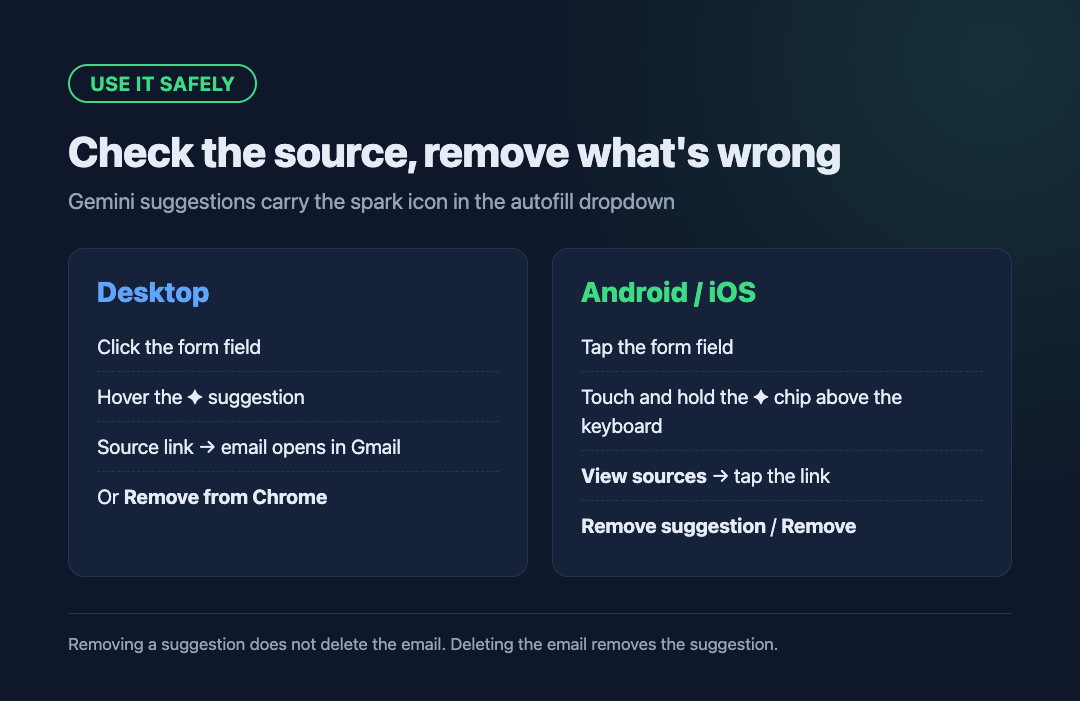
When you click a form field, suggestions from Gmail appear in the autofill dropdown with the Gemini spark icon. Pick one and Chrome fills the field.
Check the source before you submit anything important, like a flight change or a refund claim. An inbox can hold several similar emails, such as an old booking and a new one.
| Task | Desktop | Android / iOS |
|---|---|---|
| See the source email | Hover over the Gemini suggestion → select the source link | Touch and hold the Gemini chip above the keyboard → View sources → tap the link |
| Remove one suggestion | Hover → Remove from Chrome | Touch and hold the chip → Remove suggestion (Android) / Remove (iOS) |
The source email opens in a new tab in Gmail. Removing a suggestion only hides it in Chrome. The email stays in your inbox.
Turn off Chrome enhanced autofill
Choose how far you want to go. Each level includes everything above it.
| Goal | What to switch off |
|---|---|
| Hide one wrong suggestion | Remove from Chrome on that suggestion |
| Stop Gmail suggestions in Chrome forms | Chrome → Autofill and passwords → Enhanced autofill → Find and fill with Gemini off |
| Stop Gemini from using Gmail anywhere | Gemini → Personal Intelligence → Connected Apps → Google Workspace off |
| Stop autofill for one data type | Chrome → Passwords and autofill → that category → Save and fill off |
To clear the classic autofill data that Chrome saved on your device, open Delete browsing data, pick a time range, expand Advanced and select Autofill form data. Google Help notes that this does not remove info saved in Google Pay or Google Wallet. It also does not touch Gemini suggestions, which come from Gmail.
There is a separate desktop setting called Smarter form understanding under Settings → Autofill and passwords → Autofill settings. It changes how Chrome reads forms, not whether it reads your Gmail. Leave it alone unless you also want to change that behavior.
Privacy: what Google has and has not said
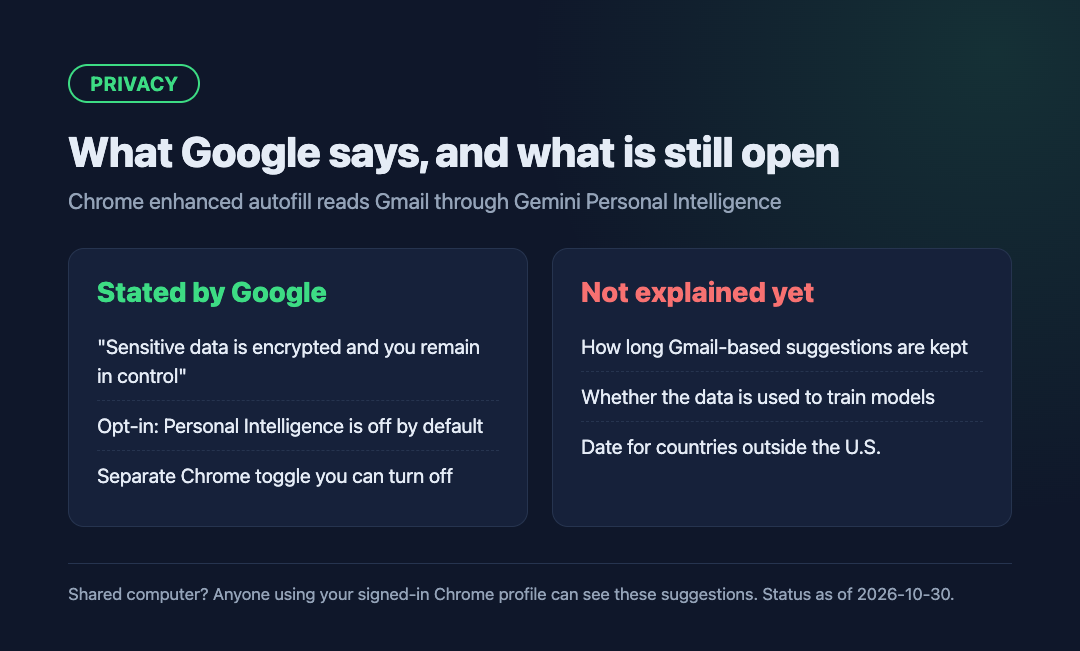
Google's announcement says "sensitive data is encrypted and you remain in control." It also says you can manage in Chrome settings whether enhanced autofill is on and what it can access. As of October 30, the announcement and the Chrome Help page do not explain in detail how long Gmail-derived suggestions are kept. Several news reports also noted that Google did not say whether this data is used to train models.
A few practical points follow from what is documented:
- It is opt-in at two levels. Personal Intelligence is off by default, and the Chrome toggle is a separate switch.
- Shared computers need care. Anyone using your signed-in Chrome profile can see suggestions pulled from your Gmail. Use a separate Chrome profile for shared or work machines.
- Check before you submit. The feature suggests; you still choose. Open the source email when the value matters.
If you also want to cut back on other Gemini features in Google's apps, see Gmail AI Inbox: How to Turn It On, Use It or Turn It Off.
Troubleshooting enhanced autofill
| Symptom | Likely cause | Fix |
|---|---|---|
| No Enhanced autofill entry in settings | Outside the U.S., under 18, or rollout not reached yet | Update Chrome, confirm eligibility, wait for rollout |
| Toggle is on but no Gemini suggestions | Google Workspace not connected in Gemini | Connect it under Personal Intelligence → Connected Apps |
| Connected Apps missing in Gemini | Keep Activity is off | Turn Keep Activity on in Gemini settings |
| Workspace cannot be connected | Gmail "Smart features in other Google products" is off | Turn it on in Gmail settings |
| Work or school account shows nothing | Not supported | Use a personal Google Account |
| Wrong order or flight suggested | Several similar emails in Gmail | View sources, then remove the wrong suggestion |
FAQ
Is Chrome enhanced autofill on by default? No. You must opt in to Gemini Personal Intelligence and connect Google Workspace first, and the Chrome feature has its own Find and fill with Gemini toggle.
Is Chrome enhanced autofill available outside the United States? Not as of October 30, 2026. Google is rolling it out in the U.S. only and has not given a date for other countries. Personal Intelligence itself is not available in the EEA, Switzerland, the UK or Nigeria.
Can I edit a "Suggested by Gemini" entry? No. Information pulled from Gmail cannot be edited in Chrome. You can remove the suggestion, or delete the source email, which also removes the suggestion.
Does turning off the Chrome setting stop Gemini from reading my Gmail? No. It only stops form suggestions in Chrome. To stop Gemini from using Gmail, turn off Google Workspace under Personal Intelligence → Connected Apps in Gemini.
Does it work with Google Workspace work accounts? No. Personal Intelligence works with personal Google Accounts only. Work, school and supervised accounts are not eligible.
Chrome enhanced autofill saves a trip to your inbox for order, tracking and flight fields. Turn it on only if you are comfortable with Gemini reading Gmail, and check the source email before you submit anything that matters. Next, review which other apps you have connected to Gemini and keep only the ones you use.
References
- Chrome's enhanced autofill now pulls suggestions from Gmail — Google Chrome blog, October 28, 2026, checked 2026-10-30
- Fill out forms automatically in Chrome (Computer) — Google Chrome Help, checked 2026-10-30
- Fill out forms automatically in Chrome (Android) — Google Chrome Help, checked 2026-10-30
- Fill out forms automatically in Chrome (iPhone & iPad) — Google Chrome Help, checked 2026-10-30
- Connect your Google apps to personalize your Gemini experience — Gemini Apps Help, checked 2026-10-30
- Google Chrome rolling out 'Suggested by Gemini' autofill — 9to5Google, October 28, 2026, checked 2026-10-30
1 thought on “Chrome Enhanced Autofill: Turn On or Off Gmail Suggestions”