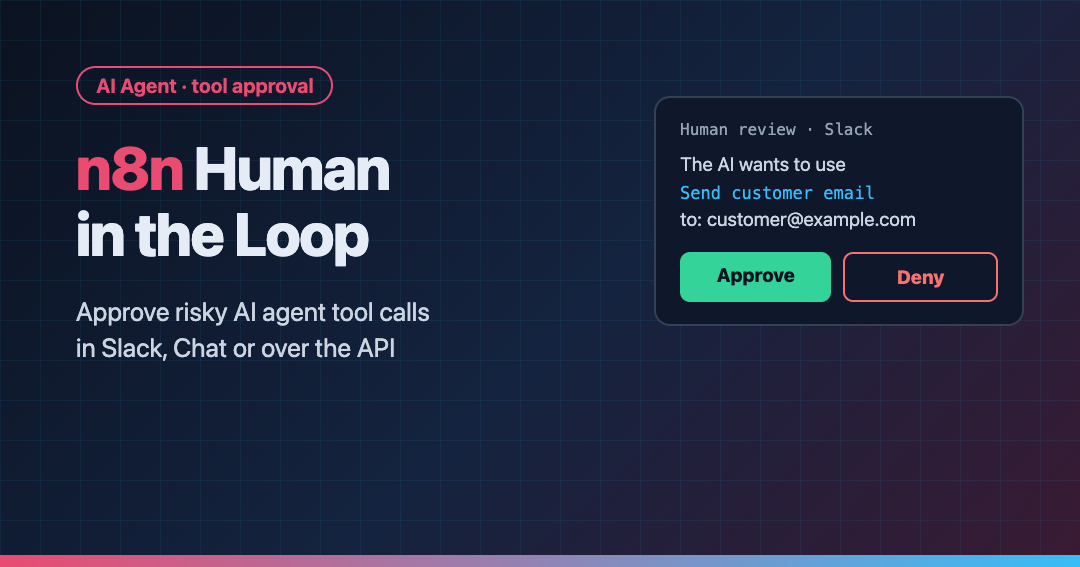
n8n human in the loop lets you stop an AI agent before it runs a risky tool and ask a person to approve or deny the call. On an AI Agent node, open the Tools connector, add a Human review step, pick a channel such as Slack or n8n Chat, and connect the tools that need sign-off. Approve runs the tool with the AI's input. Deny cancels it and tells the agent.
This guide covers that setup and the Slack wiring that trips most self-hosted installs. It also covers the newer approval options: the Agents product (Preview) and the API channel approvals that shipped in the n8n 2.49.0 beta on November 17, 2026. Everything here comes from the n8n docs, the GitHub release notes and the pull requests behind the features, checked on November 23, 2026. Code samples are examples to adapt, not output copied from a live instance.
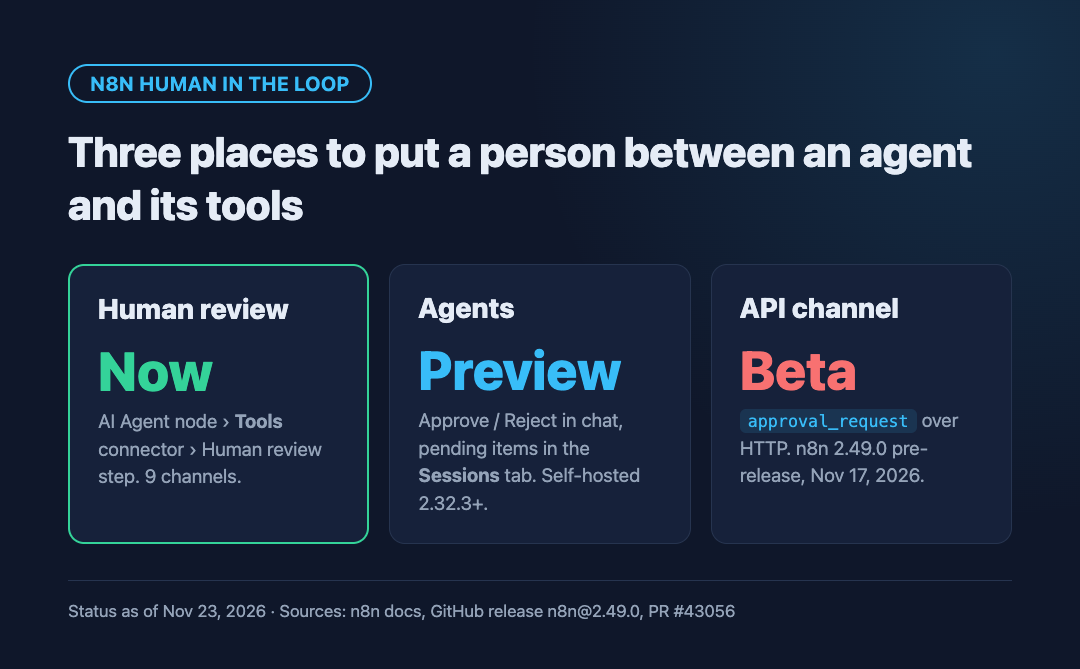
Three ways to add n8n human in the loop approval
n8n now has three places where a person can sit between an agent and its tools. They look alike but live in different parts of the product.
| Option | Where you set it | Status (Nov 23, 2026) | Best for |
|---|---|---|---|
| Human review on the AI Agent node | Workflow canvas, Tools connector | Documented feature | Most workflows today |
| Tool approvals in Agents | Agents product, chat and Sessions tab | Preview, from 2.32.3 self-hosted | Chat-style agents in Slack, Teams, Telegram, Linear |
| Approvals over the API channel | Agents API (webhook) channel | 2.49.0 beta only, no docs page yet | Apps that call an agent over HTTP |
If you build agents on the canvas, the first row is the one you want. The rest of this guide starts there and covers the other two later.
How human review pauses an AI agent tool call
The docs describe five steps. The agent decides to use a tool that has review turned on. The workflow pauses and sends an approval request to your channel. The reviewer sees the tool name and the parameters the AI chose. The reviewer approves or denies. On approve the tool runs with that input; on deny the action is cancelled and the AI is told it was rejected.
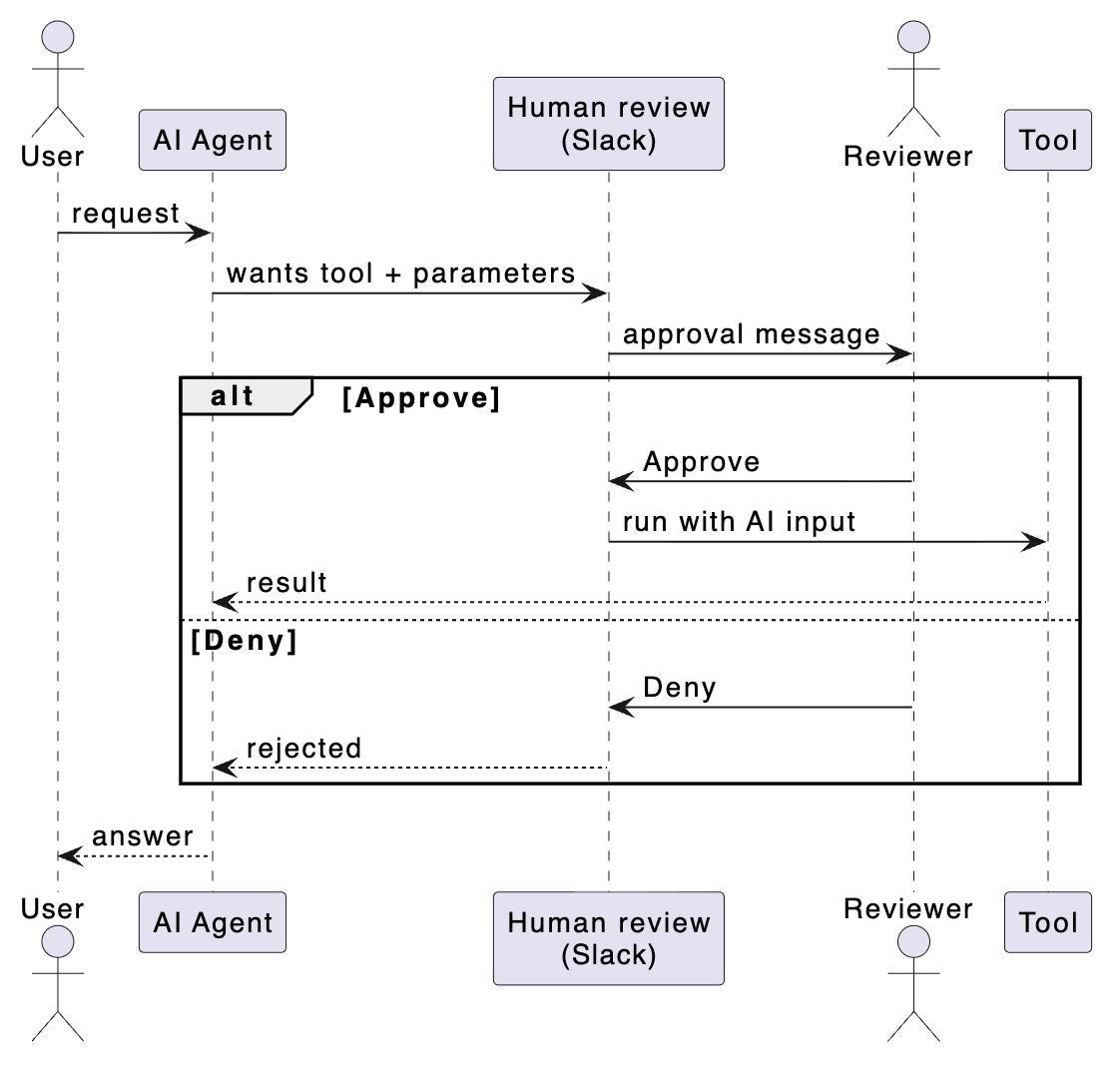
View PlantUML source
@startuml
skinparam shadowing false
skinparam defaultFontSize 14
actor User
participant "AI Agent" as A
participant "Human review\n(Slack)" as H
actor Reviewer
participant "Tool" as T
User -> A : request
A -> H : wants tool + parameters
H -> Reviewer : approval message
alt Approve
  Reviewer -> H : Approve
  H -> T : run with AI input
  T --> A : result
else Deny
  Reviewer -> H : Deny
  H --> A : rejected
end
A --> User : answer
@enduml
You can gate every tool on the agent or only selected ones. The docs also note that the user can chat with the agent in n8n Chat while approvals go to one person in Slack. The conversation channel and the approval channel do not have to match.
Requirements: version, public URL and webhook settings
Check your n8n version
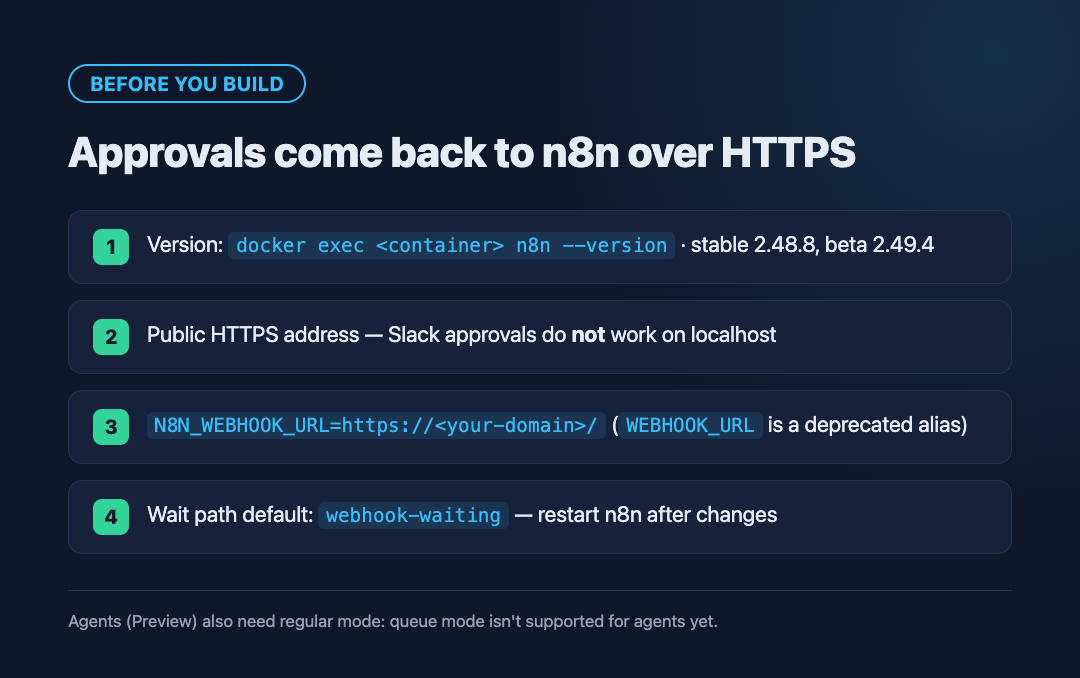
The human review docs do not state a minimum version. Agents (Preview) need 2.32.3 or later on self-hosted. On GitHub on November 23, 2026, the stable tag pointed to 2.48.8 and the beta tag to 2.49.4.
Check what you run. For Docker, run the CLI inside the container:
docker exec <YOUR_CONTAINER_NAME> n8n --versionFor an npm install, run n8n --version directly.
In the editor, Help > About n8n shows the same number.
Make the instance reachable over HTTPS
Approvals come back to n8n as HTTP requests. Chat approvals in the editor work locally. Slack and other external channels need a public HTTPS address. The Slack approvals docs say plainly that an instance running on localhost won't work.
Set the public base URL with N8N_WEBHOOK_URL. The older WEBHOOK_URL still works but has been a deprecated alias since n8n 2.35.0 and logs a warning at startup.
Example values for the environment section of a Docker Compose file. The last two lines show the defaults, so only add them if you need different paths:
N8N_WEBHOOK_URL=https://<YOUR_N8N_DOMAIN>/
N8N_ENDPOINT_WEBHOOK_WAIT=webhook-waiting
N8N_ENDPOINT_FORM_WAIT=form-waiting
Restart the container after you change environment variables. If you are still planning a major upgrade, run the checks from the n8n Migration Report guide first so you are not debugging two things at once.
Set up human review on an AI Agent node
These steps follow the n8n docs page "Human-in-the-loop for AI tool calls".
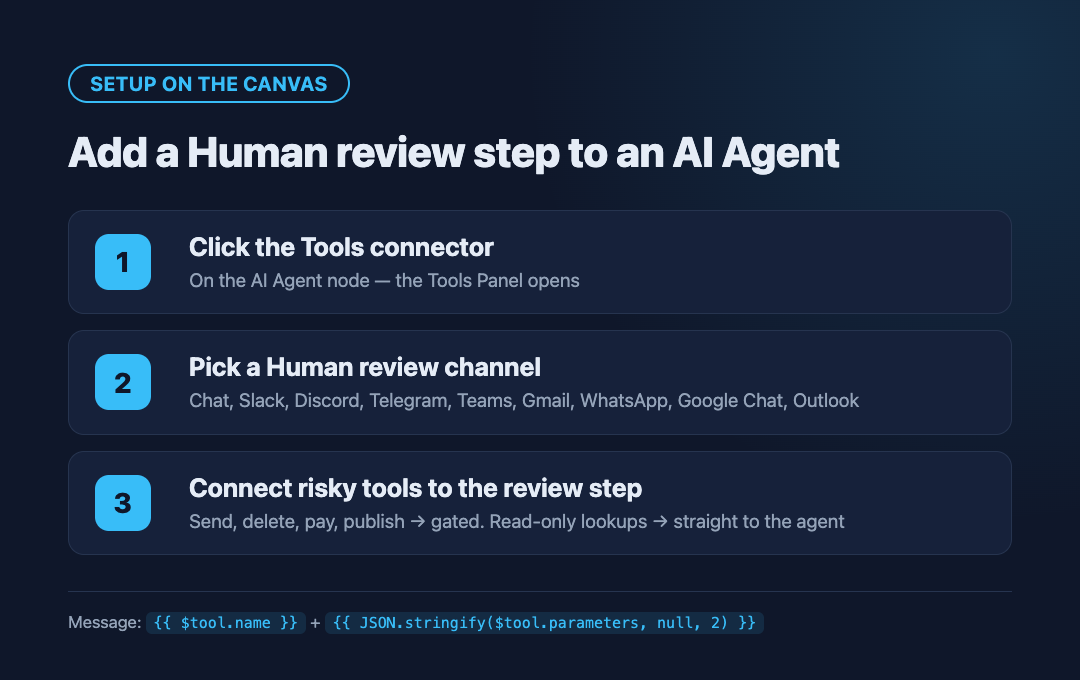
- Open the workflow and click the Tools connector on the AI Agent node. The Tools Panel opens.
- Find the Human review section and pick an approval channel.
- Set up the credentials and settings for that channel, the same way you would for the regular node.
- Add the tools that need approval to the human review step's own tool connector. Configure each tool as usual.
- Leave tools that are safe to run, such as read-only lookups, connected straight to the agent.
The docs list nine channels: Chat, Slack, Discord, Telegram, Microsoft Teams, Gmail, WhatsApp Business Cloud, Google Chat and Microsoft Outlook.
A simple split that matches the docs' intent: put tools that send, delete, pay or publish behind review. Keep search, read and calculate tools ungated so the agent stays fast.
Write a useful approval message with $tool
The reviewer only sees what you put in the message. n8n gives you a $tool variable inside review steps:
$tool.nameis the tool's node name as shown on the canvas.$tool.parametersholds the call's parameters, including any fields set with$fromAI().
The docs give this message template:
The AI wants to use {{ $tool.name }} with the following parameters:
{{ JSON.stringify($tool.parameters, null, 2) }}
Rename tool nodes to something a reviewer understands, such as Send customer email rather than Gmail1, because that name is what shows up in the message. When a tool uses $fromAI() for fields like the recipient or subject, the values the AI fills in are exactly what the reviewer approves.
Tell the agent about approvals in the system prompt
The docs include a warning: describe the review setup in the agent's system prompt. Say which tools need approval, what happens on denial, and how the agent should respond. The page gives no sample text, so here is an example you can adapt:
Some tools need human approval before they run: "Send customer email" and
"Create refund". If a call is denied, do not retry the same call. Tell the
user it was not approved, explain what you were trying to do, and ask
whether they want to change the request.
Without this, an agent may retry a denied call or tell the user an action happened when it did not.
Send n8n approval requests to Slack
Slack is the most common review channel and the one with the most setup. The Slack node docs cover a Send and Wait for Response operation and a separate approvals page for in-Slack buttons.
Pick a response type
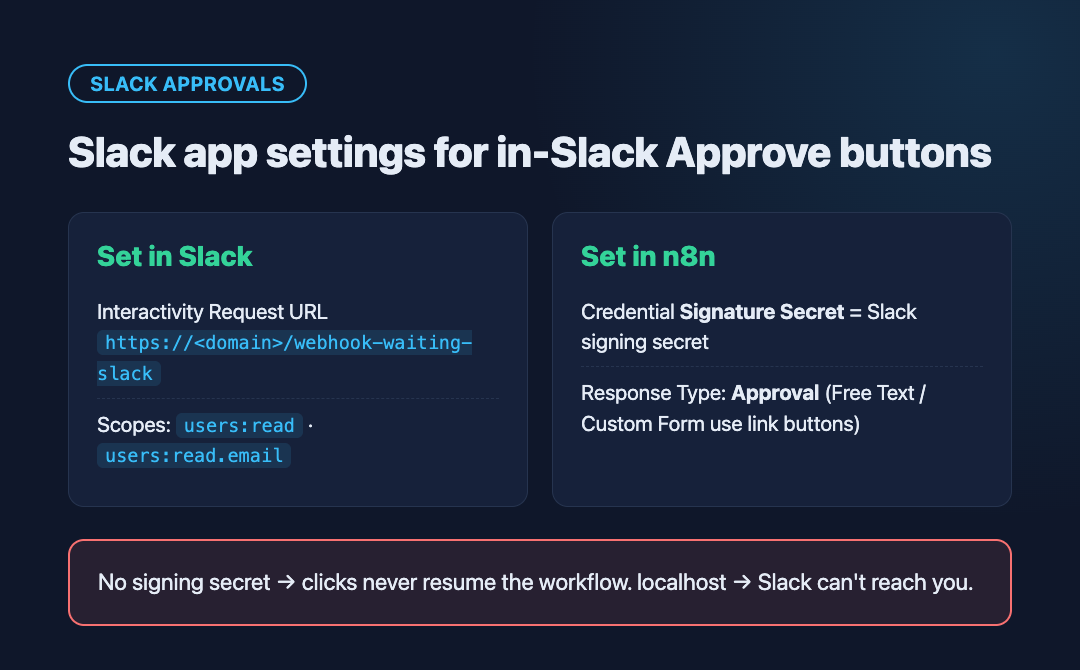
Response Type has three values: Approval, Free Text and Custom Form. Only Approval gives buttons that work inside Slack. The other two fall back to link buttons that open a page.
Configure the Slack app for in-Slack buttons
| Slack app setting | Value |
|---|---|
| Interactivity Request URL | https://<YOUR_N8N_DOMAIN>/webhook-waiting-slack |
| Signature Secret (in the n8n credential) | Your Slack app's signing secret |
| Extra scopes | users:read and users:read.email |
| Instance reachability | Public HTTPS. localhost does not work |
If you changed N8N_ENDPOINT_WEBHOOK_WAIT, adjust the Request URL path to match. The scopes are needed to record who clicked.
Advanced Interactivity options
The approvals page lists four options that matter for audits:
- Capture Who Responded records the responder's Slack ID, name, username and email.
- Restrict Who Can Approve limits approval to listed users.
- Unauthorized Reply sets what others see. The default is
You are not authorized to respond to this request. - After Decision chooses Show Outcome and Remove Buttons (default), Remove Buttons Only or Keep Message Unchanged.
With in-Slack buttons the output includes data.approved, respondedAt, channel, messageId and a responder object. Link buttons only return approved and respondedAt. A second click shows a "no action required" page, and the first decision stands.
Tool approvals in n8n Agents (Preview)
The separate Agents product, documented under "Build and manage agents", has its own approval flow. It runs on n8n Cloud on all plans and on self-hosted from 2.32.3, and it is still marked Preview.
- For sensitive tools you can require approval before the agent runs them.
- In chat, the agent pauses and you select Approve or Reject.
- The Sessions tab shows messages, tools used and any pending approvals.
- If you switch agents off, active runs can still finish, including runs waiting for approval.
Two self-hosted limits from the docs: connecting channels (Slack, Telegram, Linear, Microsoft Teams) needs a public webhook URL, and queue mode isn't supported for agents yet, so run them in regular mode.
API channel approvals in the n8n 2.49 beta
n8n 2.49.0 (November 17, 2026) is a pre-release on GitHub. Two of its agent changes affect approvals. On November 23 the docs had no page for either, so the details below come from the pull requests and may change before a stable release.
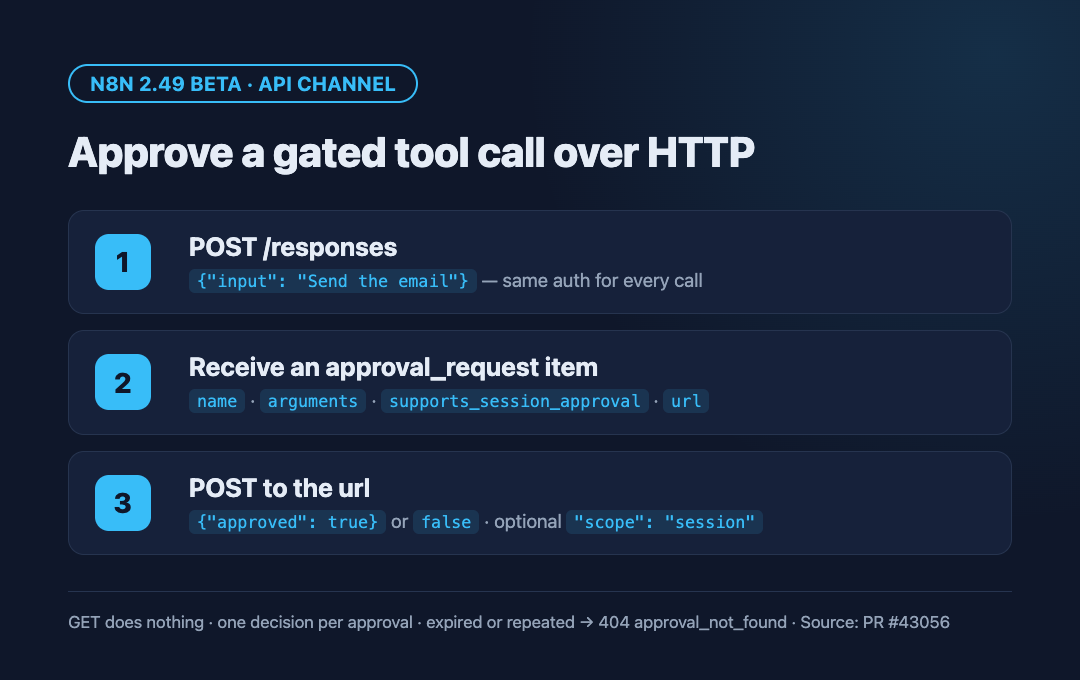
Approval requests over HTTP (PR #43056). An agent's webhook channel, now shown as API in the UI (PR #43758), speaks a subset of the OpenAI Responses API. Before this change it declined any action that needed approval. Now, when a run stops on a gated tool, the response holds one approval_request item per action:
{
  "type": "approval_request",
  "id": "<TOOL_CALL_ID>",
  "name": "send_email",
  "display_name": "Send customer email",
  "arguments": "{\"to\":\"customer@example.com\"}",
  "supports_session_approval": false,
  "url": "<APPROVAL_URL>"
}
The caller answers with a POST to that URL, using the same authentication as the /responses endpoint. The PR gives these two calls: first a message to the agent, then an approval of the pending tool call.
curl -X POST <YOUR_AGENT_ENDPOINT_URL> \
  -H 'Content-Type: application/json' \
  -d '{"input": "Send the email"}'

curl -X POST <APPROVAL_URL> \
  -H 'Content-Type: application/json' \
  -d '{"approved": true}'
Send {"approved": false} to deny. If the item has supports_session_approval: true, you can add "scope": "session". A GET on the approval URL does nothing, so link scanners in chat tools cannot approve by accident. Each decision works once. Approvals expire after a timeout the PR does not state, and a late or repeated decision returns 404 approval_not_found.
Tool guardrails (PR #43664). 2.49.0 also checks agent tool calls against pattern guardrails (keywords, pii, secretKeys, urls, customRegex) before the call or on its result. The PR says there is no UI yet and enforcement is backend-only. Treat it as something to watch, not a replacement for human review.
Which n8n approval setup should you use?
| Your situation | Use | When |
|---|---|---|
| Canvas workflow with an AI Agent node | Human review step | Now |
| Agent that talks to users in Slack or Teams | Agents (Preview) approvals | Now, if you accept Preview status |
| Your own app calls the agent over HTTP | API channel approvals | Test on 2.49 beta, wait for stable |
| Queue mode self-hosted cluster | Human review on the AI Agent node | Now. Agents need regular mode |
| Agent only reads data | No review | Not needed |
Troubleshooting n8n approvals
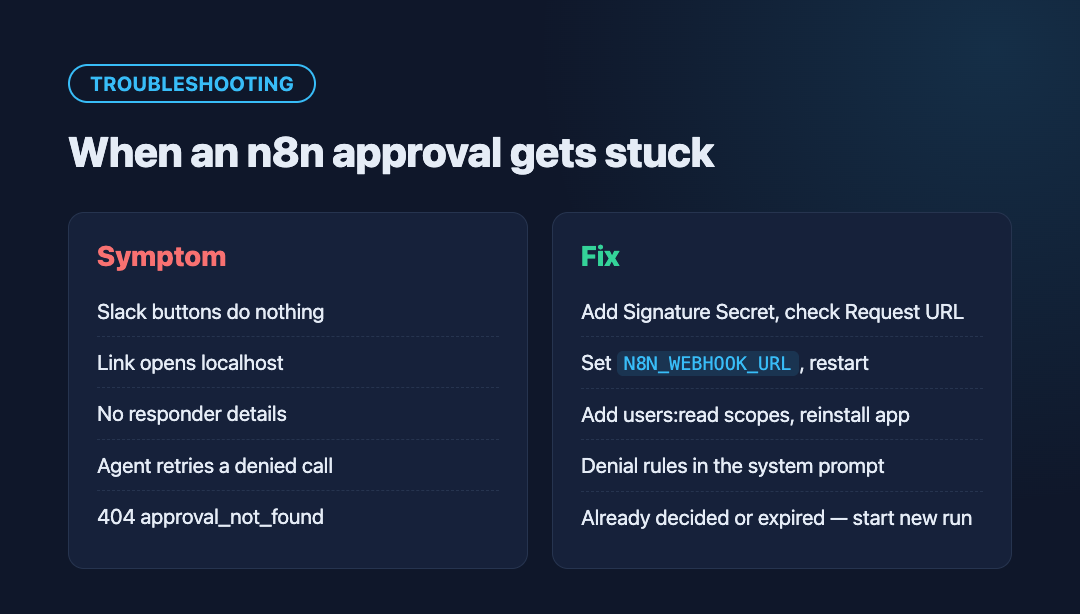
Slack buttons do nothing. Check the Signature Secret in the n8n Slack credential. The docs say clicks won't resume the workflow without it. Then confirm the Interactivity Request URL ends in /webhook-waiting-slack on your public domain.
The approval link points to localhost. N8N_WEBHOOK_URL is not set or n8n was not restarted. Set it to your public HTTPS address and restart.
No responder details in the output. Add the users:read and users:read.email scopes, reinstall the Slack app to your workspace, and turn on Capture Who Responded.
The agent keeps retrying a denied tool. Add the denial rules to the system prompt as shown above.
Agents don't respond on a queue mode install. The docs say queue mode isn't supported for agents yet. Use the AI Agent node with a Human review step instead.
approval_not_found from the API channel. The approval was already decided or expired. Send a new message to start a fresh run.
To roll back a test of the 2.49 beta, pin your image back to the stable tag (for example n8nio/n8n:2.48.8) and restart. Take a database backup first. Beta releases can include migrations.
If your agent sorts incoming items before it acts, n8n Text Classifier confidence scores pair well with human review: low-confidence items go to a person, and the rest flow through. For agents that drive a browser, the same review step can gate the actions described in the n8n Browser Use setup guide.
FAQ
Does human review work inside sub-agents? Yes. The docs say human review steps in a sub-agent work when an AI Agent is used as a tool for another AI Agent.
Can the user chat in one place and the approver respond in another? Yes. A user can talk to the agent in n8n Chat while approval requests go to a specific person in Slack.
Does Gmail support in-message approve buttons like Slack? Gmail is one of the nine Human review channels. On November 23, 2026 the Gmail node page did not document send-and-wait options, so check the node settings in your version.
Is the n8n 2.49 API channel approval safe for production? Not yet. 2.49.0 to 2.49.4 are pre-releases, and the feature has no docs page. Test it on a staging instance and wait for a stable release.
What happens to a waiting approval if I turn agents off? For the Agents product, the docs say active runs can finish, including runs waiting for approval.
The next step after approvals is logging who approved what. Capture Who Responded in Slack is the easiest place to start.
References
Checked on November 23, 2026.
- n8n Docs: Human-in-the-loop for AI tool calls (official)
- n8n Docs: Slack node (official)
- n8n Docs: Build and manage agents (official)
- n8n Docs: Endpoints environment variables (official)
- n8n Docs: Release notes (official)
- GitHub: n8n@2.49.0 release (official)
- GitHub: PR #43056, approval requests in the webhook agent channel (official)
- GitHub: PR #43664, pattern-based tool guardrails (official)