ChatGPT Slides lets you build an editable presentation inside ChatGPT, edit it with teammates, and export it to PowerPoint, PDF or Google Slides. Ask ChatGPT in Work for a deck, or open Space and choose Create → Slide. It is rolling out to eligible Pro, Business and Enterprise users with Space access, on the web and in the desktop app. Plus, Go and Free plans are not included.
OpenAI announced Slides in the ChatGPT release notes on October 16, 2026. This guide walks through who can use it, three ways to start a deck, editing and comments, export options, and the Windows desktop catch that turns a shared deck into a plain .pptx file. It is based on OpenAI's release notes and Help Center articles, checked on October 24, 2026. We describe documented behavior only; we did not record our own test deck for this article, so menu wording in your account may differ slightly.
ChatGPT Slides at a glance
Slides lives inside Space, the shared area OpenAI launched on September 29, 2026. Space holds Pages, files and now Slides, and it replaces Library for accounts that have it. Projects stay separate.
| Item | What OpenAI documents |
|---|---|
| Plans | Pro, Business, Enterprise (with Space access) |
| Not included | Free, Go, Plus (no date announced) |
| Where you edit | Web and desktop app |
| Mobile | Space on mobile is for finding, reading and sharing; no editing |
| Starting points | Work prompt, Space Create → Slide, template |
| Export (web) | PowerPoint, PDF, Google Slides |
| Desktop | Open in PowerPoint or Keynote if installed |
The rollout is gradual. OpenAI's help article says Slides "may not be available for your account" yet, even on an eligible plan. Business and Enterprise workspaces that use data residency in Canada or the UAE do not have Space yet; OpenAI lists it as coming soon.
How to create a deck in ChatGPT Slides
There are three documented entry points. All three end with an editable deck saved in Space.
Option 1: Ask ChatGPT in Work
This is the path the release notes describe. Open a chat in Work and ask for a presentation. Give it the source material and the shape of the deck:
Create a 10-slide presentation in Space from the attached Q3 report.
Audience: leadership team. One chart per section, short bullet points,
speaker notes on every slide. End with three decisions we need.
You can start from the current conversation, from uploaded files, or from an outline you paste in. ChatGPT builds the deck and you open it in Space to keep working.
Option 2: Space → Create → Slide
Open Space in the sidebar, then choose Create → Slide. Pick a blank slide or a template. This is the better route when you want to lay out the structure yourself and use ChatGPT only for specific slides.
Option 3: Start from an example deck or a template
If your company has a brand deck, give ChatGPT an example presentation. It follows that deck's style and layout. For repeat use, OpenAI's help article says you can build your own templates with template-creator and share them with your team by placing them in the team's Plugins.
| Start from | Best for | What you supply |
|---|---|---|
| Conversation | Turning a long chat into a summary deck | The chat itself |
| Files | Reports, spreadsheets, meeting notes | Uploaded files |
| Outline | A talk you already planned | Slide titles and bullets |
| Example deck | Matching company branding | An existing presentation |
| Template | Repeated decks (weekly status, sales) | A template from template-creator |
Edit slides by hand or with Request edits
Once the deck exists, you have two ways to change it:
- Direct editing. Click text, images, shapes, tables or charts on the slide and change them yourself.
- Request edits. Select an element and use Request edits to ask ChatGPT to change only that part, for example "turn this table into a bar chart" or "cut this to three bullets."
Images can be generated by ChatGPT or uploaded. On the web, the font picker shows fonts available in your browser. The desktop app can use fonts installed on your computer, which matters if your brand font is not a web font.
A practical prompt pattern for revisions is to name the slide and the constraint:
On slide 4, replace the paragraph with a 3-column table:
Metric | Q2 | Q3. Keep the existing colors. Do not change other slides.
Share a ChatGPT Slides deck and collaborate
Slides uses the same sharing model as Space Pages.
- Open the deck in Space and share it with teammates.
- Choose view or edit access. Comment-only access was not available at launch.
- People with edit access can change slides at the same time and leave shared comments.
- In a comment, @mention ChatGPT and ask it to apply the feedback.
Sharing a deck does not give others access to your private chats or memory. Anything you put on the deck is visible to everyone who can view it, so check slides built from internal files before you share.
For admins: OpenAI's admin guidance says Slides uses the same access setting as Space and Pages. If sharing in Space is not enabled for your workspace, members can create decks but collaboration may be limited. Enterprise admins may need to turn on sharing first.
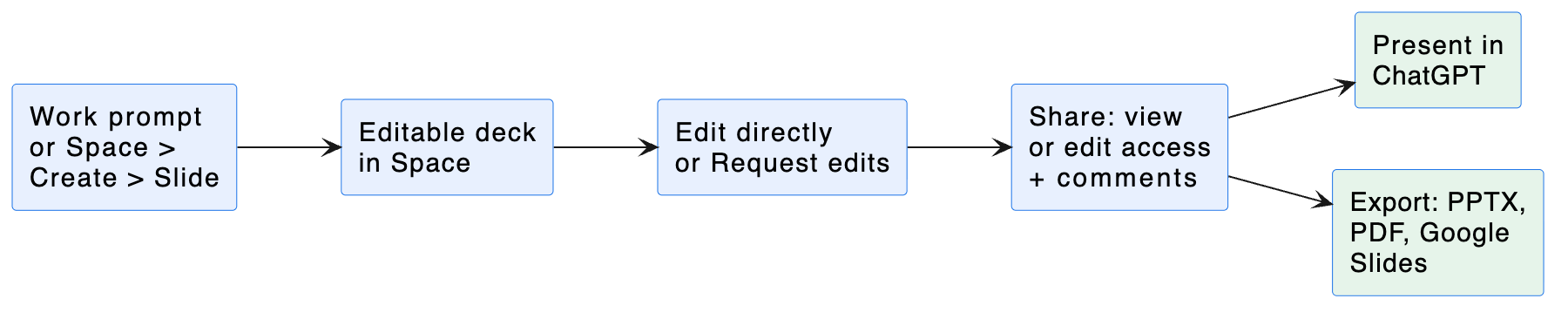
View PlantUML source
@startuml
left to right direction
skinparam shadowing false
skinparam defaultFontSize 15
skinparam rectangleBackgroundColor #E8F0FE
skinparam rectangleBorderColor #1A73E8
rectangle "Work prompt\nor Space >\nCreate > Slide" as A
rectangle "Editable deck\nin Space" as B
rectangle "Edit directly\nor Request edits" as C
rectangle "Share: view\nor edit access\n+ comments" as D
rectangle "Present in\nChatGPT" as E #E6F4EA
rectangle "Export: PPTX,\nPDF, Google\nSlides" as F #E6F4EA
A --> B
B --> C
C --> D
D --> E
D --> F
@enduml
Export ChatGPT Slides to PowerPoint, PDF or Google Slides
You do not have to export to present. Decks can be presented directly from ChatGPT. When you need a file:
| Where you are | Option | Result |
|---|---|---|
| Web | Export to PowerPoint | .pptx file |
| Web | Export to PDF | Fixed-layout handout |
| Web | Export to Google Slides | Editable Google Slides deck |
| Desktop app | Open in PowerPoint or Keynote | Opens if the app is installed |
| Desktop app (macOS) | Show in Finder | Locates the file |
OpenAI's own advice is to "open the exported presentation and check its content and formatting before using it." Fonts, chart styles and spacing are the usual things to check after any format conversion. Also verify every figure and source on the slides. ChatGPT can misread a table in a file, and the export carries the error with it.
If you export to Google Slides and keep the numbers in Sheets, our guide to the new box plot in Google Sheets shows another October 2026 chart option you can link into a deck.
ChatGPT Slides on Windows: the MXC caveat
This is the most common surprise. On Windows, the desktop app needs a system component OpenAI calls MXC to create and edit collaborative Slides locally. Without it, local slide work falls back to ordinary PowerPoint (.pptx) files.
| Your setup | What happens | What to do |
|---|---|---|
| Web browser (any OS) | Collaborative Slides in Space | Nothing; this is the reference path |
| macOS desktop app | Collaborative Slides | Nothing extra documented |
| Windows 11 desktop, MXC available | Collaborative Slides | Nothing |
| Windows 11 desktop, no MXC | Local .pptx file instead | Update Windows or ask IT to enable it, or use the web |
| Windows 10 desktop | Local .pptx file instead | Use the web or cloud Work |
OpenAI's wording: "Windows 10 does not support this component, and Windows 11 users may need an update or their organization to enable it." OpenAI does not say what MXC stands for. The .pptx you get still contains your slides, but it is not the shared copy others can edit at the same time.
ChatGPT Slides not showing? Quick checks
- Check your plan. Plus, Go and Free accounts do not get Slides. Pro, Business and Enterprise only.
- Check that you have Space. If Library still shows in your sidebar instead of Space, Space has not reached your account, and Slides cannot appear either.
- Wait for the rollout. Eligible accounts receive it gradually.
- Ask your admin. In managed workspaces, Space and sharing settings control Slides.
- Switch to the web. On Windows 10 or a Windows 11 PC without MXC, the browser gives you the collaborative deck.
If you also use OpenAI's other new media features, our guide to OpenAI prompt-to-voice covers creating a custom voice from a text description.
FAQ
Is ChatGPT Slides available on the Plus plan? No. As of October 24, 2026, Slides is rolling out to eligible Pro, Business and Enterprise users with Space access. OpenAI has not given a date for Plus, Go or Free.
Can I edit ChatGPT Slides on my phone? Not according to the Space help article. On mobile, you can find, read and share Space content, but editing happens on the web or in the desktop app.
Can ChatGPT Slides export to Keynote? OpenAI documents export to PowerPoint, PDF and Google Slides on the web. The desktop app can open a deck in Keynote if Keynote is installed. Some news coverage lists Keynote as an export format, but OpenAI's wording is "open in."
Why did ChatGPT give me a .pptx file instead of a shared deck? You are probably using the Windows desktop app without the MXC component. Windows 10 does not support it. Use the web, or ask IT whether Windows 11 can be updated to enable it.
Can a teammate comment without edit rights? Not at launch. Decks can be shared with view or edit access, and comment-only access was not available.
Summary
ChatGPT Slides turns a chat, files or an outline into an editable deck in Space. Start from a Work prompt or Create → Slide, refine it with Request edits, share it with view or edit access, and export to PowerPoint, PDF or Google Slides from the web. On Windows, use the browser if the desktop app hands you a .pptx instead of a shared deck.
Written on October 24, 2026, based on OpenAI's documentation as of that date. Availability, menu names and export options may change as the rollout continues.
References
- ChatGPT release notes: ChatGPT Slides (Oct 16, 2026) and Space (Sep 29, 2026) — help.openai.com (checked Oct 24, 2026)
- Creating and collaborating on slides in ChatGPT — help.openai.com (checked Oct 24, 2026)
- Getting started with Space in ChatGPT — help.openai.com (checked Oct 24, 2026)
- Creating and editing documents, spreadsheets, and presentations with ChatGPT Work — help.openai.com (checked Oct 24, 2026)
- ChatGPT Slides is finally here (Oct 20, 2026) — androidauthority.com (checked Oct 24, 2026)
- ChatGPT Slides on Windows 10 and the MXC component — mixed-news.com (checked Oct 24, 2026)